News and Events
Overview
Fisher Portal includes built-in content management for keeping your organisation informed. The Communications and Schedule sections of the sidebar provide access to news posts, FAQs, events, and countdowns. As a Client Staff member, you have read-only access to this content — creating and editing is handled by your Client Admin.
News Posts
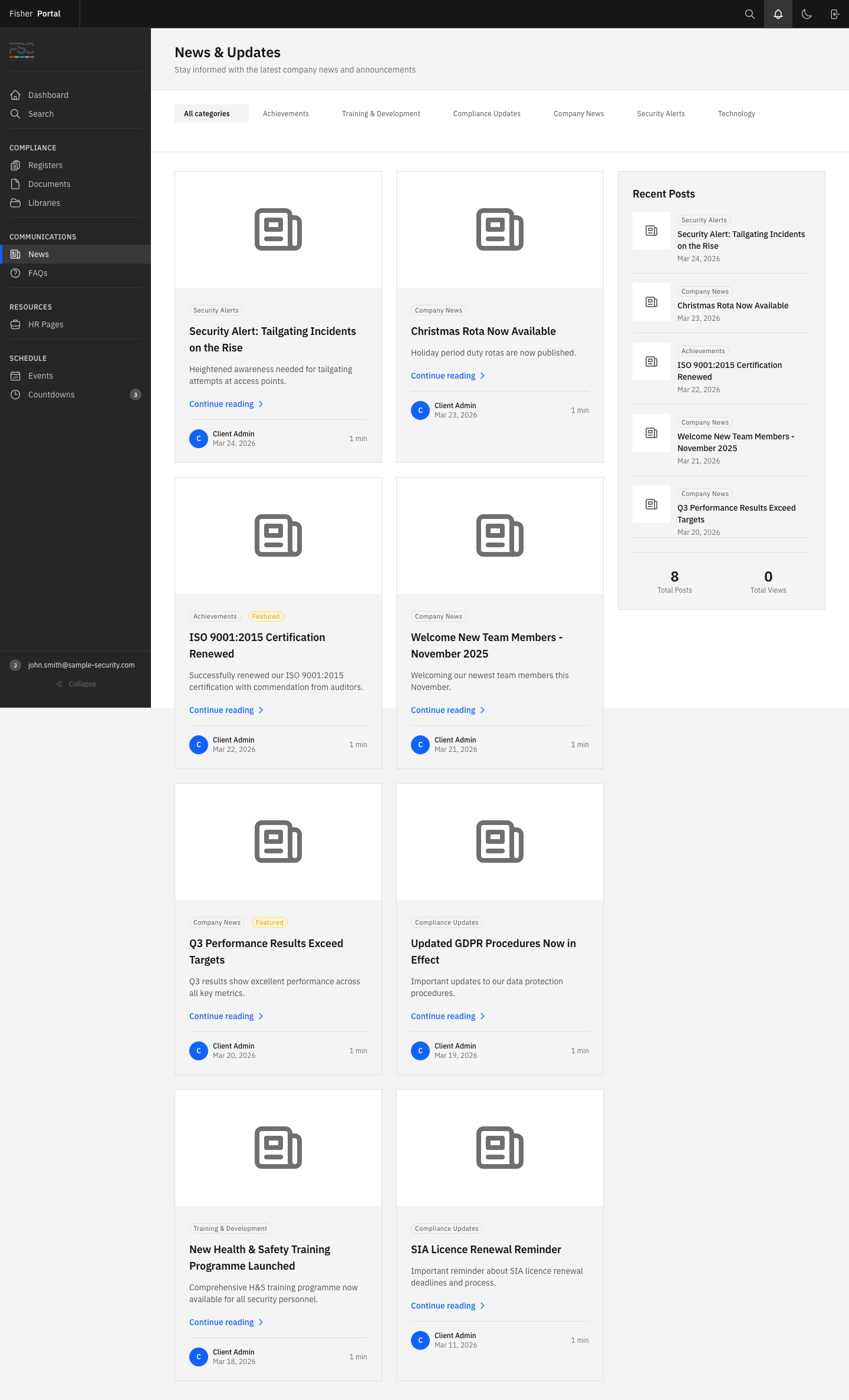
News posts are used to share updates, announcements, and important information with your organisation.
Viewing News
- Click News in the sidebar under the Communications section.
- The news listing page shows all published posts, with the most recent first.
- Each post displays:
- Title — the headline of the post
- Publication date — when the post was published
- Summary — a preview of the post content
- Click on a post title to read the full article.
The sidebar badge next to News shows the number of posts published in the last 7 days, so you can quickly see if there is anything new.
FAQs
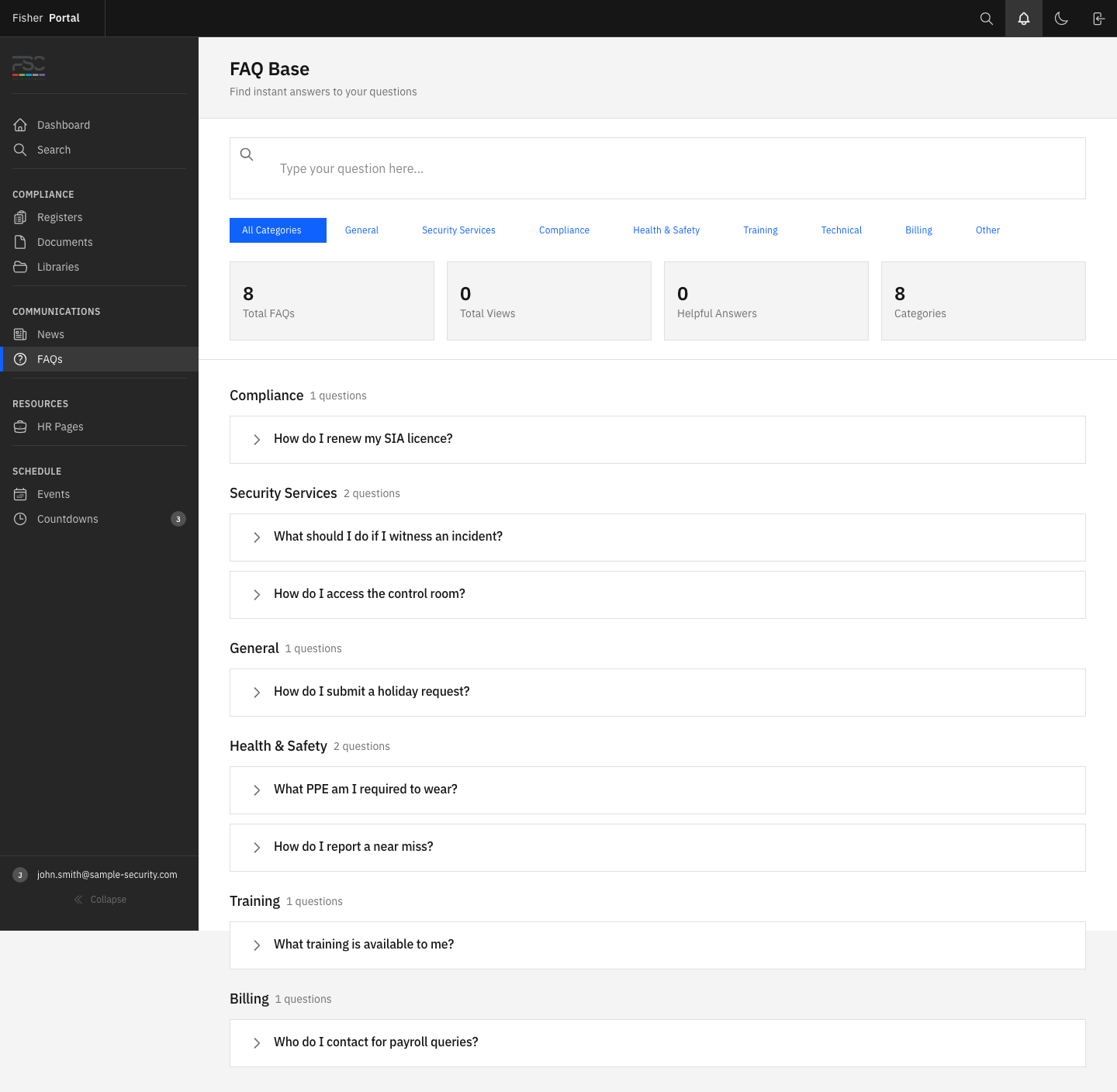
Frequently asked questions provide quick answers to common queries about compliance, procedures, and using the portal.
Viewing FAQs
- Click FAQs in the sidebar under the Communications section.
- The FAQ page lists all questions with expandable answers.
- Click on a question to reveal (or collapse) the answer.
FAQs are a useful first point of reference when you have a question about your organisation’s compliance processes.
Events
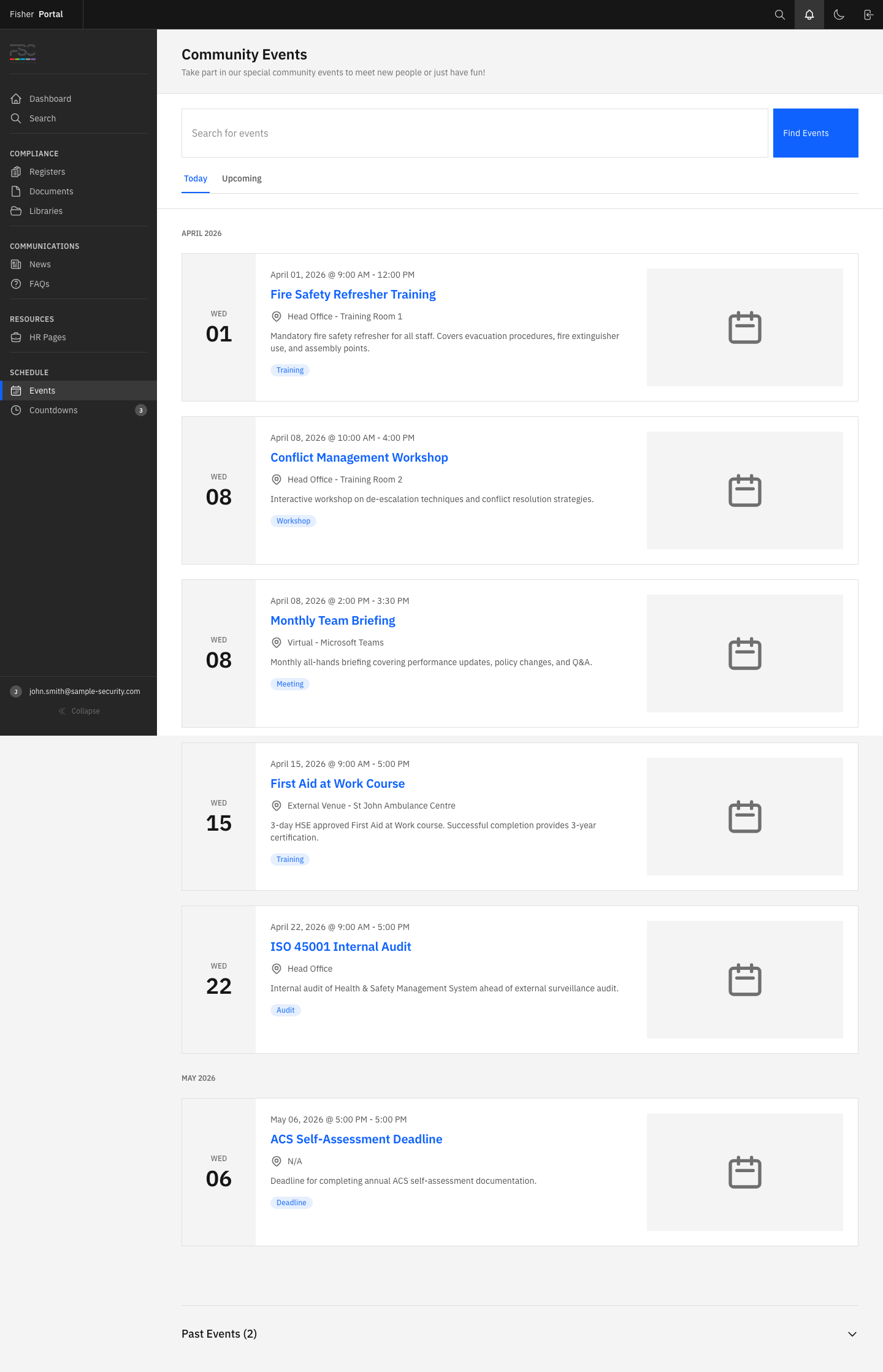
Events track important dates such as training sessions, audits, compliance reviews, and company meetings.
Viewing Events
- Click Events in the sidebar under the Schedule section.
- The events listing page shows all events, typically sorted by date.
- Each event displays:
- Event name — what the event is
- Date and time — when it takes place
- Description — additional details about the event
- Location — where the event is held (if applicable)
The sidebar badge next to Events shows the number of upcoming events (with a date on or after today).
Countdowns
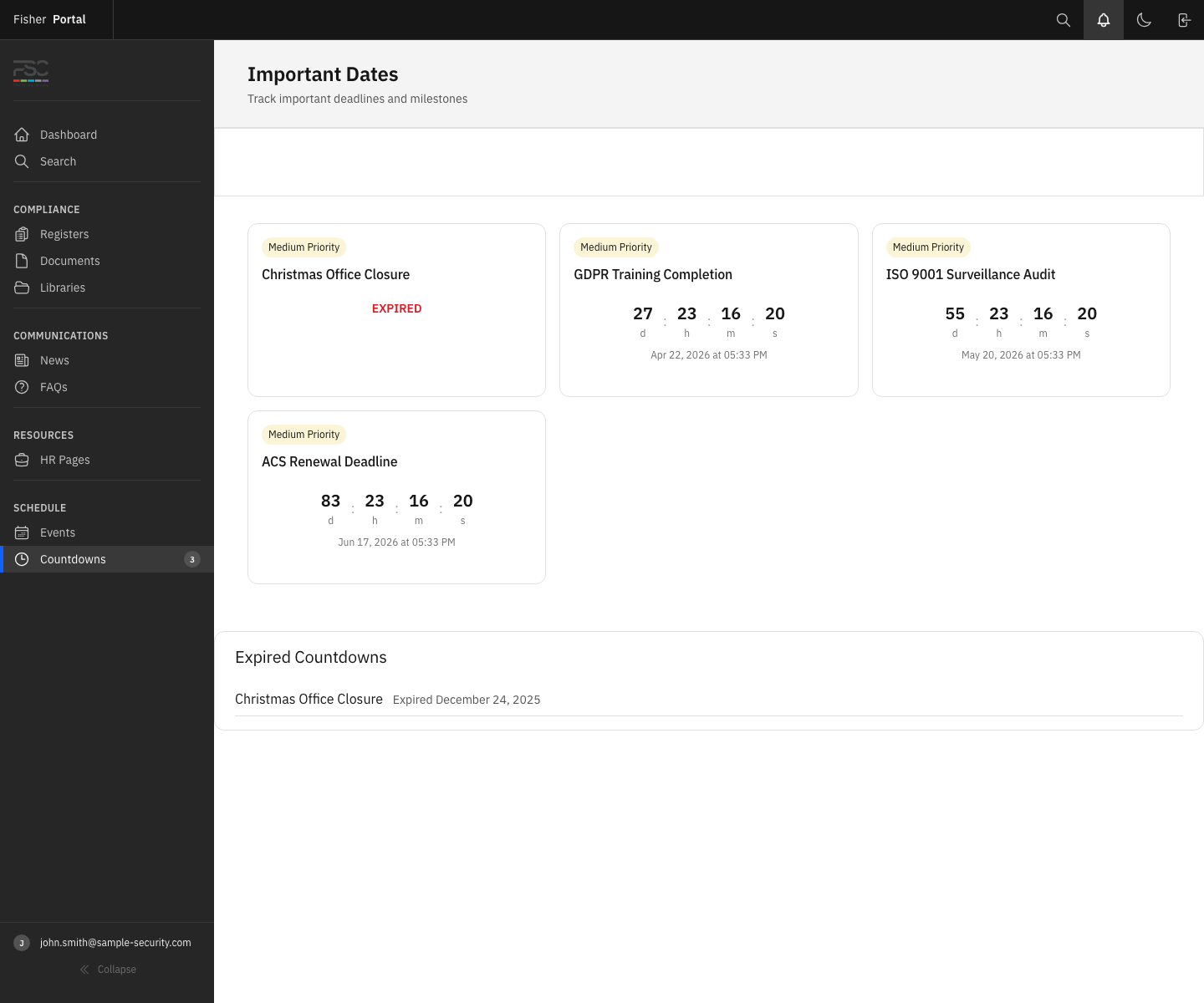
Countdowns are visual timers counting down to important deadlines or milestones, such as certification renewal dates, audit deadlines, or licence expiry dates.
Viewing Countdowns
- Click Countdowns in the sidebar under the Schedule section.
- The countdowns page shows all active countdowns with:
- Countdown name — what the deadline is for
- Target date — the date being counted down to
- Days remaining — how many days are left
The sidebar badge shows the number of active countdowns (with a target date on or after today).
HR Pages
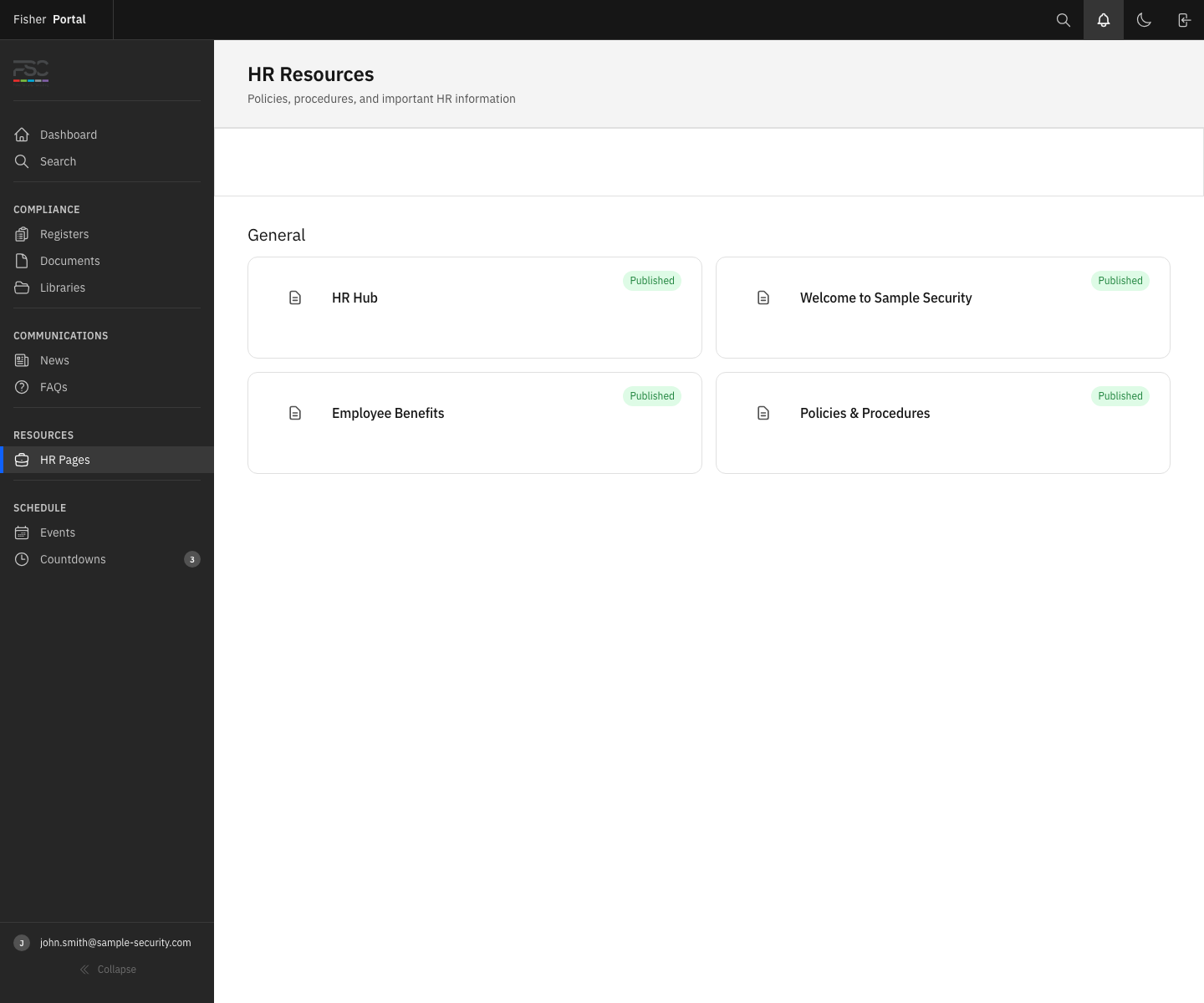
Human resources content such as staff handbooks, onboarding guides, and organisational policies may be available under HR Pages in the Resources section of the sidebar.
Viewing HR Pages
- Click HR Pages in the sidebar under the Resources section.
- Browse the available HR content.
- Click on a page to read its full content.
Tips
- Check news regularly: Important compliance updates, policy changes, and organisational announcements are often shared through news posts.
- Use FAQs before asking: Many common questions are already answered in the FAQs section. Check there first before contacting your administrator.
- Monitor countdowns: Countdowns highlight approaching deadlines. If a countdown is nearing zero, ensure you are prepared (e.g. training renewals, licence expiry dates).
- Sidebar badges: The numbers next to News, Events, and Countdowns in the sidebar give you a quick overview of what is current without needing to open each page.
Troubleshooting
| Problem | Solution |
|---|---|
| No news posts visible | Your organisation may not have published any news posts yet. Check back later or contact your Client Admin. |
| Cannot create or edit a post | Client Staff have read-only access to CMS content. Contact your Client Admin if you have information to share. |
| Event dates appear incorrect | Event dates are displayed in your browser’s local timezone. If you are in a different timezone to your organisation, times may appear offset. |
| FAQs section is empty | Your Client Admin may not have added any FAQs yet. Contact them to suggest questions that would be useful. |
| Countdown shows negative days | The target date has passed. Your Client Admin may need to update or remove the expired countdown. |