Viewing Documents
Overview
The document library in Fisher Portal provides a centralised location for all your organisation’s compliance documents, including policies, procedures, templates, forms, and records. Documents are organised in a hierarchical folder structure, making it straightforward to find what you need.
As a Client Staff member, you have read-only access to the document library. You can browse folders, view document details, and download files, but you cannot upload, edit, move, or delete documents. Document management is handled by your Client Admin.
Step-by-Step Guide
Step 1: Navigate to Documents
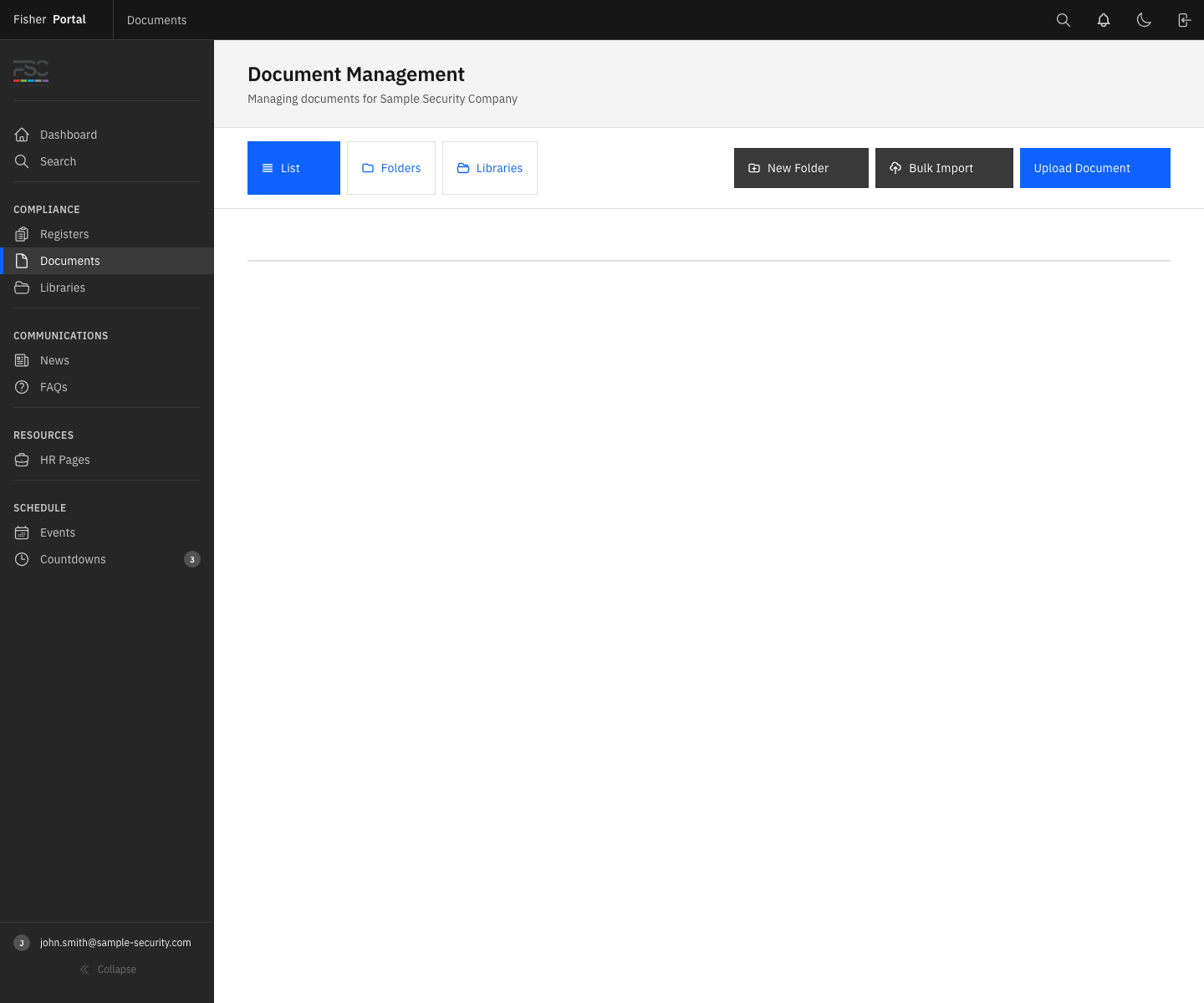
Click Documents in the sidebar navigation under the Compliance section. This opens the document library showing the top-level folder structure.
Step 2: Browse the Folder Hierarchy
Documents are organised into folders and subfolders. Common top-level folders include:
- Company Policies — Organisational policies (e.g. Data Protection Policy, Business Continuity Policy)
- Company Procedures — Step-by-step procedures organised by category
- Health and Safety procedures
- Information Security procedures
- Quality Management procedures
- Environmental procedures
- Document Templates — Blank forms and templates for operational use
- Registers — Register-related document templates
Click on a folder icon to open it and view its contents. The breadcrumb trail at the top of the page shows your current location within the folder hierarchy.
Step 3: View Document Details
Click on a document (not a folder) to open the document detail page. Here you will see:
| Detail | Description |
|---|---|
| Document name | The title of the document |
| Document code | A reference code (e.g. “CP20”, “HSF-01”) |
| File type and size | The file format (PDF, DOCX, XLSX) and file size |
| Date | When the document was last updated |
| Description | A summary of what the document covers |
| Version history | A log of changes (if version control is enabled) |
Step 4: Download a Document
From the document detail page, click the Download button to save a copy of the document to your computer. The file will download in its original format (e.g. .docx, .pdf, .xlsx).
Step 5: Navigate Back
Use the breadcrumb trail at the top of the page to navigate back to a parent folder. Alternatively, click Documents in the sidebar to return to the top level.
Document Libraries (SharePoint Integration)
Your organisation may also have SharePoint-connected libraries available. These appear under the Libraries link in the sidebar.
SharePoint libraries sync documents from your organisation’s SharePoint environment into Fisher Portal, providing a single access point for both local and cloud-stored documents.
Note: SharePoint library configuration is managed by your Client Admin. If you need access to a specific SharePoint library, contact your administrator.
Tips
- Use search to find documents quickly: Rather than browsing through folders, use the global Search function (see Navigating the Portal) and filter by the “Documents” type.
- Download for offline use: If you need a document when you do not have internet access, download it in advance.
- Check for the latest version: Documents may be updated periodically. If version control is enabled, check the version history to ensure you are viewing the most recent version.
- Document codes help identify files: Many documents follow a coding convention (e.g. CP = Company Policy, HSF = Health and Safety Form). Learning your organisation’s coding system makes it faster to find what you need.
Troubleshooting
| Problem | Solution |
|---|---|
| No documents visible | Your organisation may not have any documents deployed yet. Contact your Client Admin. |
| Cannot find a specific document | Use the global search function and search by document name or code. The document may be in a subfolder. |
| Cannot upload or edit documents | Client Staff have read-only access to the document library. Contact your Client Admin if you need to upload or modify a document. |
| Download not starting | Check your browser’s download settings. Some browsers may block downloads or require you to confirm the save location. |
| Libraries link not visible | SharePoint libraries may not be configured for your organisation. Contact your Client Admin. |