Compliance Actions
Overview
Compliance actions are the corrective and preventive measures raised to address audit findings, compliance gaps, or improvement opportunities. The Action Plan provides a centralised view of all actions for a client, with filtering and status tracking to ensure nothing falls through the cracks.
Every action has:
- A title and optional description
- An owner responsible for completing it
- A due date for accountability
- A severity level (Low, Medium, or High)
- A status that progresses through the action lifecycle
Action Statuses
| Status | Description |
|---|---|
| Open | Newly raised, not yet started |
| In Progress | Work is underway |
| Blocked | Progress is prevented by a dependency or issue |
| Done | The action has been completed |
Severity Levels
| Severity | Description |
|---|---|
| Low | Minor improvement; no immediate compliance risk |
| Medium | Moderate gap; should be addressed within a reasonable timeframe |
| High | Significant compliance risk; requires urgent attention |
Step-by-Step Guide
Step 1: View the Action Plan
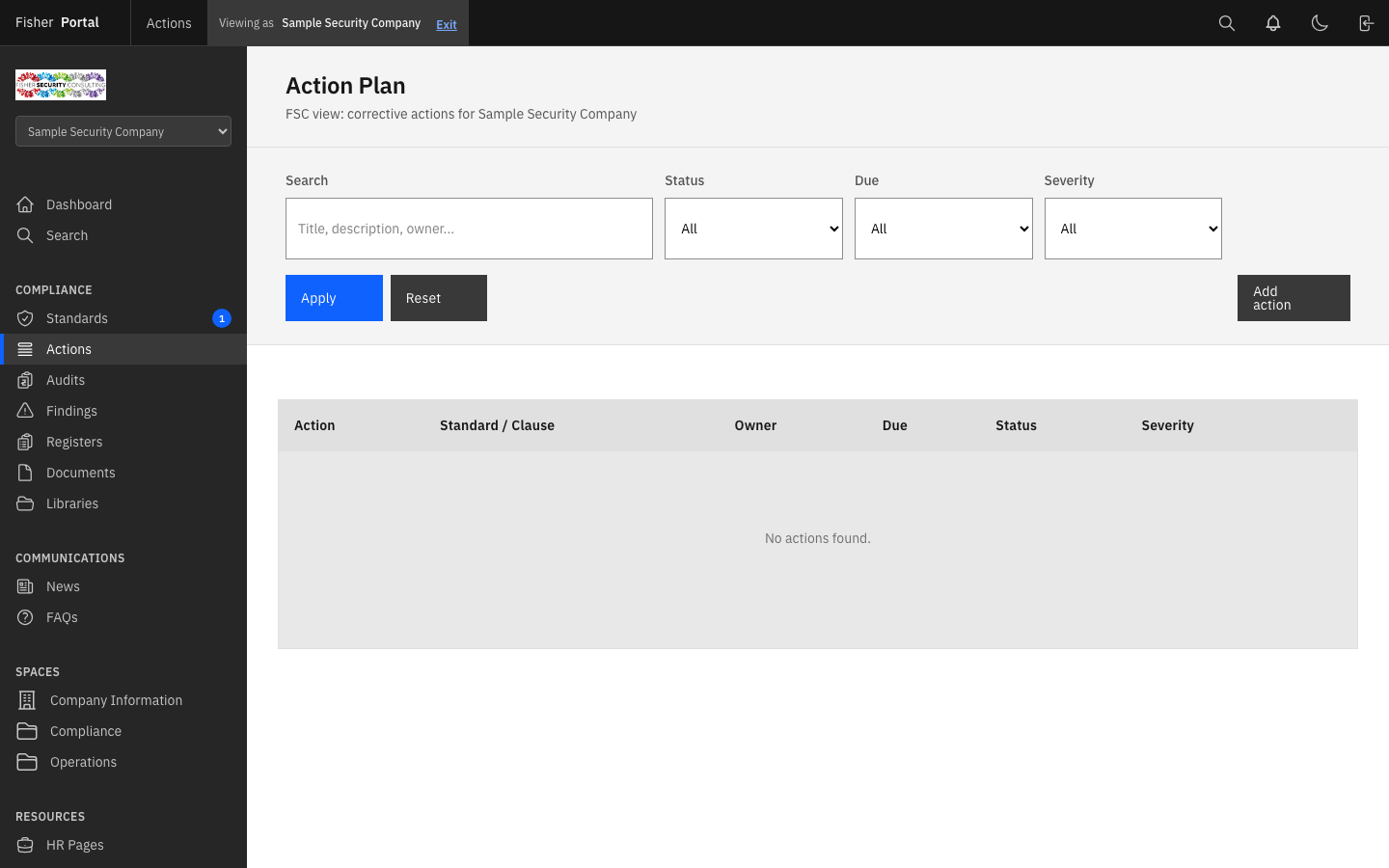
Navigate to your client’s compliance area and select Action plan from the navigation links. The action plan shows a table of all compliance actions for the selected client.
The table displays:
- Action — title and description excerpt
- Standard / Clause — the standard and clause the action relates to (if linked)
- Owner — the person responsible for completing the action
- Due — the due date (highlighted as “Overdue” in red if past due)
- Status — the current action status
- Severity — Low, Medium, or High
Step 2: Filter Actions
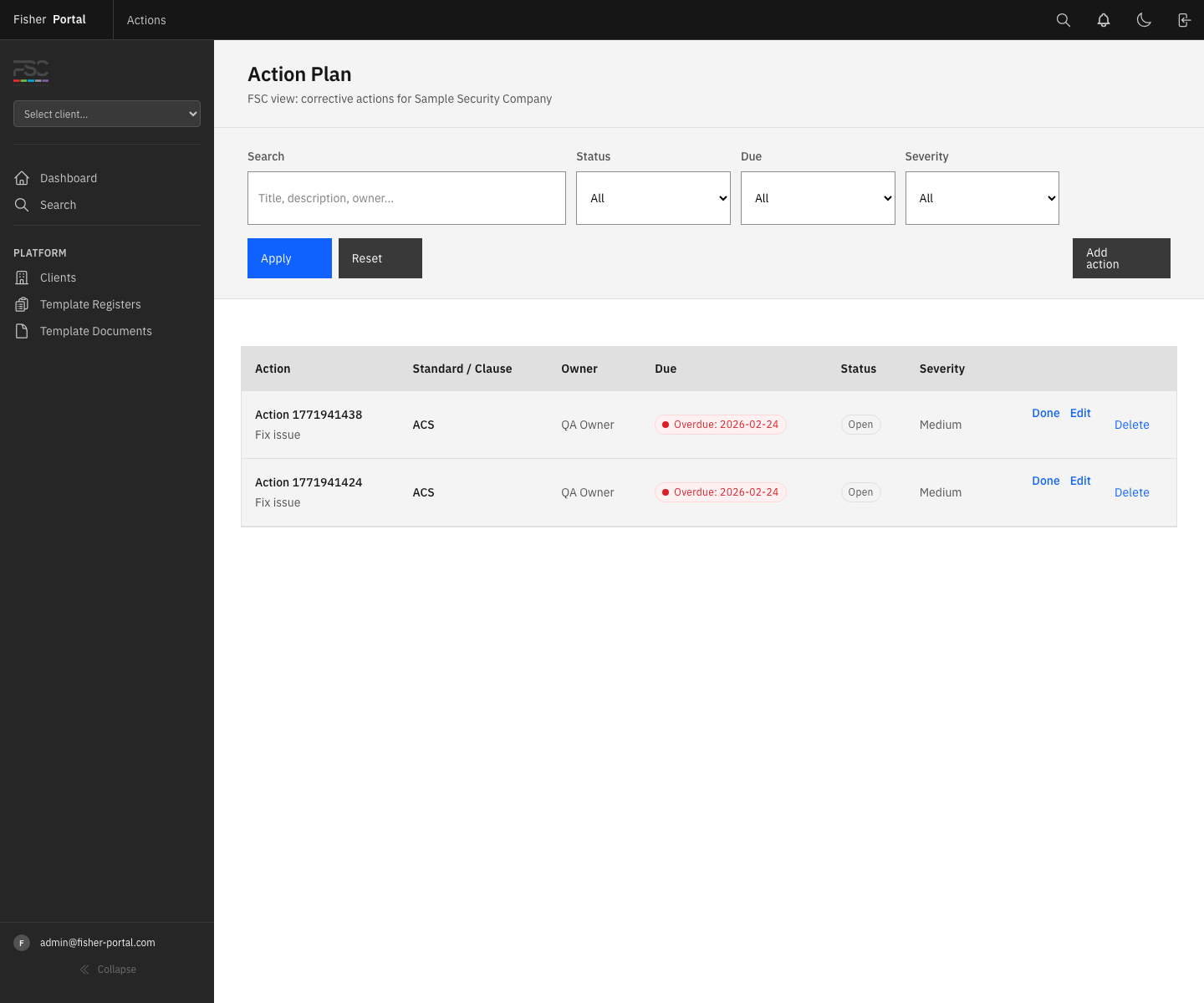
Use the filter bar at the top of the page to narrow down the list:
| Filter | Options |
|---|---|
| Search | Free text search across title, description, and owner name |
| Status | All, Open, In Progress, Blocked, or Done |
| Due | All, Overdue, or Due soon (within 30 days) |
| Severity | All, Low, Medium, or High |
Click Apply to activate your filters, or Reset to clear them and show all actions.
Step 3: Create a New Action
There are two ways to create an action:
Method A: From the Action Plan
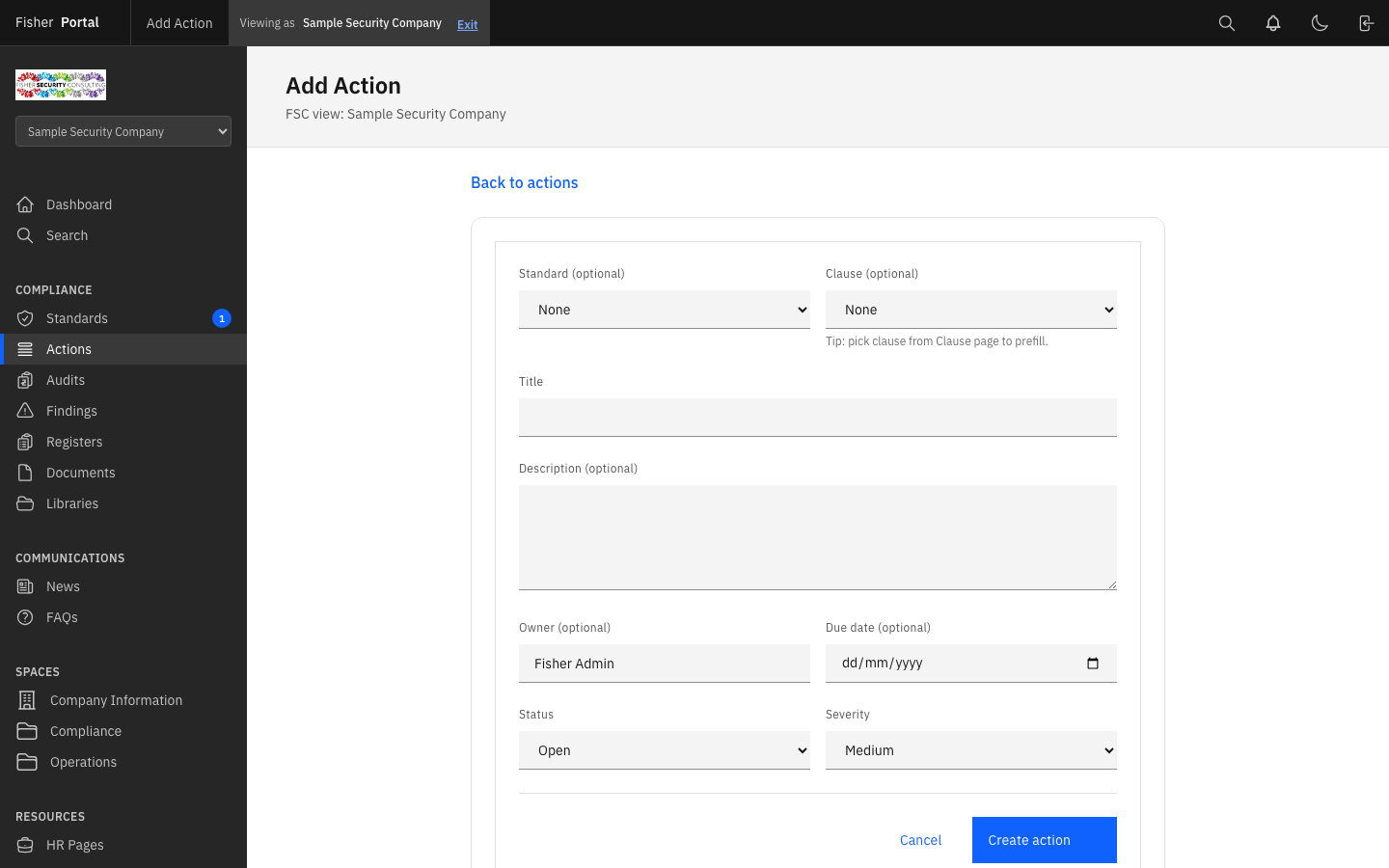
- Click the Add action button on the action plan page.
- Complete the form fields:
| Field | Required | Description |
|---|---|---|
| Standard | No | Link the action to a specific standard (e.g. ISO 9001) |
| Clause | No | Link to a specific clause within the selected standard |
| Title | Yes | A clear, actionable description of what needs to be done |
| Description | No | Detailed context, root cause, or implementation guidance |
| Owner | No | The person responsible (defaults to your name) |
| Due date | No | When the action should be completed by |
| Status | Yes | Open, In Progress, Blocked, or Done |
| Severity | Yes | Low, Medium, or High |
- Click Create action to save.
Method B: From an Audit Finding
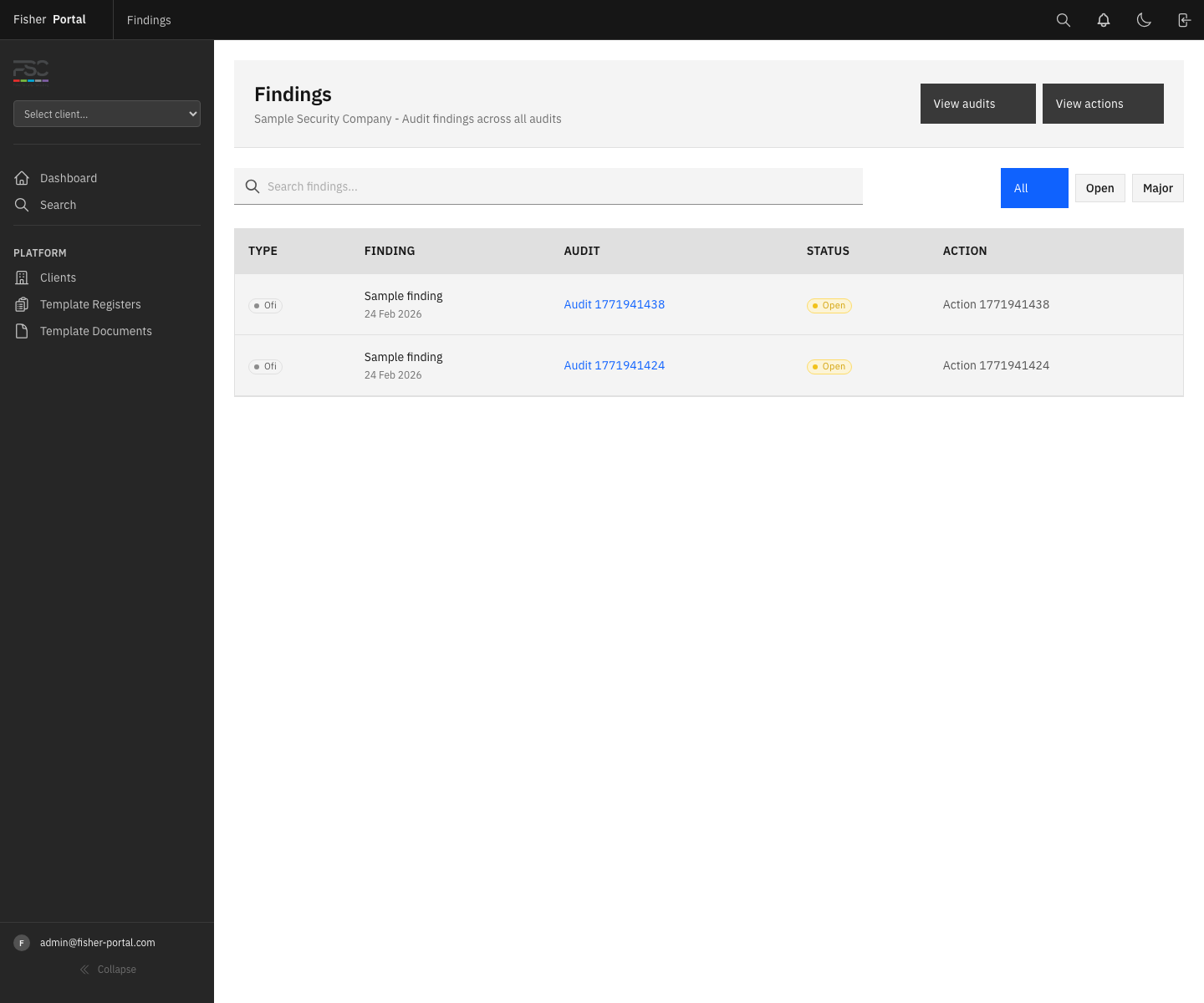
When recording findings during an audit, you can create an action directly from a finding:
- On the audit detail page, find the finding you want to raise an action for.
- Click Create action next to the finding.
- The new action form will open with the standard, clause, and a default title pre-populated from the finding.
- Add any additional detail, set the owner and due date, and save.
The action will automatically be linked to the audit finding, providing full traceability from finding to resolution.
Step 4: Mark an Action as Complete
From the action plan table, click the Done button next to any open action. The action’s status will change to “Done” and the completion timestamp will be recorded.
Step 5: Reopen a Completed Action
If an action needs further work after being marked as done, click the Reopen button next to the completed action. It will return to “Open” status.
Step 6: Edit an Action
Click Edit next to any action in the table to update its details. Common edits include:
- Updating the status as work progresses (Open to In Progress to Done)
- Changing the due date if timelines shift
- Adding description detail after further investigation
- Reassigning the owner
Step 7: Delete an Action
Click Delete next to any action in the table. You will be asked to confirm before the action is permanently removed.
Note: If the action is linked to an audit finding, the finding will remain but will no longer show a linked action. Consider marking actions as “Done” rather than deleting them to maintain an audit trail.
Linking Actions to Standards and Clauses
Linking actions to specific standards and clauses provides several benefits:
- Traceability — you can see which requirements are driving corrective work
- Reporting — filter the action plan by standard to get a standard-specific view
- Clause status — the clause tracker reflects the actions being taken
Tip: When creating an action from a clause detail page, the standard and clause will be pre-filled automatically.
Tips
- Set realistic due dates and review them regularly during client meetings.
- Use the “Overdue” filter at the start of each client engagement to identify actions that need immediate attention.
- Always assign an owner — actions without clear ownership tend to stall.
- Use severity consistently: High for anything that represents an active compliance breach or risk; Medium for gaps that need addressing but are not urgent; Low for improvement opportunities.
- Create actions from audit findings wherever possible to maintain the link between the audit trail and corrective work.
- Review the “Due soon” filter weekly to stay ahead of approaching deadlines.
- The action plan page also links to the Audits list via the navigation area, making it easy to switch between the audit programme and the action plan.
Troubleshooting
- “Title can’t be blank” error when saving — The title field is required. Enter a clear, actionable description.
- Clause dropdown is empty — The clause list only appears after selecting a standard. Choose the standard first, then select the clause.
- “Clause must belong to the selected standard” error — You have selected a clause that does not belong to the chosen standard. Change the standard or select a different clause.
- Overdue actions not showing — Check that you have selected “Overdue” in the Due filter and clicked Apply. Actions without a due date will not appear in the overdue filter.
- Cannot see the action plan — Ensure you are logged in as an FSC staff member and have navigated to the correct client’s compliance area.