Compliance Module Overview
Overview
The Compliance Module is the core of Fisher Portal’s compliance management capability. It provides FSC staff with a structured, auditable approach to managing ISO standards compliance across all client organisations. From tracking individual clause statuses to conducting audits and recording evidence, the module delivers a complete compliance lifecycle in one place.
As an FSC consultant, you use the compliance module to:
- Enable standards for each client (e.g. ISO 9001, ISO 14001, ISO 45001)
- Track clause-by-clause implementation with RAG (Red/Amber/Green) status indicators
- Conduct and record audits (internal, external, or supplier)
- Log findings against specific clauses, including non-conformities and opportunities for improvement
- Raise corrective and preventive actions linked to findings
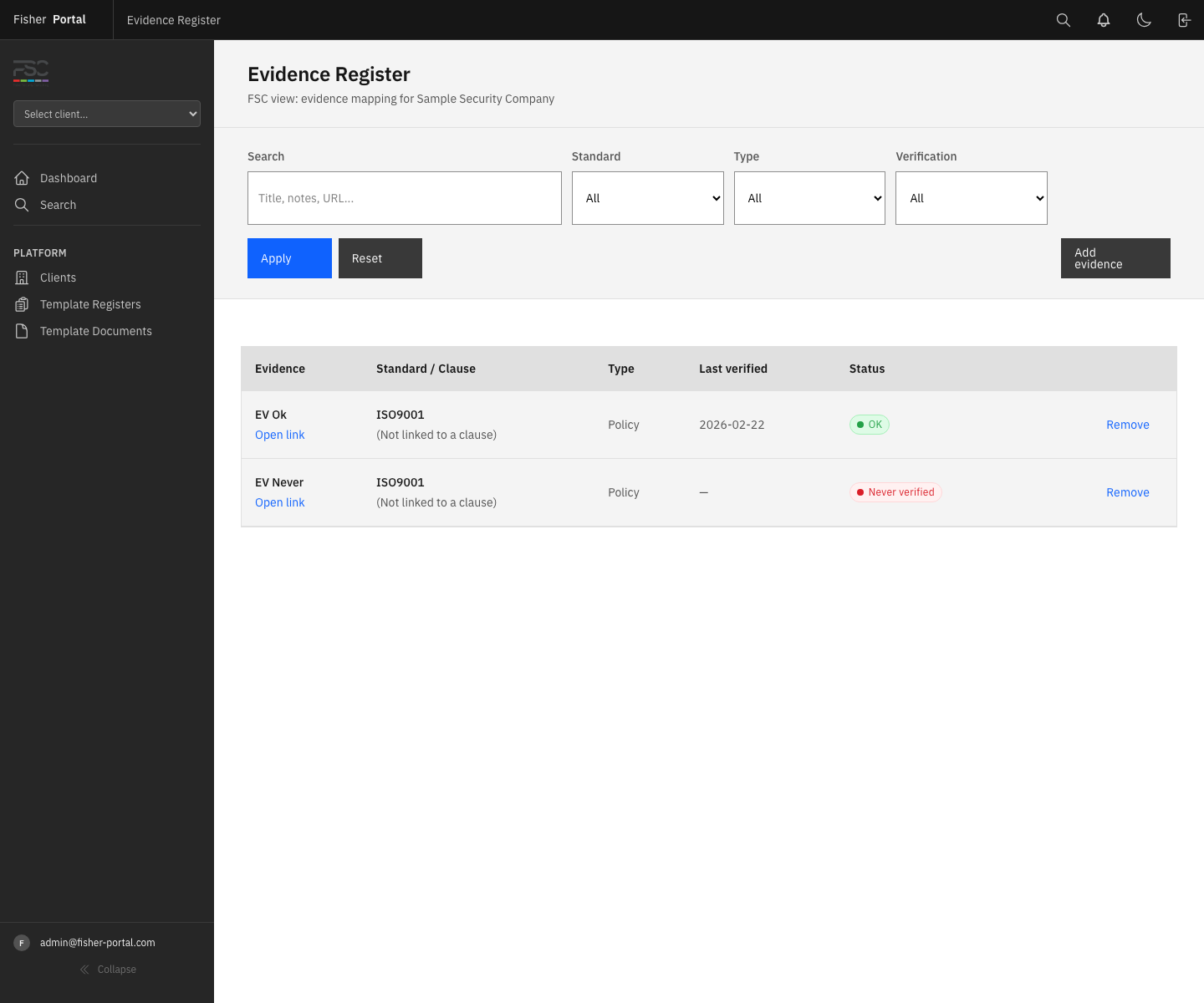
- Map evidence (documents, records, policies) to standard clauses
How the Compliance Data Model Fits Together
The compliance module follows a logical hierarchy that mirrors how compliance works in practice:
Standards (e.g. ISO 9001, ISO 14001) | +-- Clauses (e.g. 4.1, 5.2, 7.5) | | | +-- Clause Statuses (per client: implementation status + RAG) | +-- Evidence Links (documents/URLs proving compliance) | +-- Audits (internal, external, supplier) | +-- Findings (major NC, minor NC, OFI, conformity) | +-- Compliance Actions (corrective/preventive actions)Key Concepts
| Concept | Description |
|---|---|
| Standard | An ISO or industry standard (e.g. ISO 9001:2015). Standards contain clauses. |
| Clause | A specific requirement within a standard (e.g. clause 7.5 - Documented Information). |
| Clause Status | A client-specific record tracking implementation status (Not Started / Partially In Place / In Place) and RAG rating (Red / Amber / Green). |
| Audit | A formal review of a client’s compliance, which can be internal, external, or a supplier audit. |
| Finding | A result recorded during an audit: Major Non-Conformity, Minor Non-Conformity, Opportunity for Improvement (OFI), or Conformity. |
| Compliance Action | A corrective or preventive action raised to address a finding or compliance gap. Actions have owners, due dates, severity, and status tracking. |
| Evidence Link | A connection between a document (or external URL) and a specific standard/clause, proving that a requirement is being met. |
Navigating to Compliance Features
All compliance features are client-scoped. This means you must first select which client you are working with before accessing any compliance screens.
Step 1: Navigate to the Client List
From the main navigation, go to Clients to see all organisations you have access to.
Step 2: Select a Client
Click on the client name to open their profile page. From there, you can access compliance features.
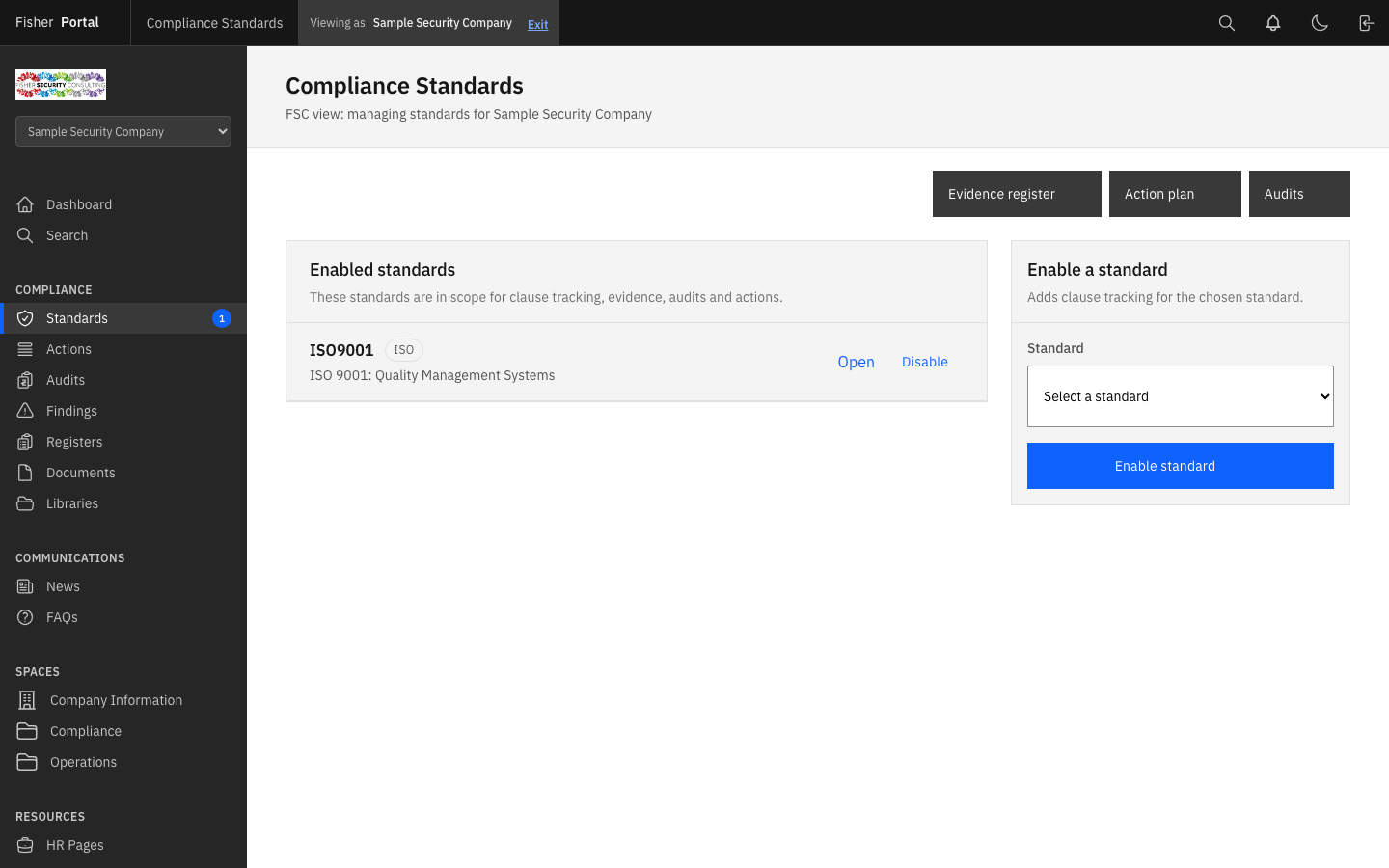
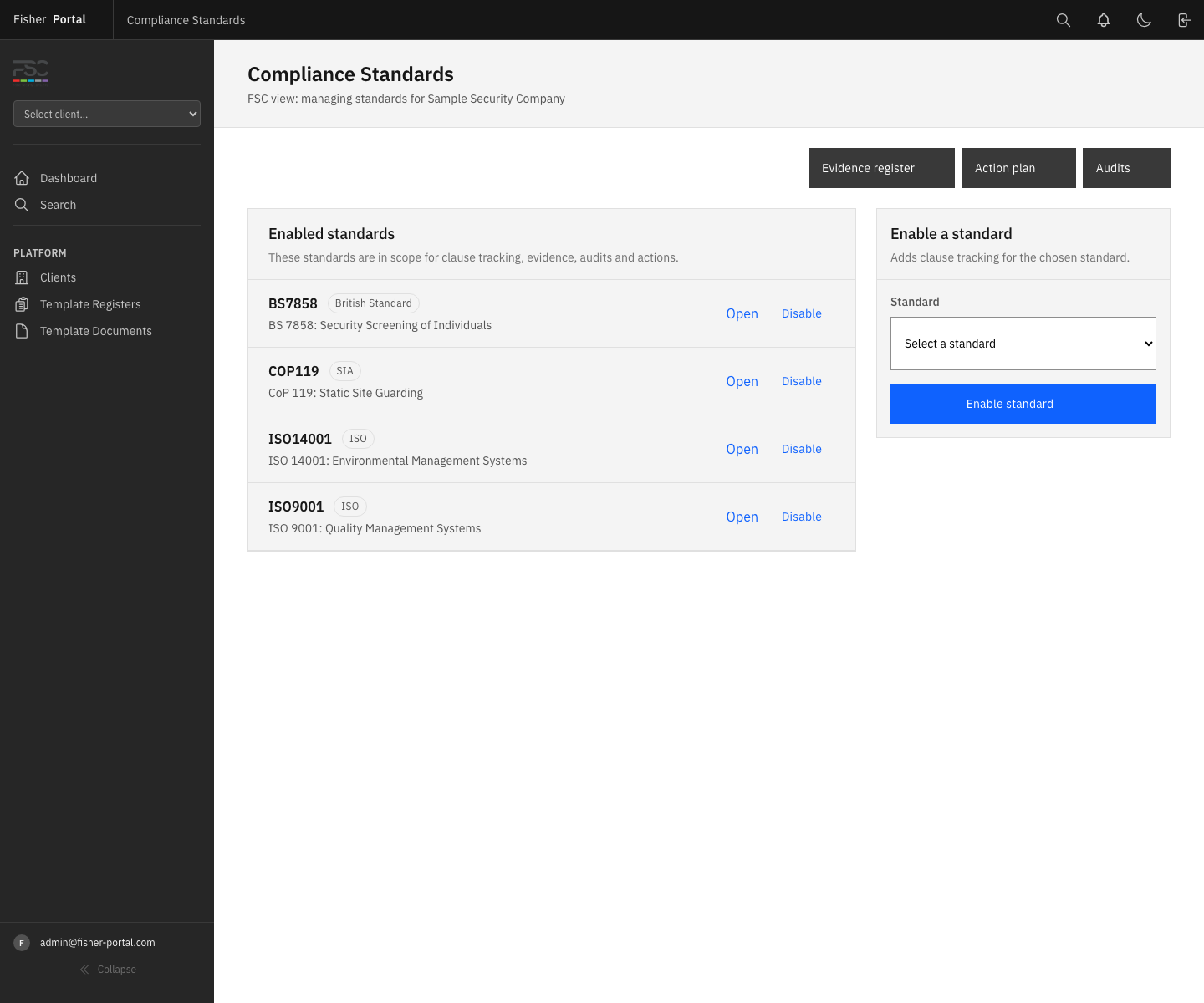
Step 3: Access Compliance Standards
Navigate to the compliance standards page for your chosen client. The URL pattern is:
/clients/{client_id}/compliance/standardsFrom the standards page, you can reach all other compliance areas using the navigation links at the top of the page:
- Evidence register — view and manage evidence links
- Action plan — view and manage corrective/preventive actions
- Audits — view and manage the audit programme
The Compliance Workflow Lifecycle
A typical compliance engagement follows this workflow:
1. Enable Standards
When onboarding a new client, enable the relevant standards (e.g. ISO 9001 for quality, ISO 14001 for environmental). This creates clause tracking for every requirement in that standard.
2. Assess Clause Status
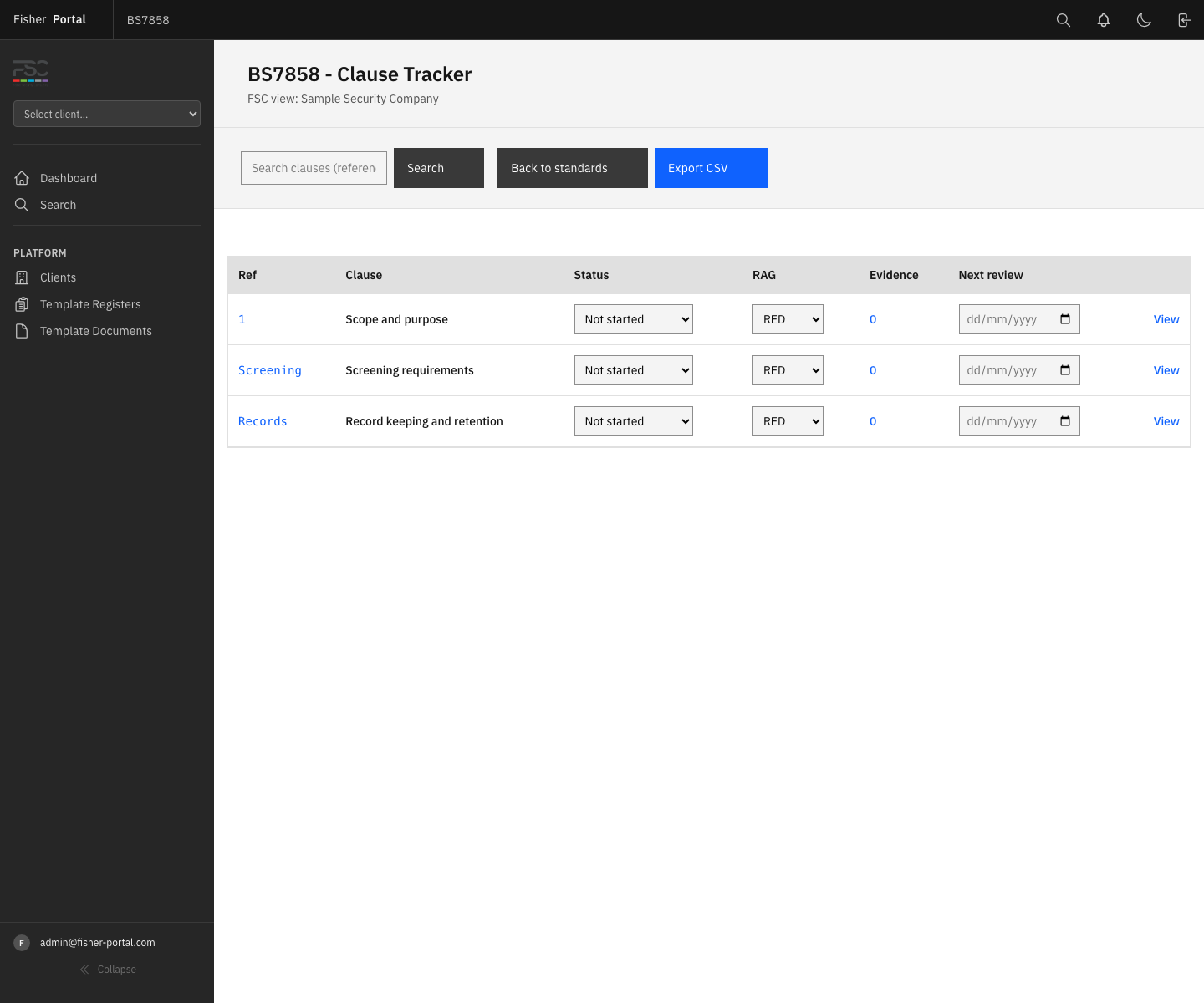
Work through each clause, setting the implementation status and RAG rating. This gives you and the client a clear picture of where they stand.
- Not Started — the requirement has not been addressed
- Partially In Place — some work has been done but it is not complete
- In Place — the requirement is fully implemented
3. Map Evidence
For each clause, link supporting evidence: policies, procedures, registers, training records, contracts, or external URLs. This builds the client’s compliance evidence pack.
4. Conduct Audits
Schedule and record audits against specific standards. During each audit, log findings directly against the relevant clauses.
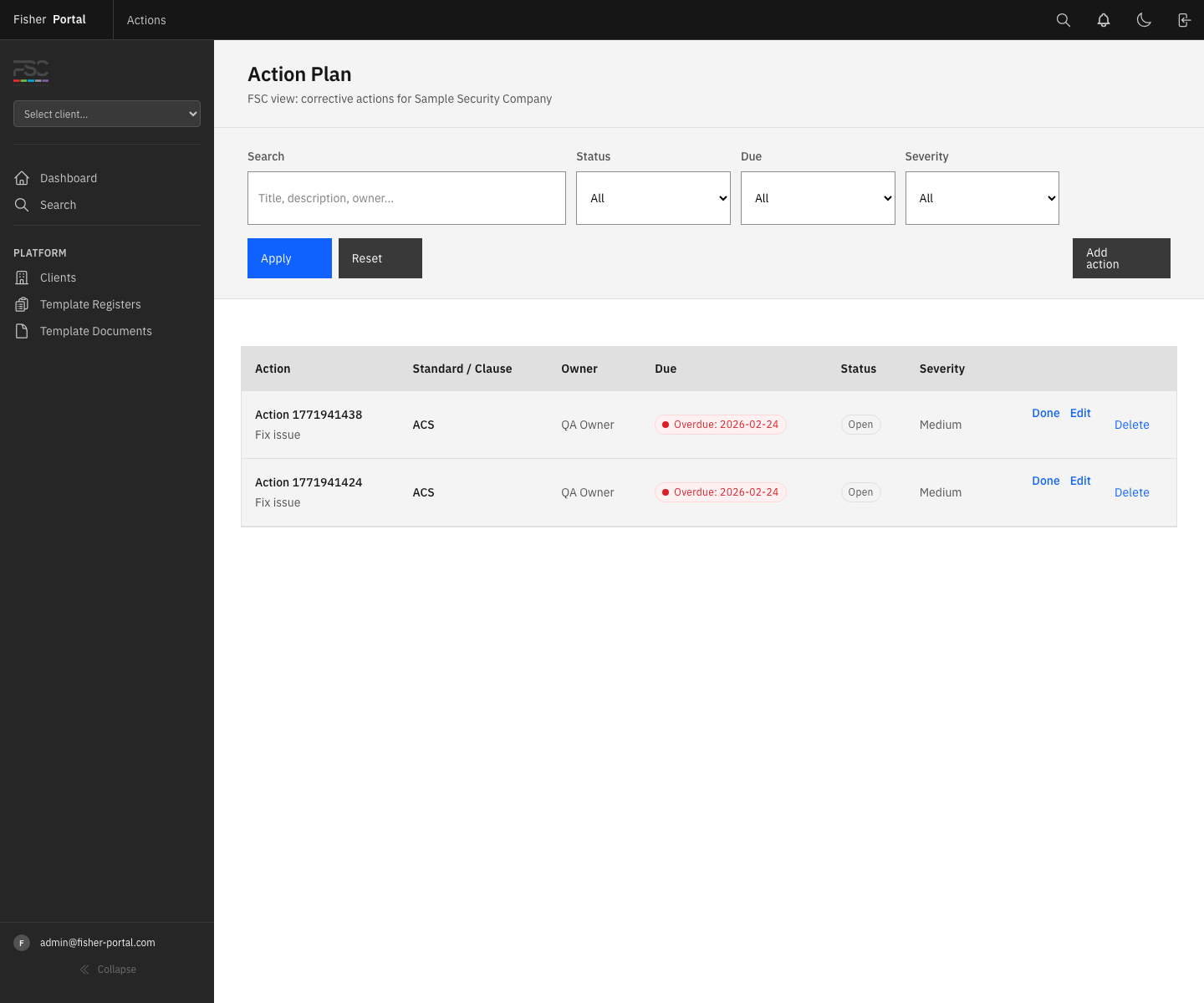
5. Raise Actions
For any non-conformities or opportunities for improvement, create compliance actions with clear ownership, due dates, and severity ratings. Actions can be linked directly to audit findings.
6. Track and Close
Monitor the action plan, mark actions as complete when resolved, and update clause statuses as the client progresses. Export clause status reports as CSV for client reporting.
Cross-Referencing Between Features
The compliance module is designed so that you can move between features seamlessly:
- From a clause detail page, you can view linked evidence and create new actions
- From an audit detail page, you can add findings and create actions directly from a finding
- From the findings list, you can jump to the originating audit or the linked action
- From the action plan, you can filter by standard, clause, severity, or due date
- From the evidence register, you can filter by standard, clause, evidence type, or verification status
Tips
- Always start by enabling the correct standards for a client before doing any other compliance work.
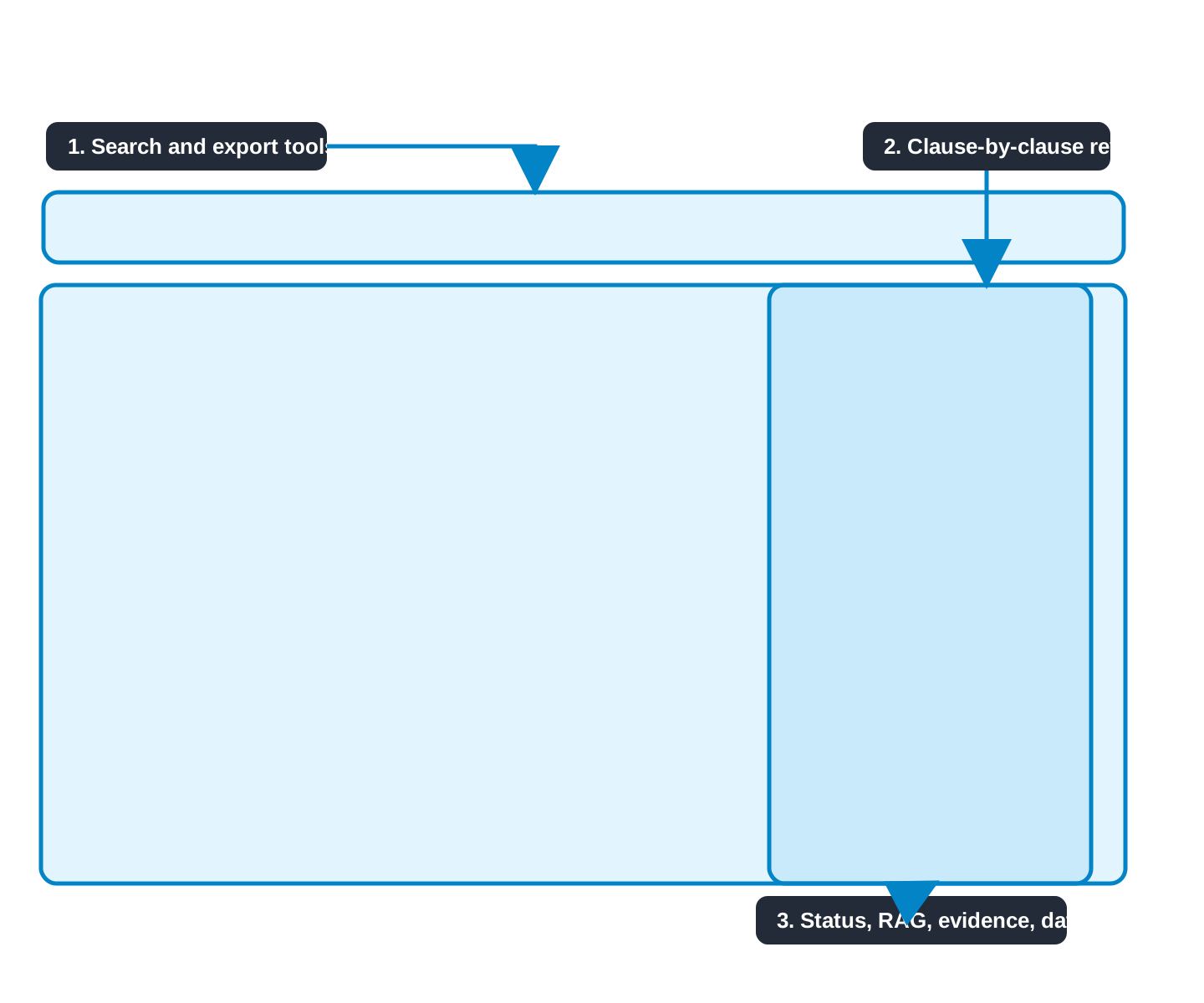
- Use the Export CSV function on the clause tracker to generate reports for client review meetings.
- Set next review dates on clause statuses to ensure nothing falls through the cracks.
- The RAG status is a quick visual indicator — use it consistently: Red = significant gap, Amber = partial/in progress, Green = fully compliant.
- Evidence verification status tracks whether evidence has been reviewed within the last 365 days. Check the verification filter regularly to catch overdue items.
Troubleshooting
- “Access denied” or blank page when navigating to compliance features — You must be logged in as an FSC staff member (super admin, admin, or a user with a Fisher admin membership). Client admin accounts cannot access the compliance module.
- No standards showing on the standards page — Standards need to be enabled for each client individually. Use the “Enable a standard” panel on the right side of the page.
- Cannot find a client — Ensure you are navigating from the Clients list. If you cannot see a client, check that you have the appropriate permissions.
- Clause statuses are all showing “Not Started” — This is the default state when a standard is first enabled. Work through the clauses to update their status as the client progresses.