User Impersonation
Overview
Impersonation allows Super Admins to view and interact with Fisher Portal exactly as another user would see it. This is an essential support tool — when a client reports an issue or asks “What does my screen look like?”, you can experience the portal through their eyes without needing their login credentials.
While impersonating, you temporarily assume the other user’s identity, permissions, and client context. The portal displays their data, their role-based restrictions, and their client’s branding. A prominent yellow banner remains visible at all times to remind you that you are in an impersonation session.
Important: Impersonation is a powerful capability. It should only be used for legitimate support and troubleshooting purposes.
Who Can Impersonate
Only Super Admin users can impersonate other accounts. Client admins and standard users do not have access to this feature.
You cannot impersonate your own account.
Step-by-Step Guide
Step 1: Start an Impersonation Session
There are two ways to begin impersonating a user:
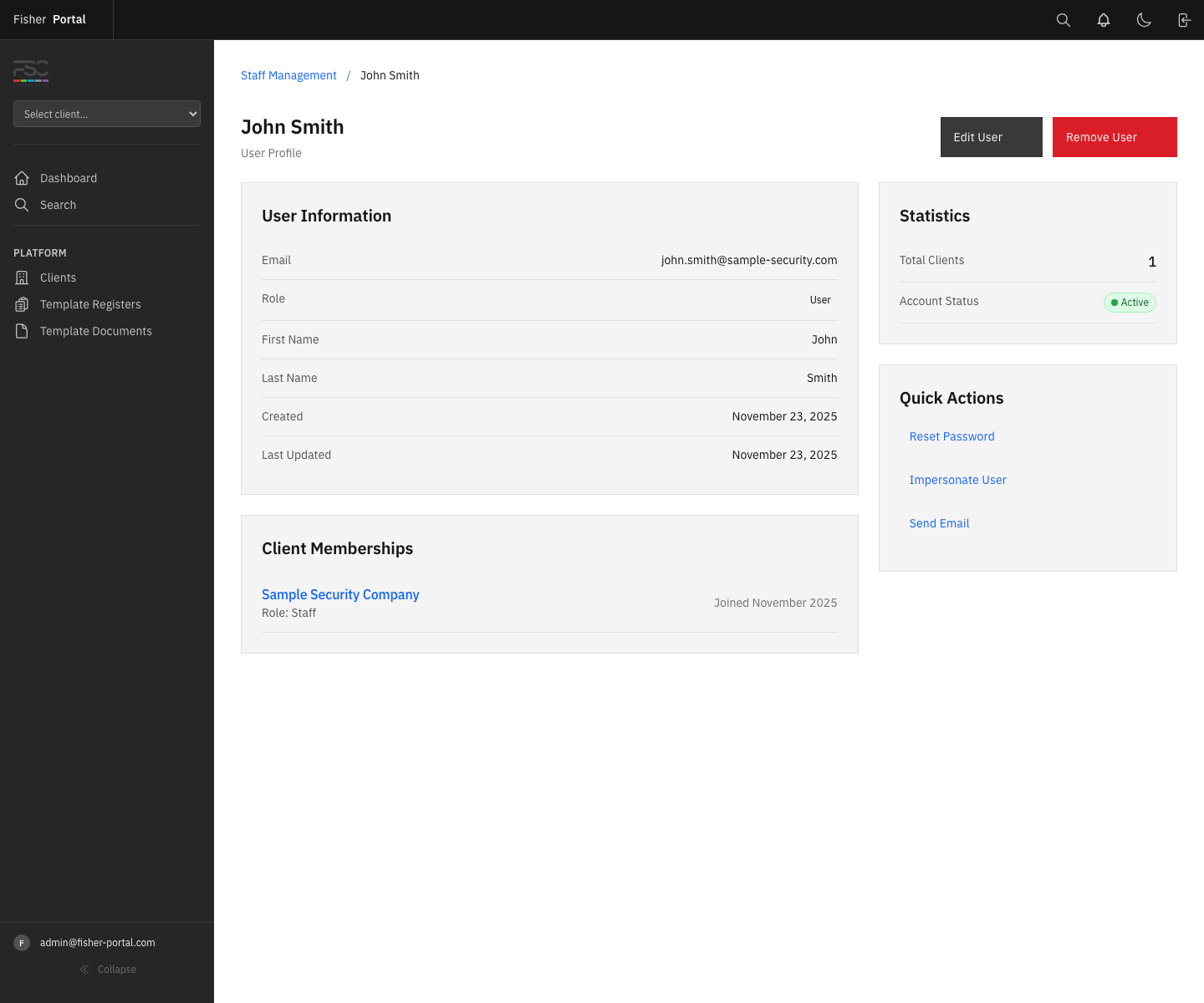
From the User Profile:
- Navigate to the Staff Directory and find the user you wish to impersonate.
- Click on the user’s name to open their profile page.
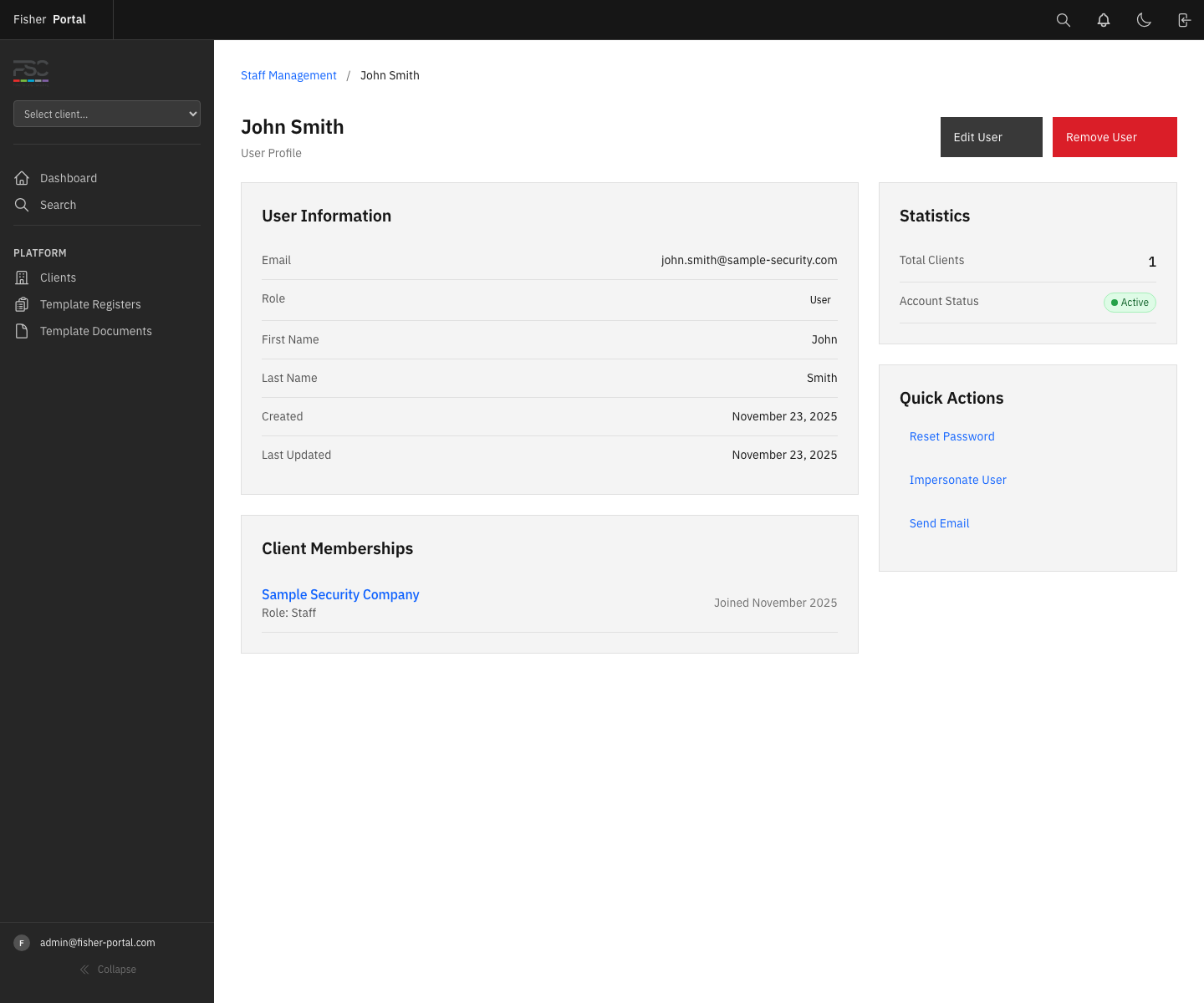
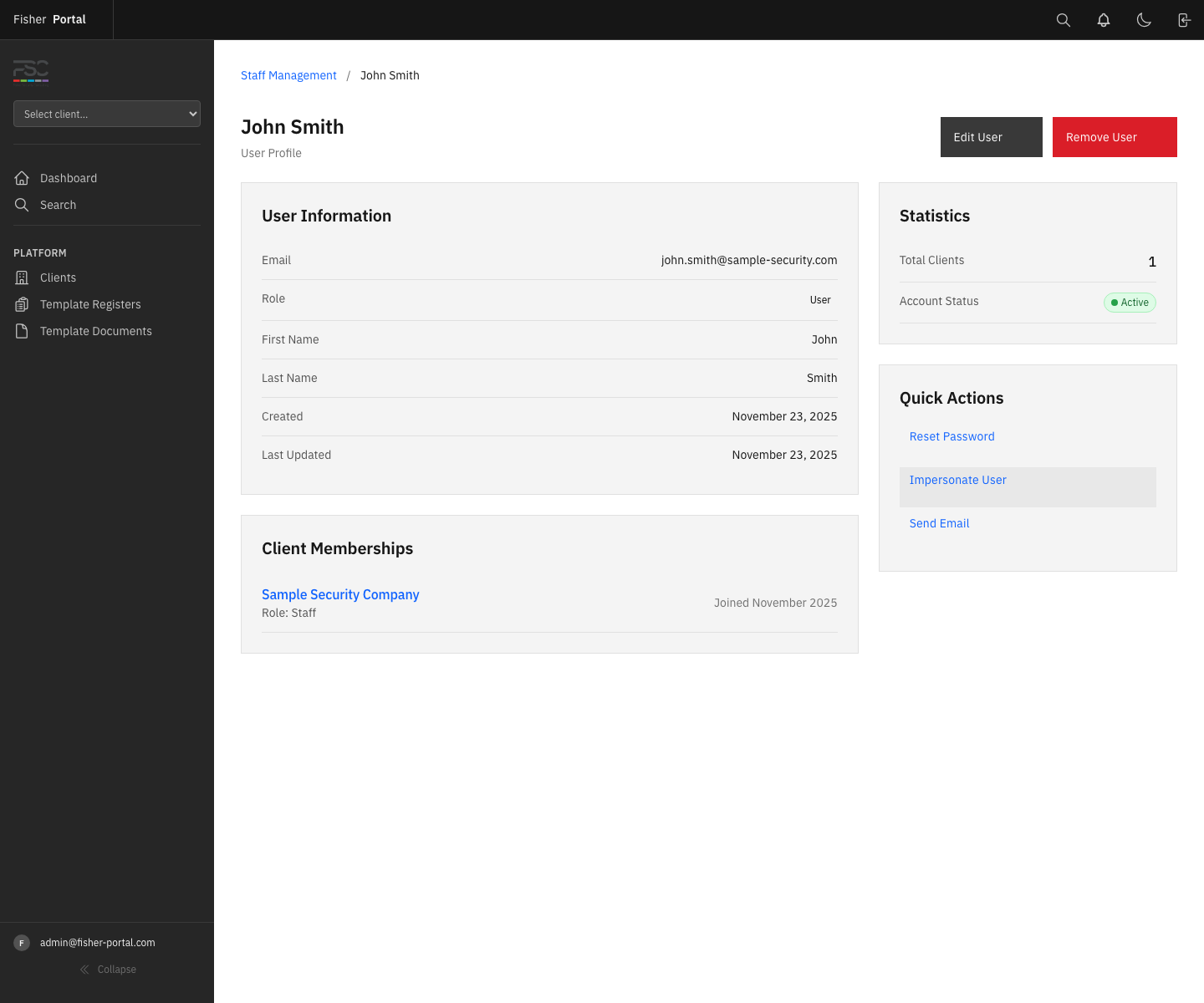
- Click the Impersonate User button in the actions section of their profile.
- You will be redirected to the dashboard, now viewing the portal as that user.
From the Client Detail Page:
- Navigate to Clients and click View on the relevant client.
- In the users section of the client detail page, find the user you wish to impersonate.
- Click the Login as button next to their name.
- You will be redirected to the dashboard as that user.
Step 2: Recognise the Impersonation Banner
When you are impersonating another user, a yellow banner appears in the header bar at the top of every page. This banner:
- Displays the text “Impersonating [user’s email address]”
- Includes a Stop link to end the impersonation session immediately
- Remains visible on every page throughout the session as a constant reminder
The banner uses a distinctive yellow background colour, making it impossible to overlook.
Step 3: Navigate as the Impersonated User
While impersonating, the portal behaves exactly as it would for that user:
- Sidebar navigation adjusts to show only the sections the user has access to
- Data is scoped to the user’s client organisation(s)
- Permissions reflect the user’s role — if they are a standard user, you will see the same restrictions they experience
- Client branding (colours, logo) will display if the user’s client has custom branding configured
You can navigate freely, view registers, open documents, and interact with the portal just as the user would.
Step 4: Stop Impersonating
To end the impersonation session:
- Click the Stop link in the yellow impersonation banner at the top of the page.
- You will be returned to the clients list as your own Super Admin account.
- The impersonation banner will disappear, and your full Super Admin access will be restored.
Your client context is automatically cleared when you stop impersonating, returning you to the platform-wide view.
When to Use Impersonation
| Scenario | Why Impersonation Helps |
|---|---|
| Client reports missing data | See exactly what they see to confirm whether the issue is a permissions problem or a data problem |
| Verifying role-based access | Check that a user’s role restricts or grants access to the correct features |
| Testing deployed templates | After deploying registers or documents to a client, impersonate a user to verify everything appears correctly |
| Troubleshooting branding | View the portal with the client’s custom branding to check colours, logo placement, and theme |
| Training and demos | Walk through the portal as a specific user role to demonstrate functionality |
| Onboarding verification | After creating a new user account, impersonate them to confirm their setup is correct |
Security Considerations
Impersonation is a sensitive feature with important safeguards:
- Super Admin only — No other role can initiate an impersonation session. The system enforces this restriction at the controller level.
- Cannot impersonate yourself — The impersonation button does not appear on your own profile.
- Session tracking — Your original Super Admin session is preserved separately. When you stop impersonating, your original session is fully restored.
- Yellow banner is always visible — There is no way to hide or dismiss the impersonation banner. This ensures you always know when you are operating as another user.
- Client context is cleared on exit — When you stop impersonating, the system clears any client-scoped context to prevent accidental data leakage between sessions.
- Audit trail — Impersonation actions are logged for accountability purposes.
Tips
- Always stop impersonating as soon as you have finished your investigation. Leaving an impersonation session active unnecessarily increases the risk of accidental actions under another user’s identity.
- Use impersonation together with the client context switcher for a complete picture. The context switcher shows you the client’s data from a Super Admin perspective, while impersonation shows you the exact experience a specific user has.
- If a client user reports an issue, impersonate a user with the same role as the person reporting the problem. A client admin may see something different from a standard user.
- Take note of the impersonated user’s email in the yellow banner to avoid confusion when switching between multiple impersonation sessions.
Troubleshooting
- “Unauthorised access” error when trying to impersonate — Confirm that your account has the Super Admin role. Only Super Admins can use the impersonation feature.
- Impersonate button not visible on a user’s profile — You cannot impersonate your own account. If viewing another user’s profile and the button is missing, check that you are logged in as a Super Admin (not currently impersonating a non-admin user).
- Portal looks different after stopping impersonation — The system clears client context when you stop impersonating. You may need to re-select a client from the context switcher if you were previously viewing a specific client.
- “Session expired” message — If the impersonated user’s account is deleted or deactivated while you are impersonating them, the session will expire automatically. You will be redirected to the home page.