Platform Overview
Overview
The Fisher Portal dashboard is your command centre for managing all clients and compliance data across the entire platform. As a Super Admin, you have unrestricted access to every client organisation, user account, template register, and document within the system.
When you log in, the dashboard provides an at-a-glance summary of your platform’s health: how many clients you manage, the state of template and client registers, and quick actions to jump straight into common tasks.
What Super Admins Can See and Do
Super Admins operate at the platform level, meaning you are not restricted to a single client’s data. Your capabilities include:
- View and manage all client organisations — create, edit, and remove clients
- Manage all users across every client, including assigning roles and memberships
- Create and maintain template registers and documents that can be deployed to any client
- Deploy templates to individual clients, giving them pre-built compliance structures
- Impersonate any user to troubleshoot issues or verify what a client user sees
- Switch client context to view the portal exactly as a specific client’s users would see it
- Access platform-wide search across all clients and data
The Dashboard
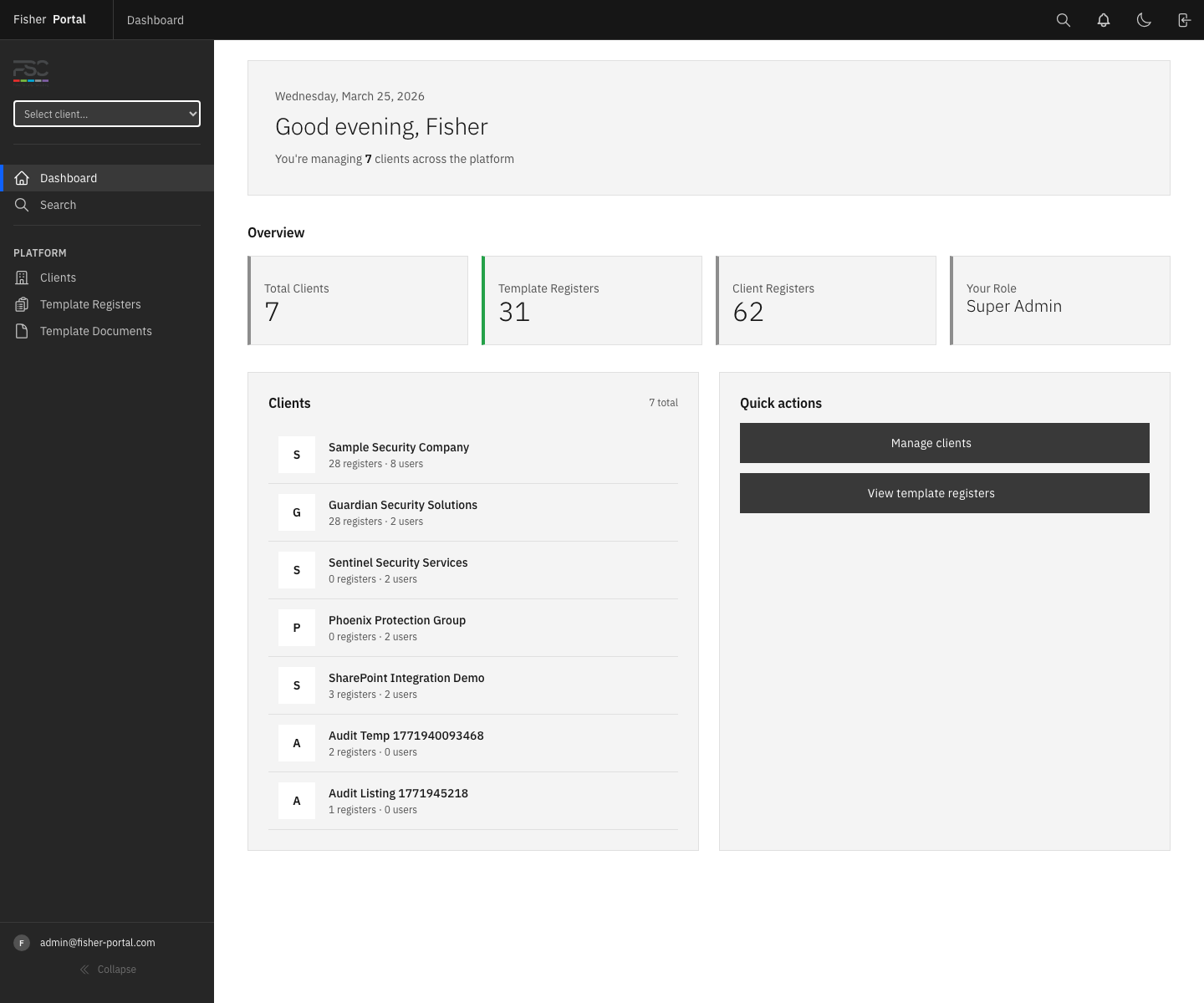
When you sign in, the dashboard greets you with a personalised welcome message and the current date.
Overview Metrics
At the top of the dashboard, four metric cards provide a snapshot of your platform:
| Metric | Description |
|---|---|
| Total Clients | The number of client organisations registered on the platform |
| Template Registers | Master register templates available for deployment to clients |
| Client Registers | The total number of registers deployed across all client organisations |
| Your Role | Confirms your access level (Super Admin) |
Clients Summary
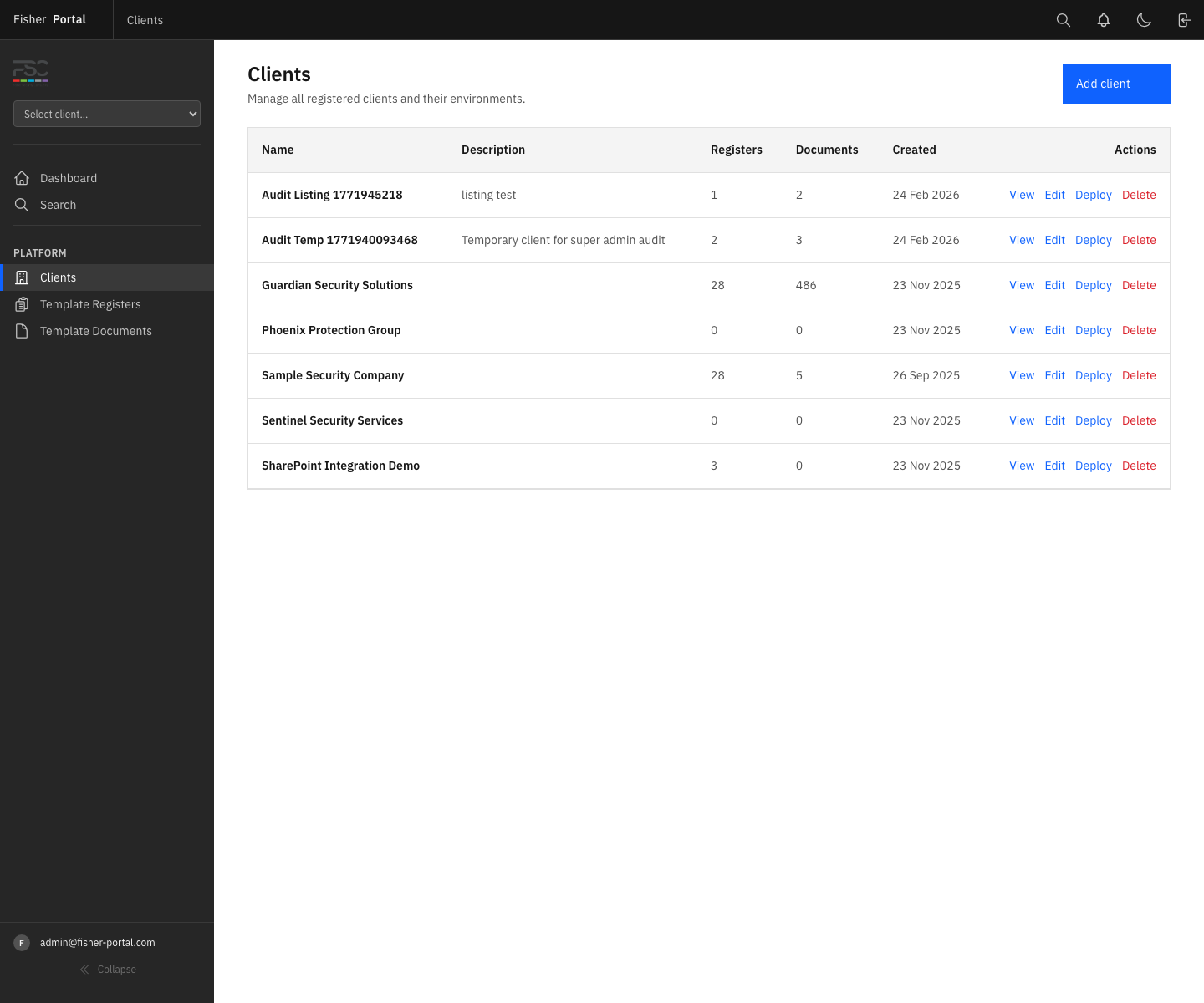
Below the metrics, the Clients panel lists every client organisation with key details:
- Organisation name with an initial avatar
- Number of registers deployed to that client
- Number of users assigned to the client
Click any client name to jump directly to their detail page.
Quick Actions
The Quick actions panel on the right provides one-click access to common tasks:
- Manage clients — opens the full client management list
- View template registers — takes you to the master template register library
Platform vs Client-Scoped Views
Fisher Portal operates with two distinct viewing modes:
Platform View (Default for Super Admins)
When no client context is selected, you see all data across the entire platform. The sidebar shows the Admin section with links to Clients, Template Registers, and Template Documents. This is your default view after logging in.
Client-Scoped View
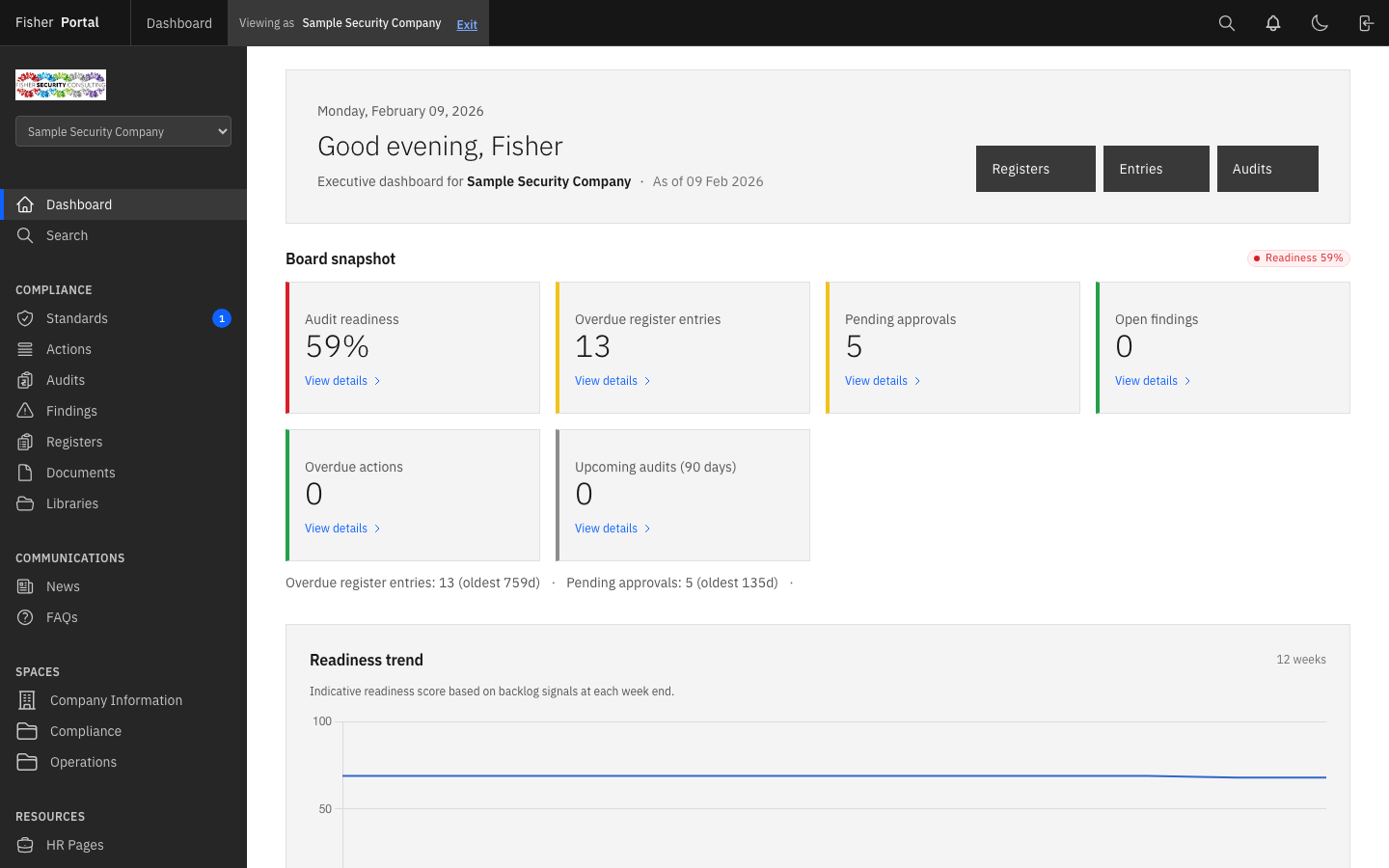
Using the Select client… dropdown in the top-right corner of the header, you can switch into a specific client’s context. When viewing as a client:
- The portal displays only that client’s data (registers, documents, users)
- The sidebar navigation adjusts to show client-specific sections
- A banner appears in the header confirming which client you are viewing as, with an Exit button to return to the platform view
This is useful for reviewing a client’s setup, verifying their data, or checking how their branded experience appears — all without needing to impersonate a specific user.
Sidebar Navigation
The left sidebar provides access to the core admin areas:
| Menu Item | Purpose |
|---|---|
| Dashboard | Return to the platform overview |
| Search | Global search across all clients and data |
| Clients | View and manage all client organisations |
| Template Registers | Manage master register templates |
| Template Documents | Manage master document templates |
Tips
- Use the dashboard as your starting point each day to quickly assess platform activity and client status.
- The client context switcher in the header is the fastest way to check a client’s view without impersonating a user.
- If a client reports they cannot see something, switch to their context first to verify before investigating further.
- The dashboard metrics update in real time — if you have just deployed templates to a new client, the Client Registers count will reflect the change immediately.
Troubleshooting
- Dashboard shows “Access denied” banner — This typically occurs after stopping an impersonation session. Simply navigate to the Dashboard link in the sidebar and the error will clear.
- Metrics seem incorrect — Ensure you are not viewing the dashboard within a client context. Exit the client context using the banner at the top of the page to see platform-wide totals.
- Cannot see the Admin section in the sidebar — Verify that your account has the Super Admin role. Contact your system administrator if your role needs to be updated.