Template Management
Overview
Templates are the master compliance registers and documents that form the foundation of Fisher Portal. They are centrally managed by Super Admins and can be deployed to any client organisation, giving each client a consistent set of compliance structures tailored to the security industry.
When you deploy a template to a client, the system creates a client-specific copy. This means each client gets their own independent version of the register or document, which they can then populate with their own data without affecting the master template or any other client’s copy.
How Templates Work
Templates in Fisher Portal follow a simple hierarchy:
Master Template (no client) | +-- Deployed to Client A (independent copy) +-- Deployed to Client B (independent copy) +-- Deployed to Client C (independent copy)There are two types of templates:
Template Registers
Register templates define the structure of compliance registers — the fields, field types, and ordering. Common register templates include:
- HSF — Health and Safety registers
- QSF — Quality System registers
- ISF — Information Security registers
- BCP — Business Continuity Plan registers
Each register template includes:
- A code (e.g. HSF-001) and name
- A description of the register’s purpose
- Register fields that define the data structure (field name, type, position)
When deployed, the register and all its fields are copied to the client.
Template Documents
Document templates are pre-built policies, procedures, and forms organised in a folder hierarchy. The template library includes:
- Company policies — Standardised policy documents
- Company procedures — Organised by category (Health and Safety, Information Security, etc.)
- Document templates — Forms, checklists, and reference documents
Documents maintain their folder hierarchy when deployed — if a template has folders containing sub-folders and files, that entire structure is recreated for the client.
Step-by-Step Guide
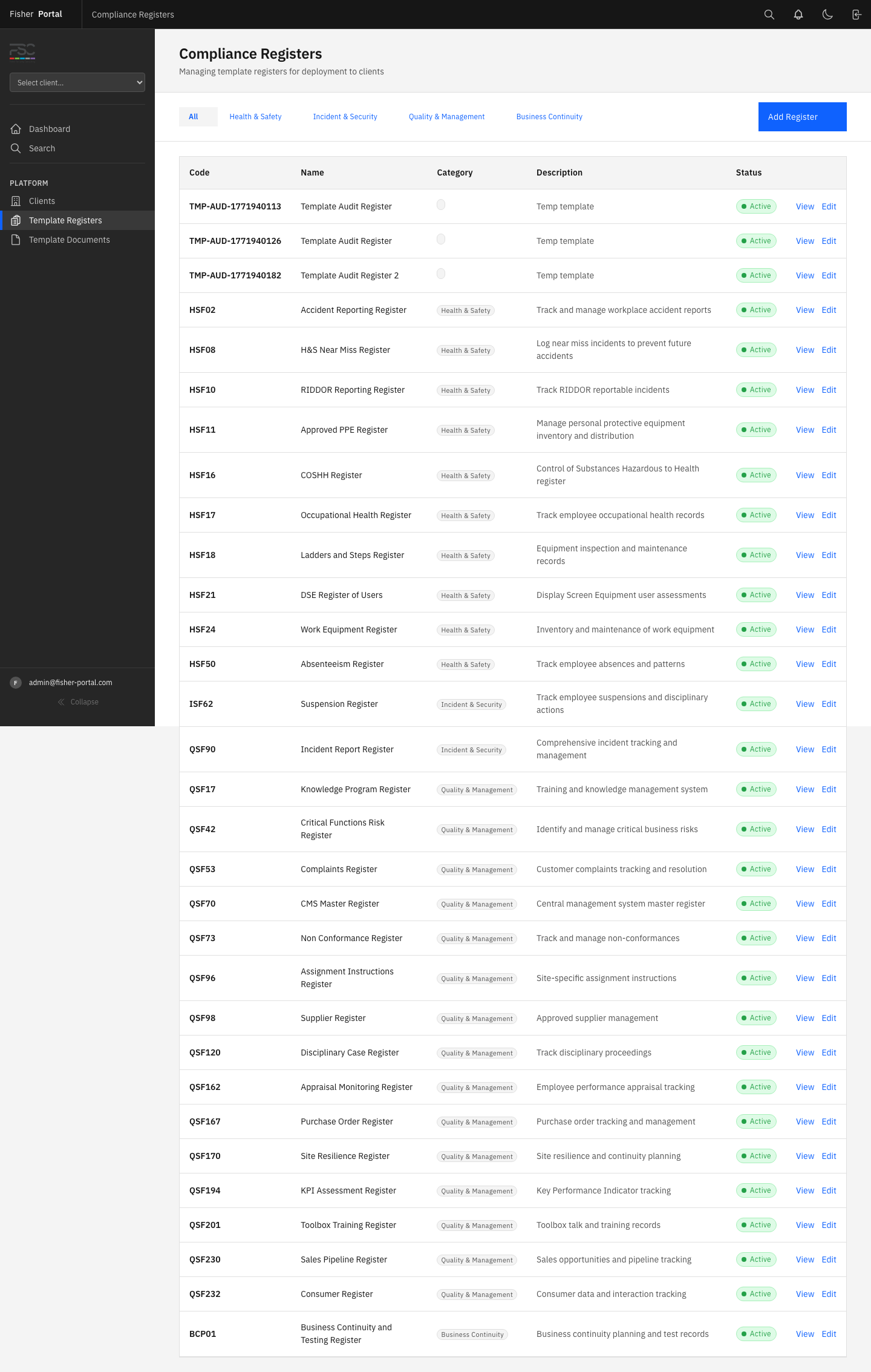
Step 1: Access Template Registers
- In the left sidebar, click Template Registers under the Admin section.
- The template register list shows all master registers that are available for deployment.
- From here, you can view, edit, or create new register templates.
Step 2: Access Template Documents
- In the left sidebar, click Template Documents under the Admin section.
- The template document library shows the full folder hierarchy of available documents.
- Browse the folder structure to review what is available for deployment.

Step 3: Deploy Templates to a Client
- Navigate to Clients in the left sidebar.
- Find the target client and click Deploy in the Actions column.
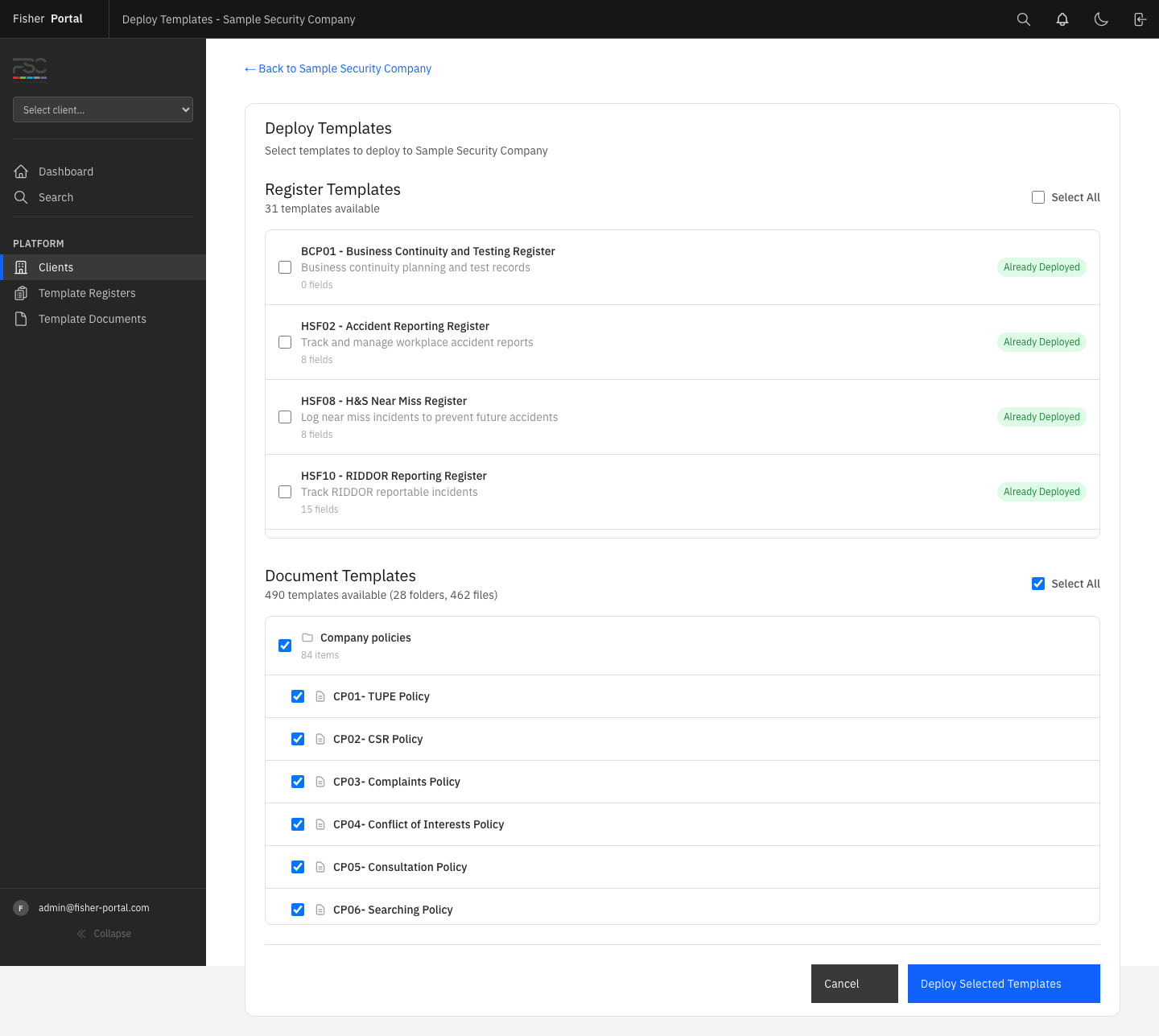
- The deployment form presents two sections:
Register Templates:
- All available register templates are listed with their code, name, and field count.
- Registers already deployed to this client are marked with an “Already Deployed” badge.
- Use the Select All toggle to quickly select every register, or tick individual registers.
- Already-deployed registers can still be selected, but the system will skip them to avoid duplicates.
Document Templates:
- All available document templates are listed, showing folders and files in their hierarchical structure.
- Use the Select All toggle to select every document, or tick individual items.
- The form shows the total count of available templates, broken down by folders and files.
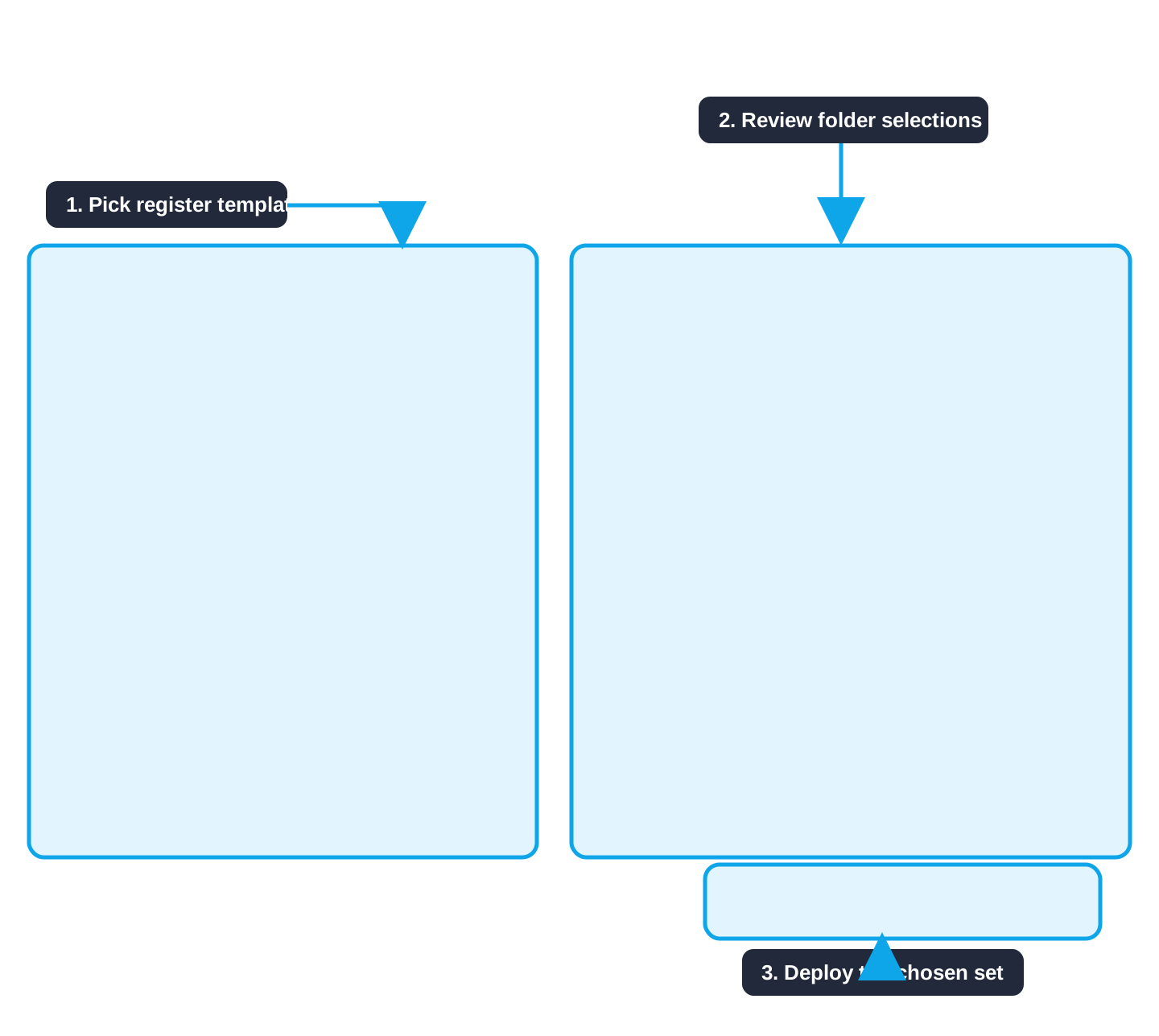
- Review your selection carefully.
- Click Deploy Selected Templates to begin the deployment.
- The system creates client-specific copies of each selected template.
- You will be redirected to the client’s detail page with a confirmation message showing how many registers and documents were deployed.
Step 4: Verify the Deployment
After deploying templates:
- Check the client’s detail page to confirm the new registers and documents appear.
- Optionally, impersonate a user from that client to verify the templates are visible and functional from their perspective.
- Return to the clients list to confirm the register and document counts have updated.
Step 5: Create a New Register Template
- Navigate to Template Registers in the sidebar.
- Click New Register (or equivalent action).
- Fill in the register details:
| Field | Required | Description |
|---|---|---|
| Code | Yes | A short identifier (e.g. HSF-015). Must be unique among templates. |
| Name | Yes | The full name of the register |
| Description | No | A description of the register’s purpose and contents |
-
Save the register template.
-
Add fields to define the register’s data structure:
- Each field has a name, type (string, text, integer, decimal, date, boolean), and position (ordering).
- Fields can be reordered using the move up/move down controls.
-
The register template is now available for deployment to any client.
The Deployment Process in Detail
When you click Deploy Selected Templates, the following happens for each selected item:
For registers:
- The system checks whether the client already has a register with the same code.
- If not, it creates a copy of the register assigned to the client.
- All register fields are also copied, preserving their types and positions.
- The client now has an independent register they can populate with entries.
For documents:
- Folders are processed first to establish the hierarchy.
- Files are processed next, placed into the correct folders.
- If a document has an attached file, the file is copied to the client’s version.
- Parent-child relationships are maintained, recreating the full folder structure.
- If a document is linked to a register (via the register code), the system maps it to the client’s corresponding register.
Duplicate prevention: The system automatically skips any template that has already been deployed to the client, so running a deployment multiple times is safe.
Tips
- Plan your template library carefully before deploying to clients. A well-organised set of register codes and document folders makes ongoing management much simpler.
- Use consistent naming conventions for register codes. The existing convention groups templates by category (HSF for Health and Safety, QSF for Quality, ISF for Information Security, BCP for Business Continuity).
- Deploy templates to a new client as one of the first steps after creating their organisation. This gives them a ready-to-use compliance structure from day one.
- After making changes to a master template (e.g. adding new fields to a register), those changes do not automatically propagate to clients who have already received that template. You would need to update each client’s register individually or redeploy.
- Use the Select All toggle when onboarding a new client who needs the full compliance suite. For clients with specific needs, select only the relevant templates.
Troubleshooting
- “Already Deployed” badge on every template — The client has already received all available templates. No further deployment is needed unless new templates have been created since the last deployment.
- Deployment completes but document count is still 0 — Refresh the client detail page. If the count remains at 0, check the deployment confirmation message for any error details.
- Deployment errors for specific registers or documents — The confirmation message will list any items that failed, along with the reason (e.g. validation errors). Fix the issue on the template and redeploy.
- Folder structure not preserved after deployment — Ensure that when deploying documents, you select both the parent folders and their child items. If you select only files without their parent folders, the hierarchy cannot be maintained.
- Template changes not appearing for existing clients — Changes to master templates only affect future deployments. Existing client copies are independent. You will need to update each client’s registers or documents separately.