Logging In
Overview
Fisher Portal uses email and password authentication to keep your compliance data secure. This guide walks you through signing in for the first time, resetting a forgotten password, and what to expect once you are logged in.
Step-by-Step Guide
Step 1: Open the Login Page
Navigate to the Fisher Portal URL provided by your organisation or Fisher Security Consulting. You will see the sign-in page with the Fisher Portal CMS header at the top.
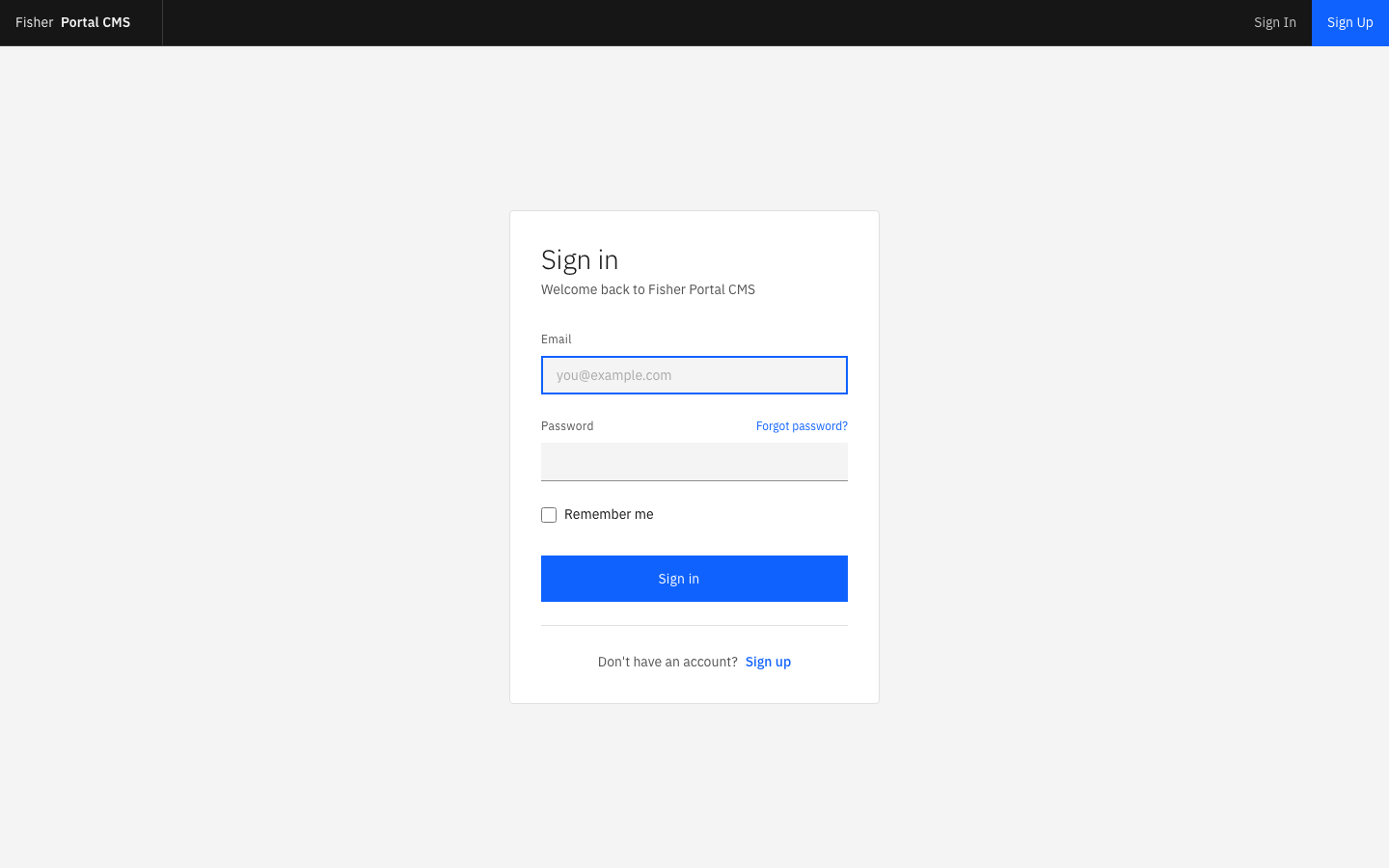
The login page contains:
- An Email field (pre-filled with placeholder text
you@example.com) - A Password field
- A “Forgot password?” link to the right of the password label
- A “Remember me” checkbox to keep you signed in
- A blue “Sign in” button
- A “Sign up” link at the bottom if your organisation allows self-registration
Step 2: Enter Your Credentials
Type the email address and password provided by your administrator into the respective fields.
- Email: Your work email address (e.g.
jsmith@guardian-security.com) - Password: The password set during account creation or most recent password reset
If you would like the portal to remember your session so you do not need to sign in each time, tick the “Remember me” checkbox.
Step 3: Click “Sign In”
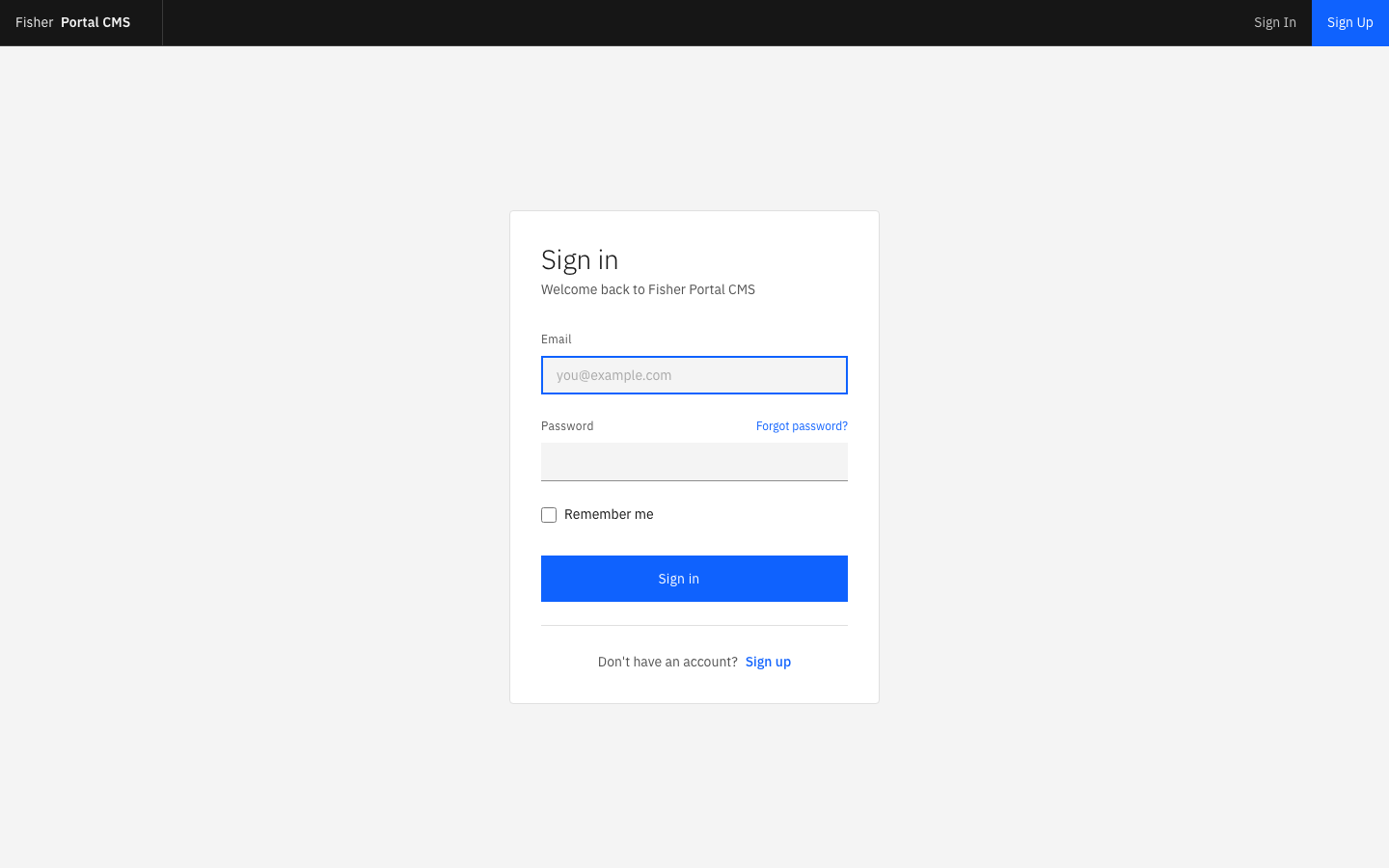
Click the blue Sign in button. If your credentials are correct, you will be redirected to the Dashboard.
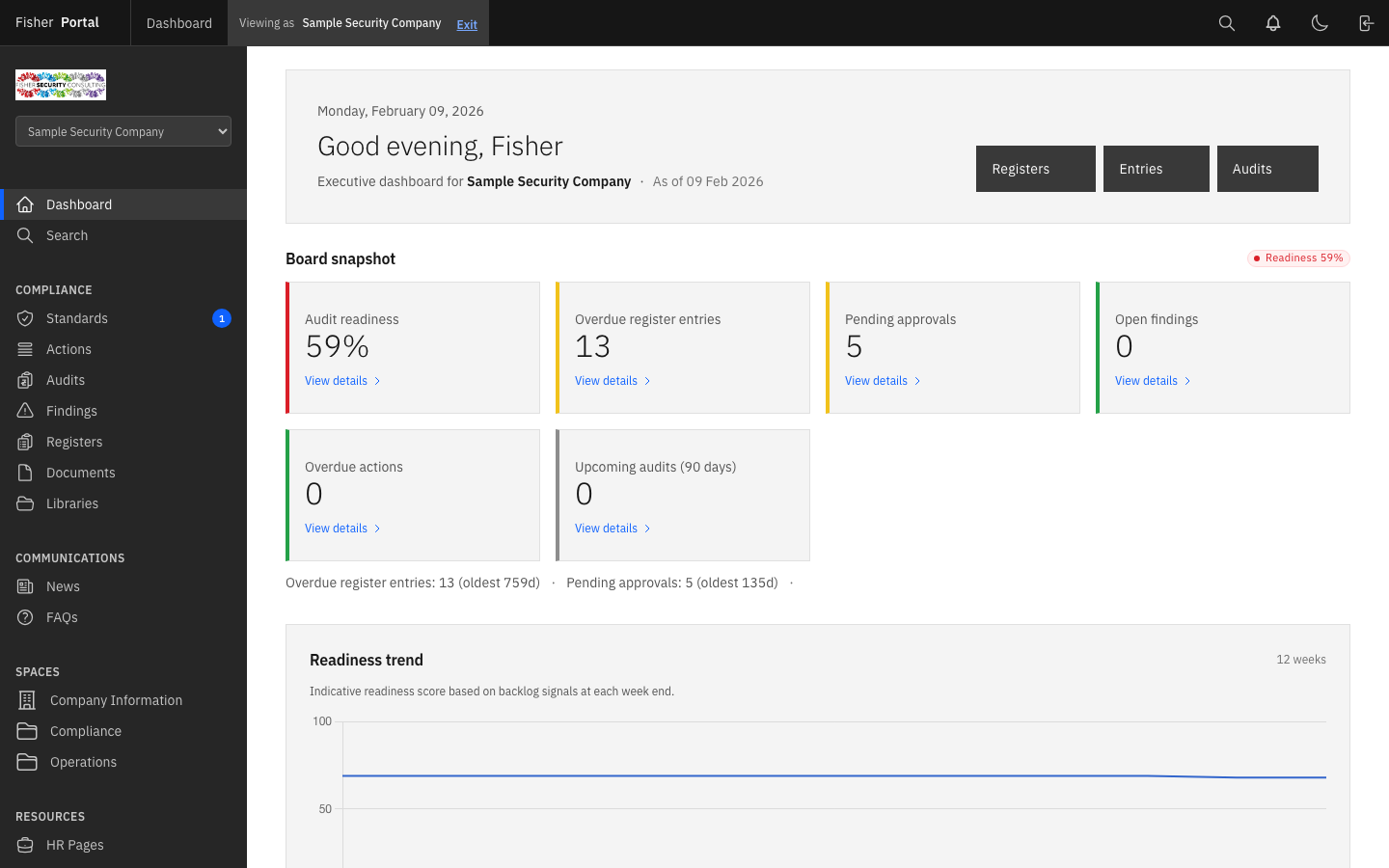
After signing in you will see:
- A personalised greeting (e.g. “Good evening, Fisher”)
- The current date
- Overview cards showing key metrics relevant to your role
- Quick actions for common tasks
Password Reset Flow
If you have forgotten your password:
- Click the “Forgot password?” link on the login page, to the right of the Password label.
- Enter the email address associated with your account.
- Click “Send me reset password instructions”.
- Check your email inbox for a password reset link (also check your spam/junk folder).
- Click the link in the email and enter a new password.
- Sign in with your new password.
Note: Password reset links expire after a limited time. If your link has expired, request a new one.
First-Time Login
When logging in for the first time:
- Your administrator will have created your account and sent you your initial credentials by email.
- Sign in using those credentials following the steps above.
- You will be taken to the Dashboard. Take a moment to explore the sidebar navigation to familiarise yourself with the portal.
- Consider setting your preferred theme (light or dark mode) via the theme toggle in the header bar. See Your Profile and Preferences for details.
Tips
- Use “Remember me” on trusted devices to avoid signing in repeatedly. Do not use this on shared or public computers.
- Bookmark the portal URL for quick access.
- If your organisation uses custom branding, the login page may display your company logo and colours.
- Your session will expire after a period of inactivity. Simply sign in again to continue.
Troubleshooting
| Problem | Solution |
|---|---|
| ”Invalid Email or password” error | Double-check your email address and password. Passwords are case-sensitive. |
| No password reset email received | Check your spam/junk folder. Ensure you are entering the correct email address. Contact your administrator if the problem persists. |
| Account locked or disabled | Contact your organisation’s administrator to re-enable your account. |
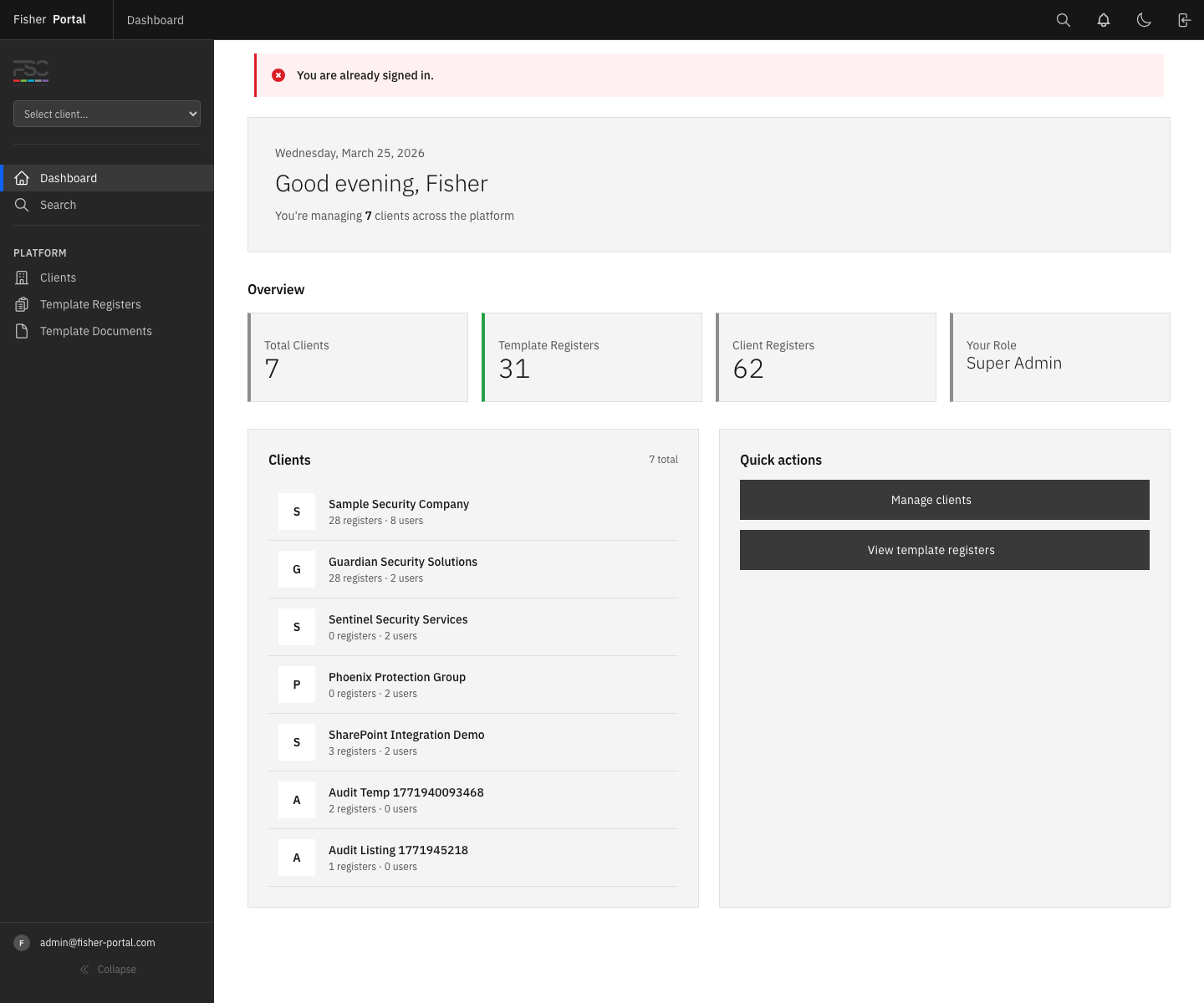
| ”You are already signed in” message | You are already authenticated. The portal has redirected you to the Dashboard. |
| Page not loading | Ensure you have a stable internet connection. Try clearing your browser cache or using a different browser. |