Understanding Roles
Overview
Fisher Portal uses a role-based access system to ensure users only see and do what is appropriate for their responsibilities. There are five user types, each with a different level of access. Understanding your role helps you know what you can do within the portal and who to contact when you need something beyond your permissions.
The Five User Types
1. Super Admin
Who: Fisher Security Consulting platform administrators.
Access: Unrestricted access to the entire platform across all client organisations.
| Capability | Details |
|---|---|
| Client management | Create, edit, and delete client organisations |
| Template management | Manage master register templates and the global document library (486+ templates) |
| Template deployment | Deploy selected templates to specific client organisations |
| User management | Create, edit, and delete any user across the platform |
| Impersonation | Sign in as any user for support and troubleshooting |
| Client context switching | View the portal as a specific client without impersonating a user |
| Compliance features | Full access to standards, audits, findings, actions, and evidence across all clients |
| All lower-role capabilities | Everything Client Admins, FSC Staff, and Client Staff can do |
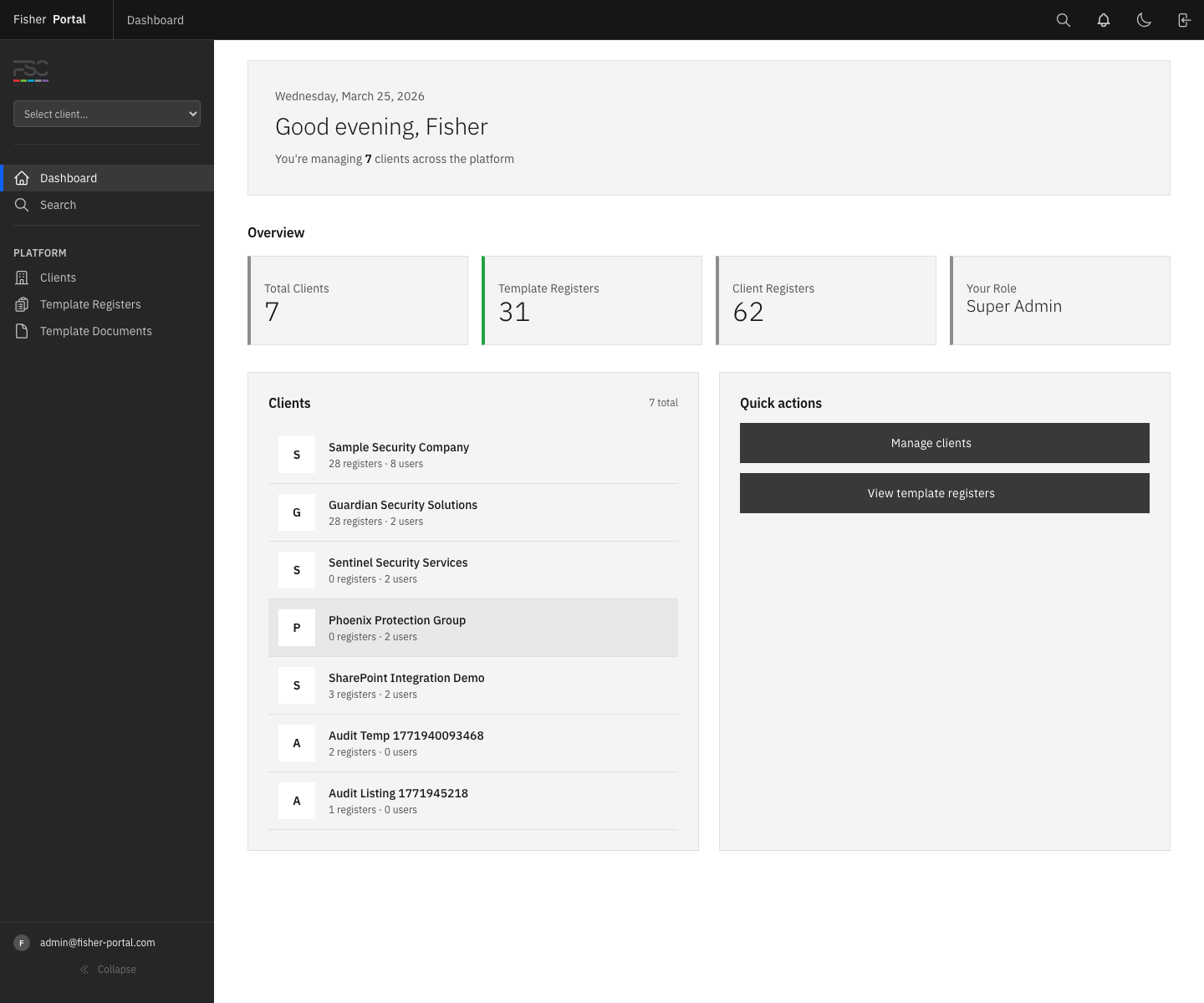
Super Admins see the Admin section in the sidebar with links to Clients, Template Registers, and Template Documents. They also have a client switcher dropdown in the header bar.
2. FSC Staff
Who: Fisher Security Consulting consultants and compliance specialists.
Access: Compliance-focused features across assigned client organisations.
| Capability | Details |
|---|---|
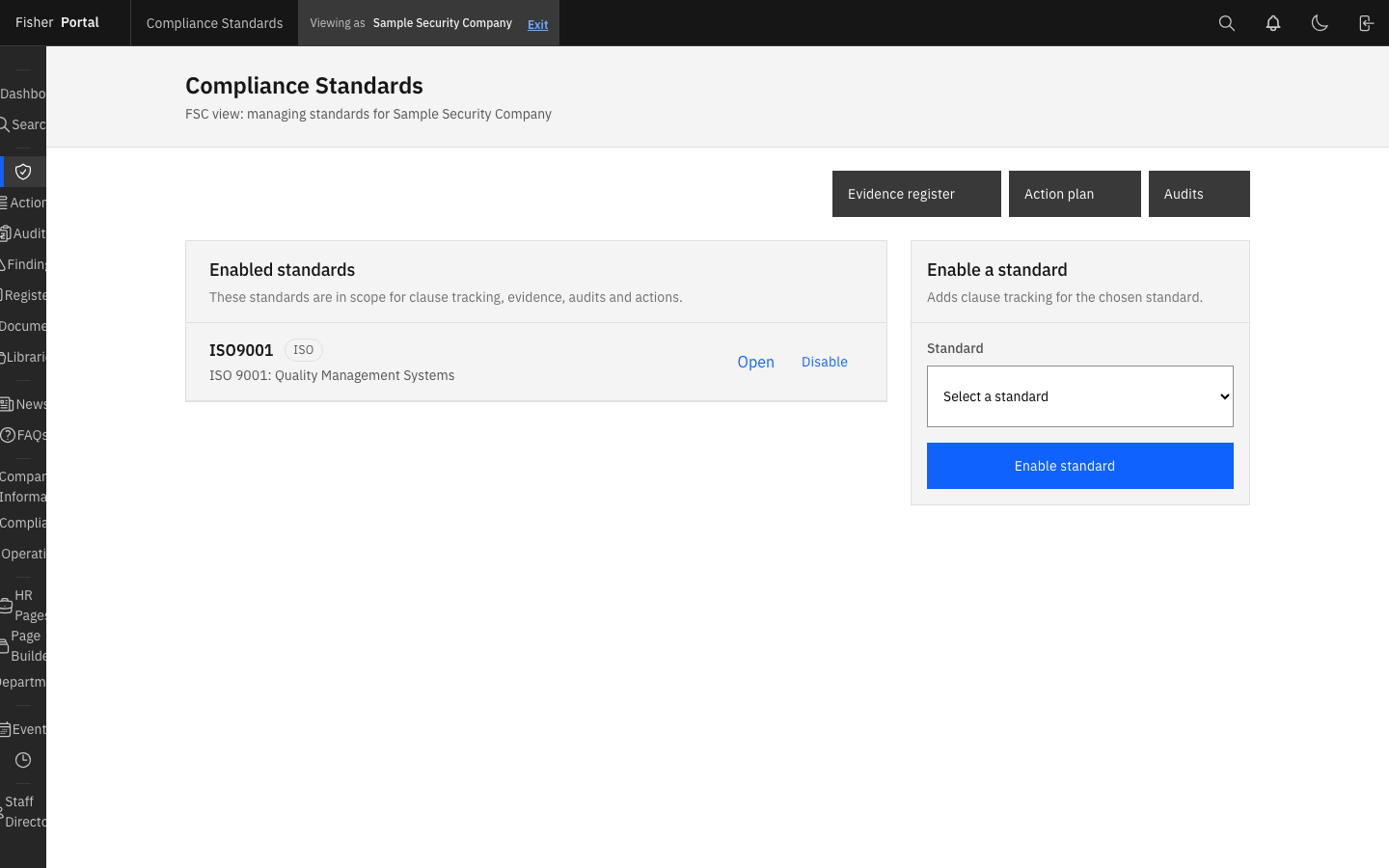
| Compliance standards | Assign ISO standards (9001, 14001, 45001, 27001, 22301) to clients |
| Clause management | View and update clause-level compliance statuses |
| Audits | Create, edit, and manage compliance audits for clients |
| Findings | Record and track audit findings |
| Actions | Create, assign, complete, and reopen compliance actions |
| Evidence linking | Link documents and register entries as evidence against standard clauses |
| Export | Export clause status reports |
| Client resources | View registers, documents, and CMS content for assigned clients |
FSC Staff status is determined by one of the following:
- Having the
adminsystem role - Having a
fisher_adminmembership role on a client
3. Client Admin
Who: Administrators within a client organisation (e.g. compliance managers, office managers).
Access: Full control over their own organisation’s resources.
| Capability | Details |
|---|---|
| Register management | Create and configure registers, define custom fields, set field ordering |
| Register entries | Create, edit, submit, approve, and reject entries; bulk operations |
| Document management | Upload, organise, rename, move, and version documents |
| Library management | Configure SharePoint-connected document libraries |
| User management | Add, edit, and remove staff within their organisation |
| CMS content | Create and edit news posts, FAQs, events, countdowns, and HR pages |
| Branding | Customise the portal’s appearance with their organisation’s colours, logo, and fonts |
| Page Builder | Create custom pages within spaces |
| Staff Directory | View and manage the organisation’s user list |
| All Client Staff capabilities | Everything a Client Staff member can do |
Client Admin status is determined by having a client_admin membership role on the client organisation.
4. Client Staff
Who: Regular employees within a client organisation (e.g. security officers, site supervisors).
Access: View resources and manage their own register entries.
| Capability | Details |
|---|---|
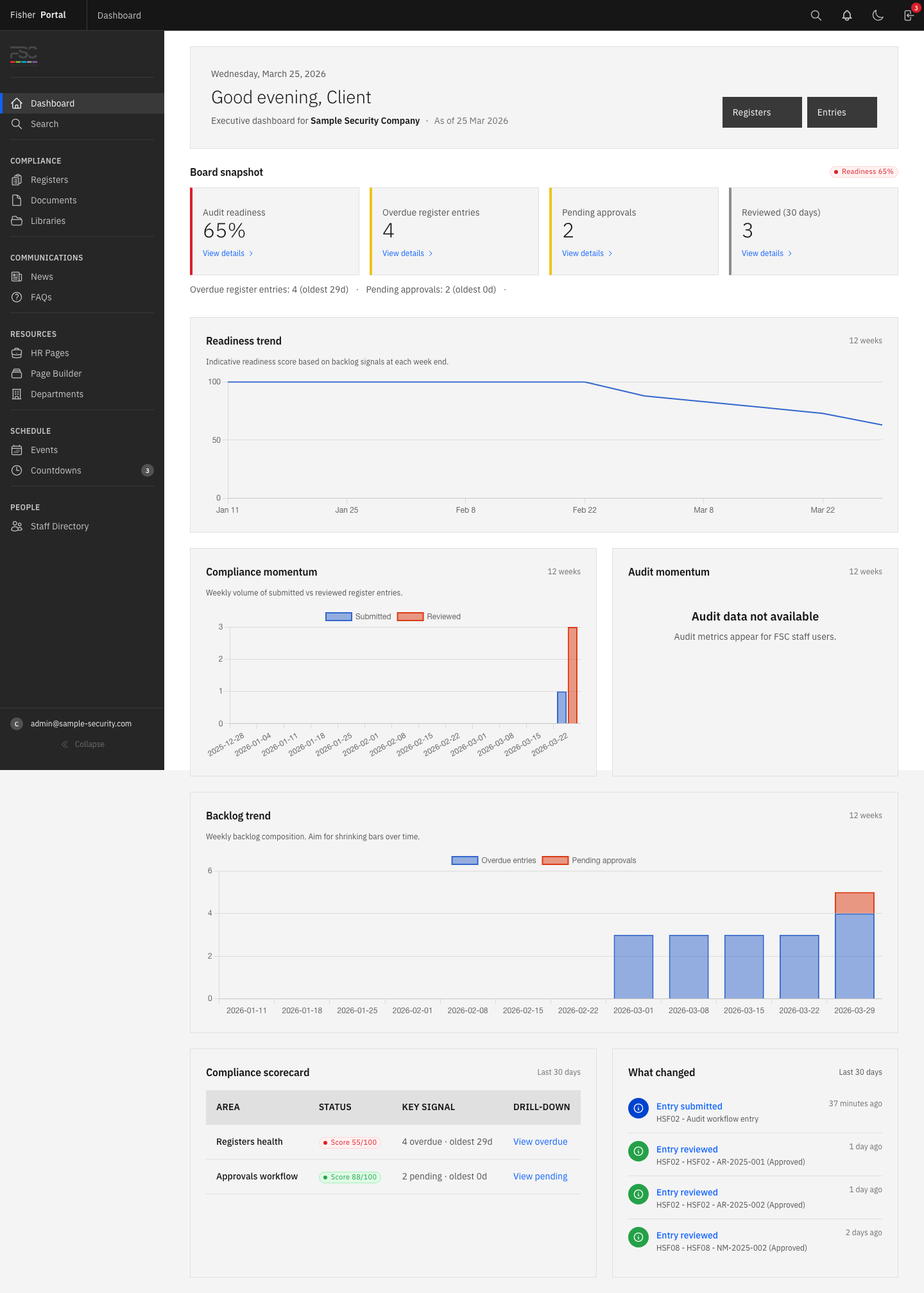
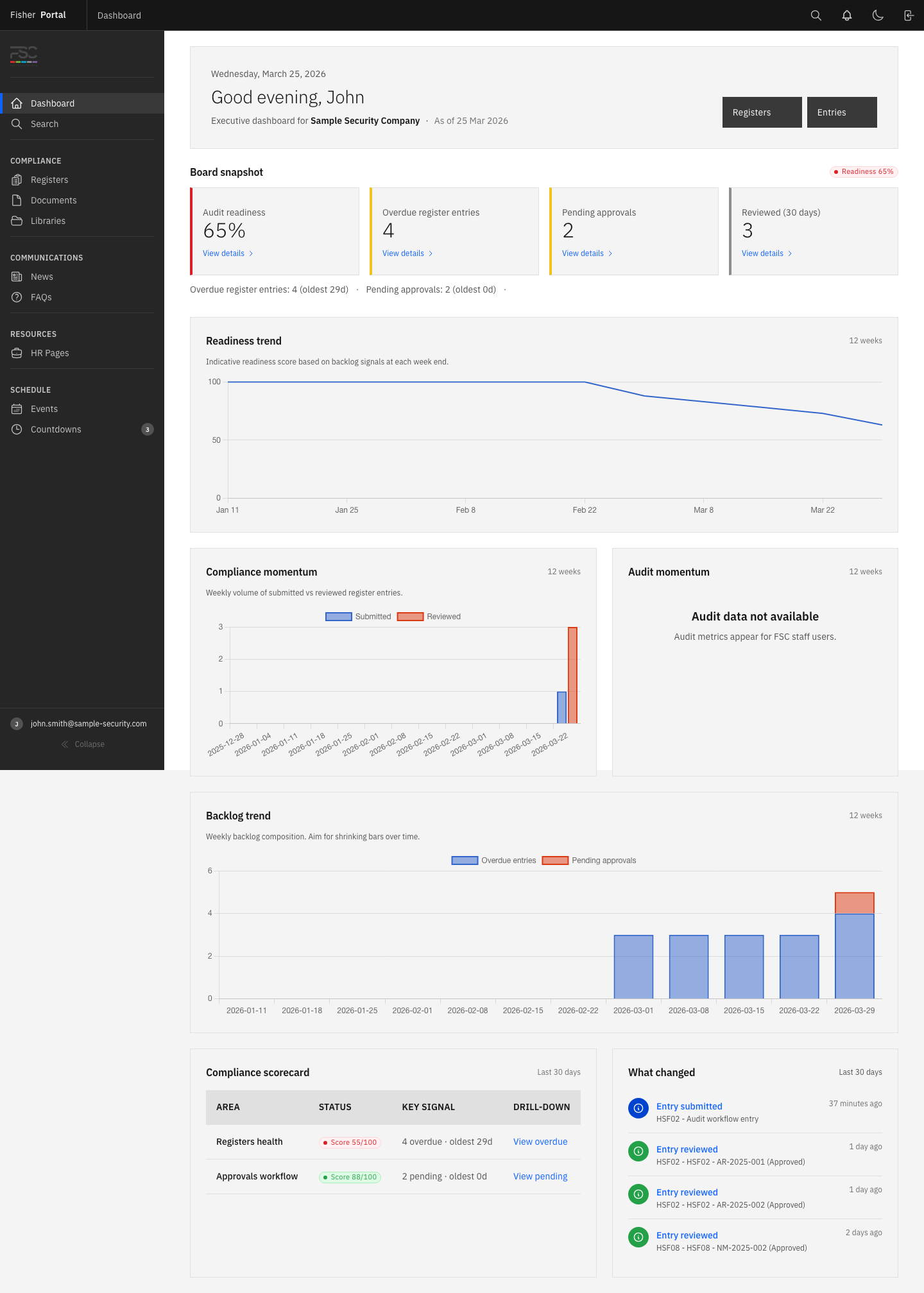
| Dashboard | View personalised dashboard with relevant metrics |
| Registers | Browse all registers and view all entries within their organisation |
| Register entries | Create new entries, edit their own draft/rejected entries, submit entries for approval |
| Documents | Browse the document library and view document details (read-only) |
| Libraries | Browse SharePoint-connected libraries (read-only) |
| News and FAQs | View news posts and frequently asked questions |
| Events and Countdowns | View upcoming events and active countdowns |
| HR Pages | View human resources content |
| Notifications | Receive and manage notifications about entries, documents, and system events |
| Search | Search across all content they have access to |
| Theme preference | Toggle between light and dark mode |
Client Staff cannot create registers, approve/reject entries submitted by others, manage documents, or edit CMS content.
5. Unauthenticated (Not Signed In)
Who: Anyone who has not yet signed in to the portal.
Access: Extremely limited — authentication-related pages only.
| Capability | Details |
|---|---|
| Sign in | Access the login page |
| Sign up | Create a new account (if enabled by the administrator) |
| Password reset | Request a password reset email |
| Static pages | View About, Privacy, Terms, and Contact pages |
All other features require signing in.
How Roles Are Assigned
- System roles (Super Admin, Admin, User) are set on the User record by a Super Admin.
- Membership roles (Client Admin, Staff, Manager, Fisher Admin) are set per client organisation through the Memberships system.
- A single user can have different membership roles across different client organisations. For example, someone might be a Client Admin for one organisation and a Staff member for another.
Role Hierarchy Summary
Super Admin | +-- FSC Staff (compliance features across clients) | +-- Client Admin (full control within their organisation) | +-- Client Staff (view resources, manage own entries) | +-- Unauthenticated (login/signup only)Tips
- Not sure of your role? Check the Dashboard after signing in. Your role is displayed on one of the overview cards.
- Need more access? Contact your organisation’s Client Admin or Fisher Security Consulting to discuss upgrading your role.
- Multiple organisations: If you belong to more than one client organisation, your role may differ between them. Your permissions are always determined by your membership role for the organisation you are currently viewing.
Troubleshooting
| Problem | Solution |
|---|---|
| I cannot see certain sidebar links | Your role does not have access to those features. Contact your administrator if you believe you should have access. |
| I cannot approve register entries | Only Client Admins (and above) can approve or reject entries. Contact your administrator. |
| I cannot create new registers | Only Client Admins (and above) can create registers. Client Staff can only create entries within existing registers. |
| I cannot edit documents | Document management is restricted to Client Admins and above. Client Staff have read-only access to the document library. |
| I cannot see compliance features (Standards, Audits) | Compliance features are only available to FSC Staff and Super Admins. |