
Account Access and Passwords
This guide covers the account tasks available before and after you sign in.
Sign In
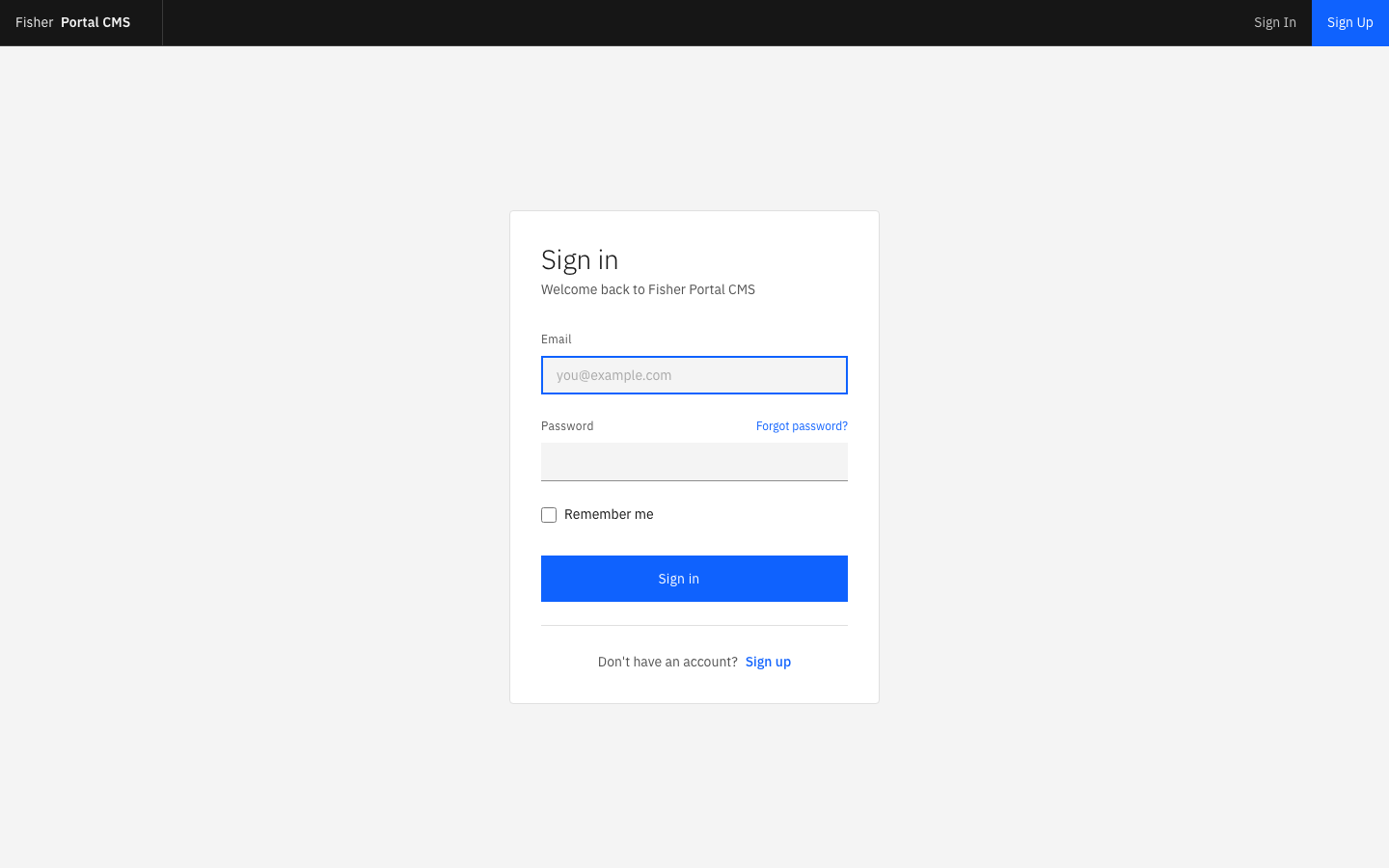
- Open the Fisher Portal address supplied by your administrator.
- Enter your email address.
- Enter your password.
- Select Sign in.
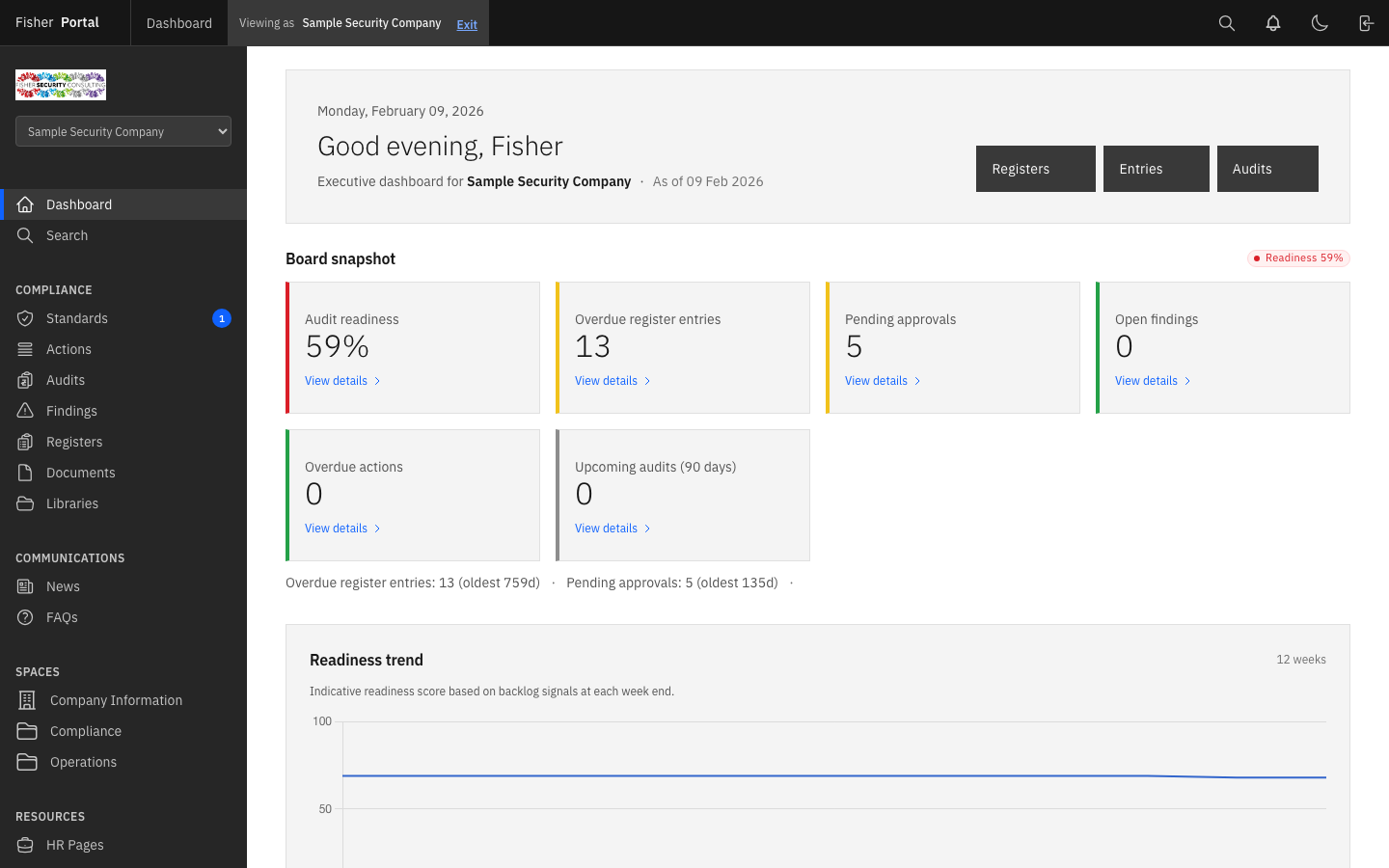
After a successful sign-in, the portal opens the dashboard and loads the navigation allowed by your role.
If the details are not accepted, check that:
- the email address is the one used for your account;
- Caps Lock is not on;
- there are no spaces before or after the email address;
- you are using the correct portal address.
Create an Account
Some organisations allow a new user to complete the registration form from the sign-in screen. In other cases, a Client Admin or Super Admin creates the account and sends the details directly.
If Create account is available:
- Select the account creation link.
- Enter your name and work email address.
- Create a password that meets the rules shown on screen.
- Re-enter the password.
- Submit the form.
- Sign in and confirm that the correct organisation is shown.
Reset a Forgotten Password
- From the sign-in page, select Forgot your password?
- Enter the email address used for your Fisher Portal account.
- Select Send reset instructions.
- Check your inbox and junk folder.
- Open the password reset link in the email.
- Enter and confirm the new password.
- Return to the sign-in screen and use the new password.
For security, use a password that is unique to Fisher Portal and do not share it with another person.
Update Your Details
After signing in:
- Open your account menu or profile.
- Select Edit profile or Account settings.
- Update the available name, contact or password fields.
- Save the changes.
- Check for the confirmation message.
Your organisation or a Super Admin controls your client membership and role. If those details need to change, contact an administrator rather than creating a second account.
See profile and display preferences →
Sign Out
- Select the sign-out control in the header or account area.
- Wait for the sign-in page to appear.
- Close the browser if you are using a shared device.
Always sign out on a shared or public computer.
Public Information Pages
The portal also provides public pages for general information, privacy, terms and contact details. These can be opened without access to client data.
Troubleshooting
| Problem | What to do |
|---|---|
| Reset email has not arrived | Check the email address, inbox rules and junk folder. Wait a few minutes before requesting another message. |
| Reset link has expired | Return to the sign-in screen and request a new reset email. |
| Account opens the wrong organisation | Sign out and contact your administrator before entering any data. |
| A management section is missing | Your role may not include that area. Check Understanding Roles and speak to your administrator. |
| Account appears locked or inactive | Contact your Client Admin or Fisher Security Consulting. |