
Dashboard and Readiness
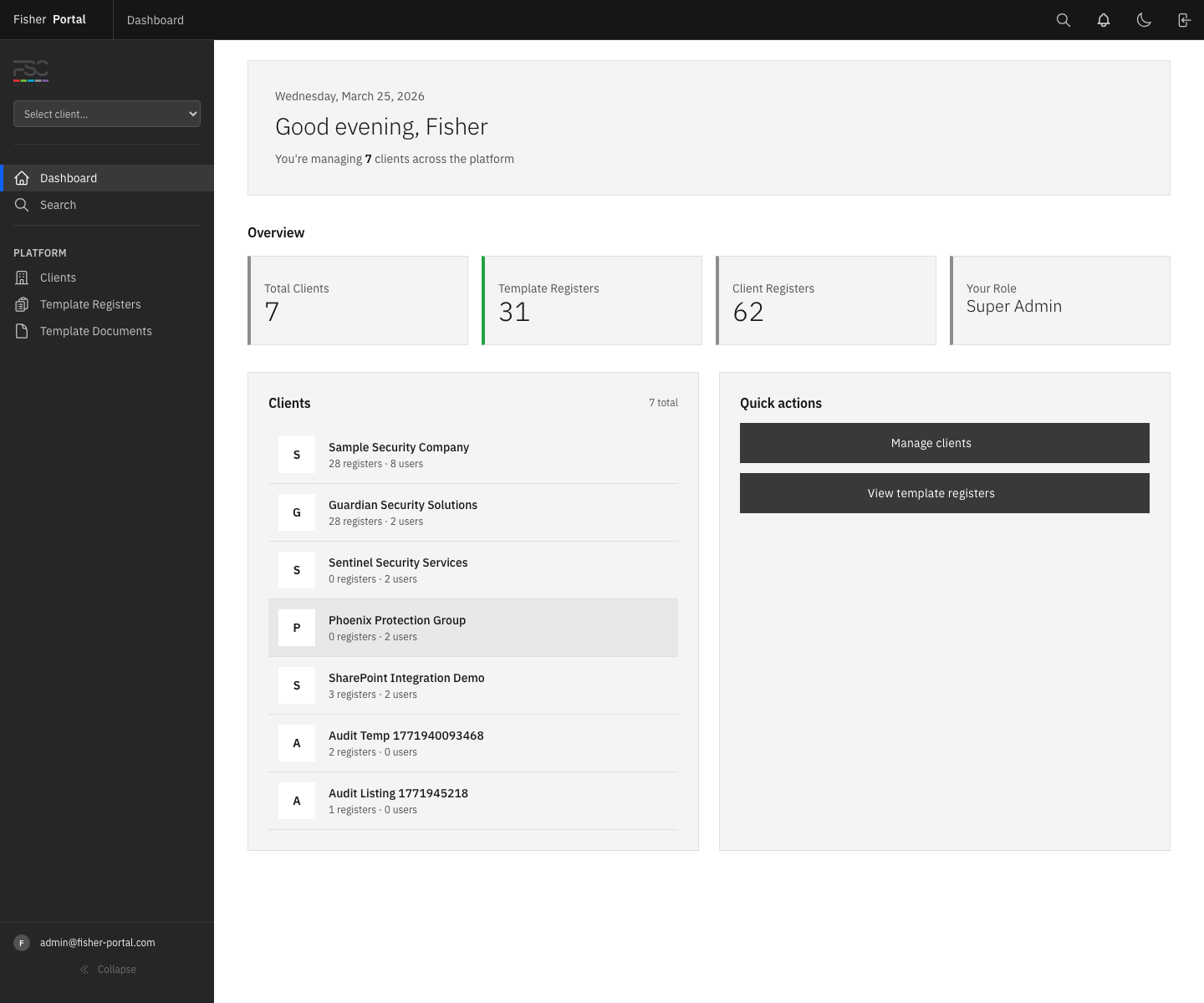
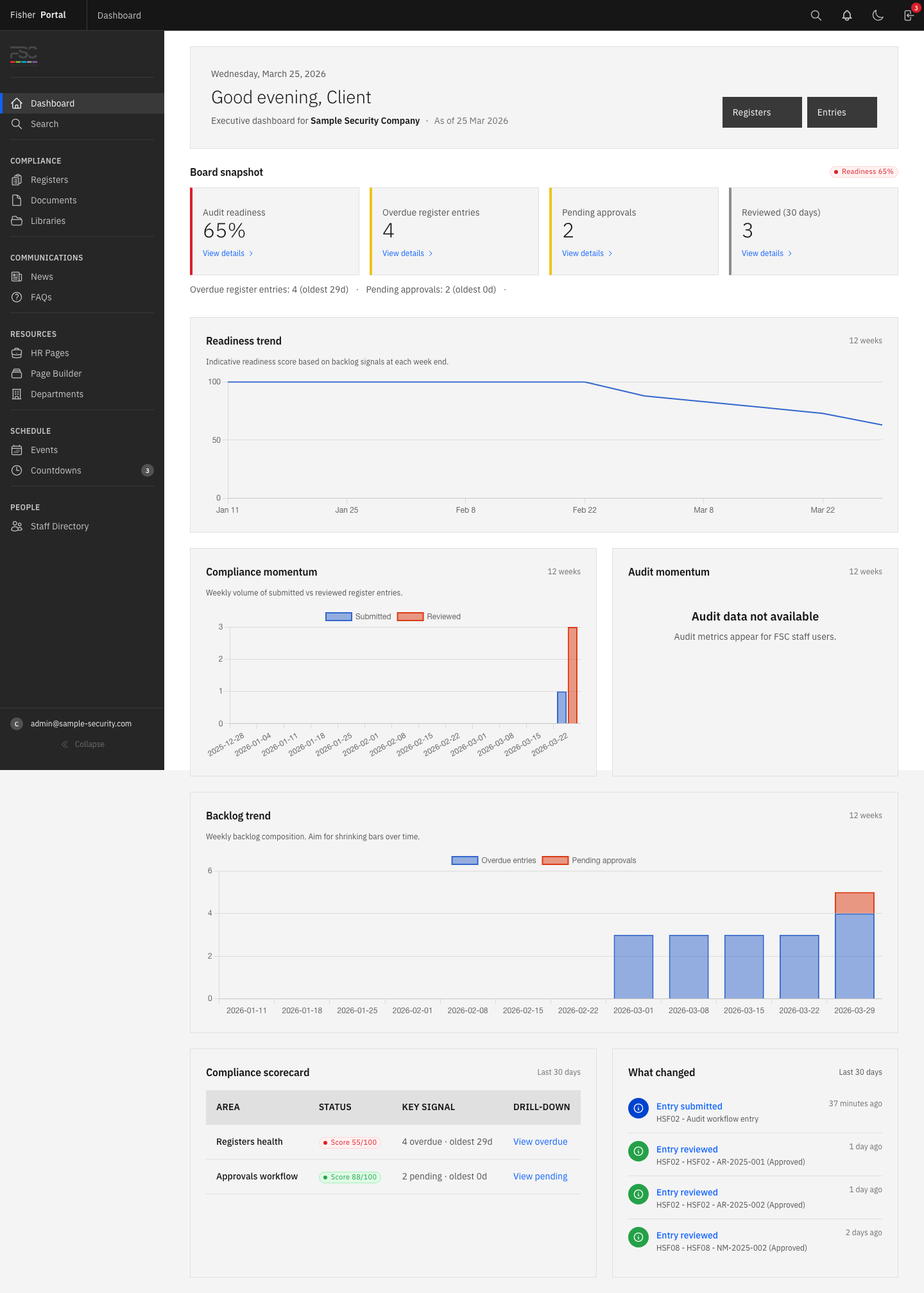
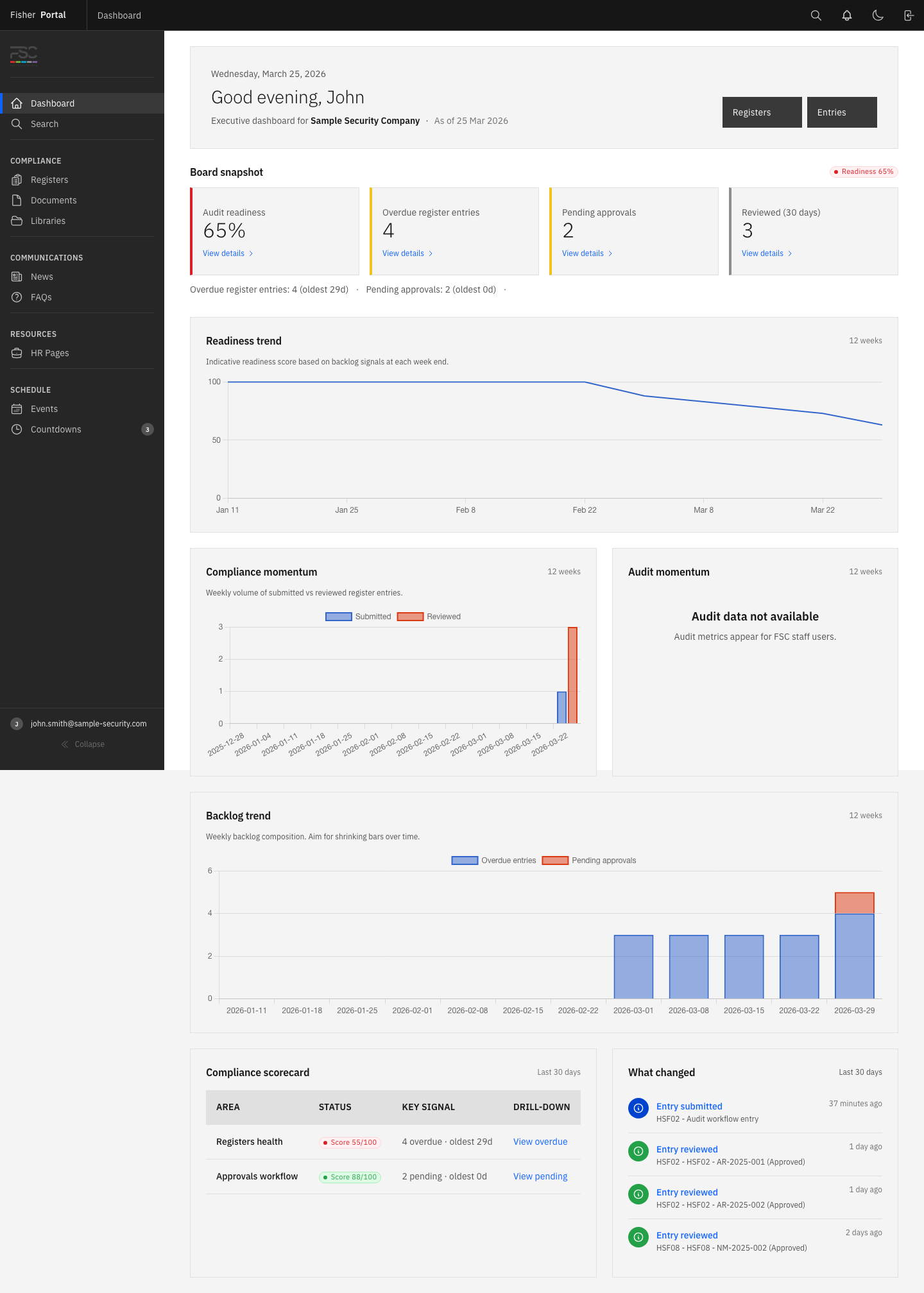
The dashboard turns current portal activity into a practical work list. What you see depends on your role and the client context you are working in.
Dashboard by Role
| Role | Main dashboard focus |
|---|---|
| Super Admin | Platform totals, client organisations, templates and client-level access |
| FSC Staff | Assigned or available clients and their compliance position |
| Client Admin | Organisation readiness, register activity, approvals and administration shortcuts |
| Client Staff | Organisation activity, records that need attention and useful content |
Read the Organisation Snapshot
The client dashboard can include:
- a readiness score with a green, amber or red position;
- overdue register entries;
- entries waiting for approval;
- open audit findings;
- open or overdue compliance actions;
- clause reviews that have passed their next review date;
- recent activity and useful shortcuts.
Only information available to your role contributes to the actions you can open from the page.
Open Readiness Details
- Open Dashboard.
- Select the readiness score or View readiness.
- Confirm the organisation name and As of date.
- Review the 12-week readiness trend.
- Read What drives the score to understand the current position.
- Use the scorecard links to open the records behind each signal.
The readiness page is a drill-down, not a replacement for the underlying records. Update the register entry, finding, action or clause review itself; the dashboard will then reflect the latest state.
Understand the Scorecard
| Area | What the signal means | Recommended response |
|---|---|---|
| Registers | Draft, submitted or other entries are past their expected date | Open overdue entries and update or close the oldest first |
| Approvals | Submitted entries are waiting for a decision | Review the oldest submission and approve, reject or request clarification |
| Findings | Audit findings remain open | Confirm the owner, linked clause and corrective route |
| Actions | Corrective actions are open or overdue | Update the action, due date and status; complete it when evidence is available |
| Reviews | A clause’s next review date has passed | Reassess the clause, evidence and RAG position, then set the next review date |
The exact score and weighting are shown on the readiness page. Treat the number as a prioritisation aid. It does not replace a formal audit or certification decision.
Work Through the Backlog
- Open Readiness.
- Choose a backlog tab such as Overdue entries or Pending approvals.
- Start with the oldest item.
- Open the linked record.
- Complete the appropriate action in that module.
- Return to readiness and continue with the next item.
For FSC Staff and Super Admins, the backlog can also include open findings, overdue compliance actions and overdue clause reviews.
Switch Client Context Safely
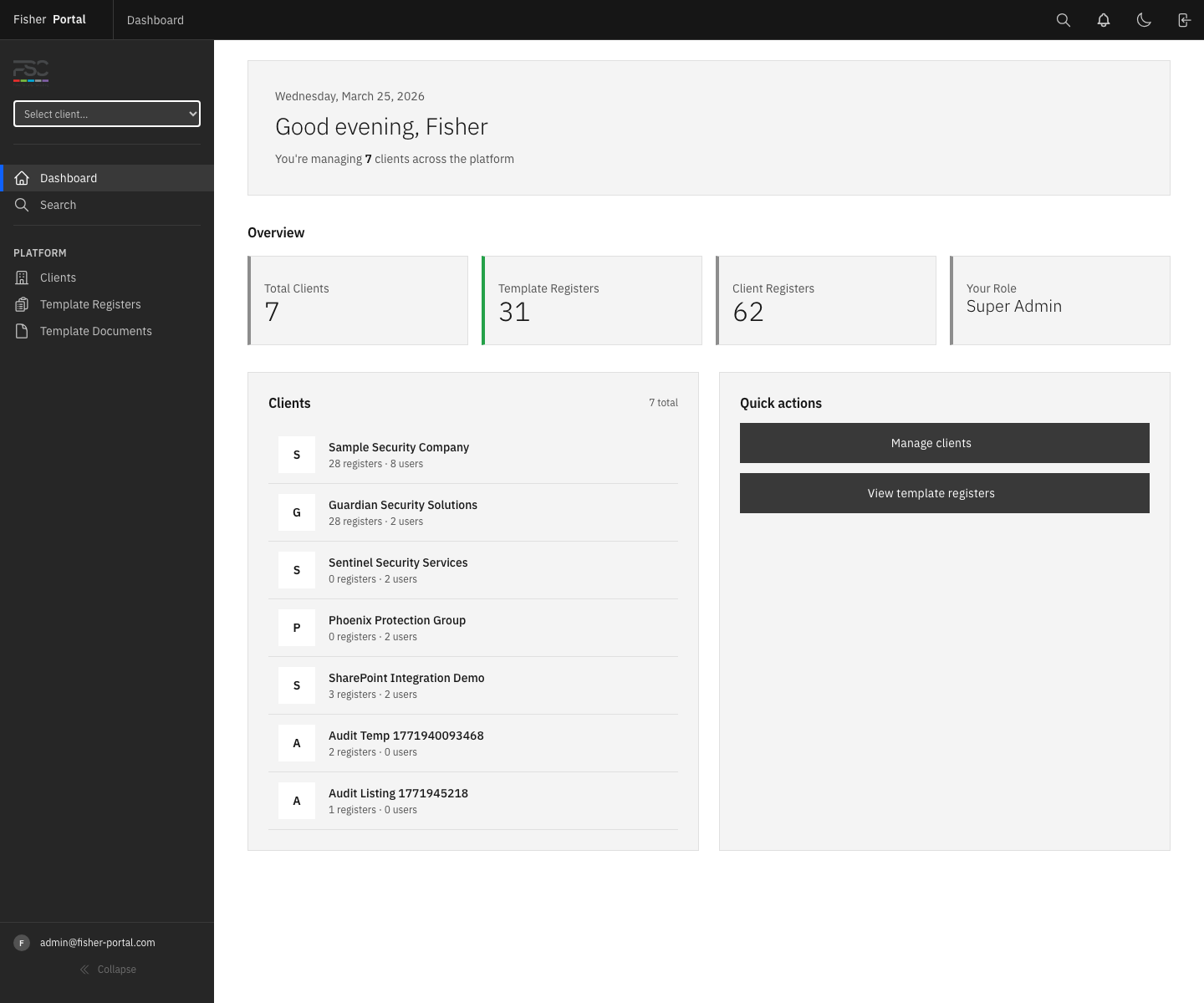
Super Admins and platform FSC users may see more than one organisation.
- Confirm the client name before opening or changing any record.
- Use the client selector or assigned-client link to move to the correct organisation.
- Check the client name again on the destination page.
- Exit client context when the review is complete.
Suggested Daily Routine
- Check unread notifications.
- Review the readiness position.
- Handle overdue records and pending approvals.
- Review due actions and findings if your role includes the compliance module.
- Check news, events and countdowns.
- Use search for any record that is not immediately visible.
Related Guides
- Standards and clauses
- Register entries and approval workflow
- Managing audits
- Compliance actions
- Notifications
Troubleshooting
| Problem | What to do |
|---|---|
| No client is shown on a platform dashboard | Select an organisation before opening readiness details. |
| A metric is zero when work is expected | Confirm the client context and check the source module directly. |
| A completed item still appears | Refresh the page. Dashboard summaries may take a short time to update. |
| A compliance backlog section is unavailable | Standards, audits and actions are managed by FSC Staff or Super Admins. Ask your compliance contact to review it. |