
Search and Saved Searches
Global search helps you find information without browsing each module. Results only include records that your signed-in account is allowed to see.
What Search Can Find
Depending on your role and organisation setup, search can return:
- registers and register entries;
- portal documents and connected library items;
- news posts and FAQs;
- events and countdowns;
- HR pages;
- notifications;
- users and clients for roles with platform administration access.
Run a Basic Search
- Select Search in the sidebar or the search icon in the header.
- Enter a clear word, title, reference or document code.
- Select Search or press Enter.
- Review the result groups.
- Select a result to open the original record.
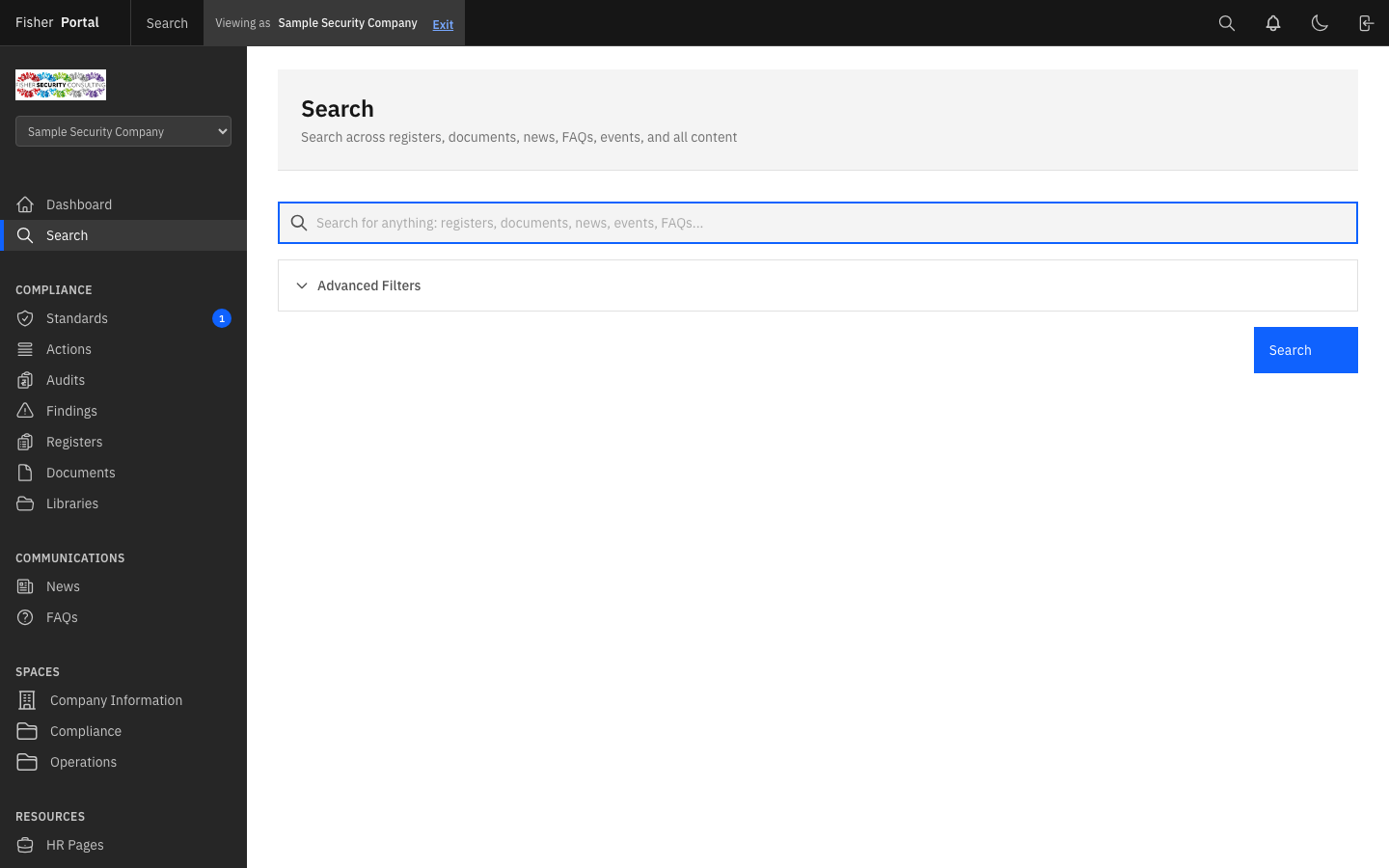
Use specific terms where possible. Searching for HSF02 or a policy title normally gives a more useful result than searching for form or policy.
Read Search Results
Results are grouped by content type so that similarly named records are easier to distinguish. Each result shows the information needed to identify it, such as a register code, status, date or content summary.
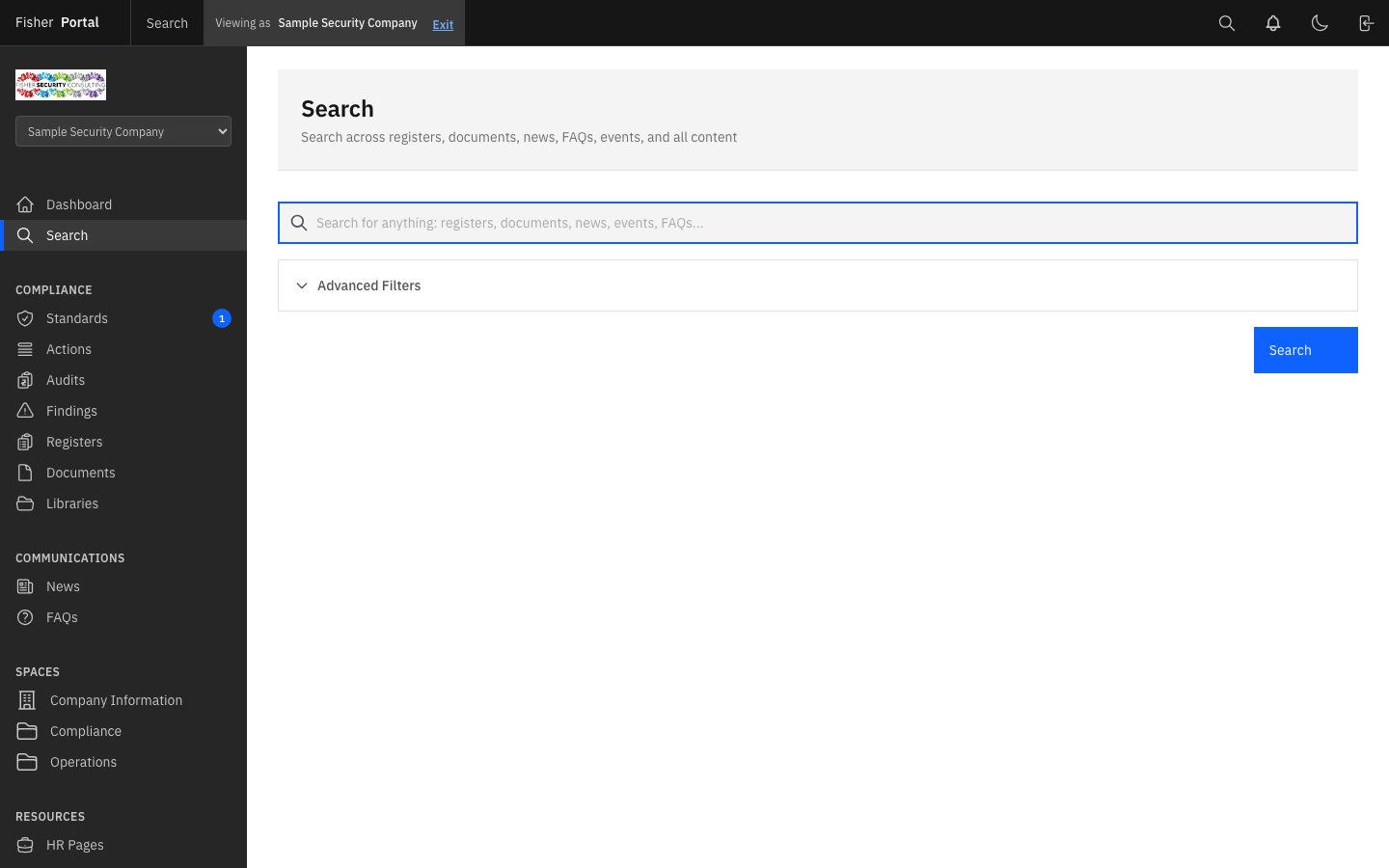
If a result is missing, confirm that:
- you are in the correct client context;
- the spelling or reference is correct;
- the content is published or active;
- your role is allowed to see it.
Use Advanced Filters
- Enter a search term.
- Open Advanced Filters.
- Choose the relevant Type if you only want one kind of result.
- Choose a workflow Status when looking for register entries.
- Add a start or end date when the time period matters.
- Run the search again.
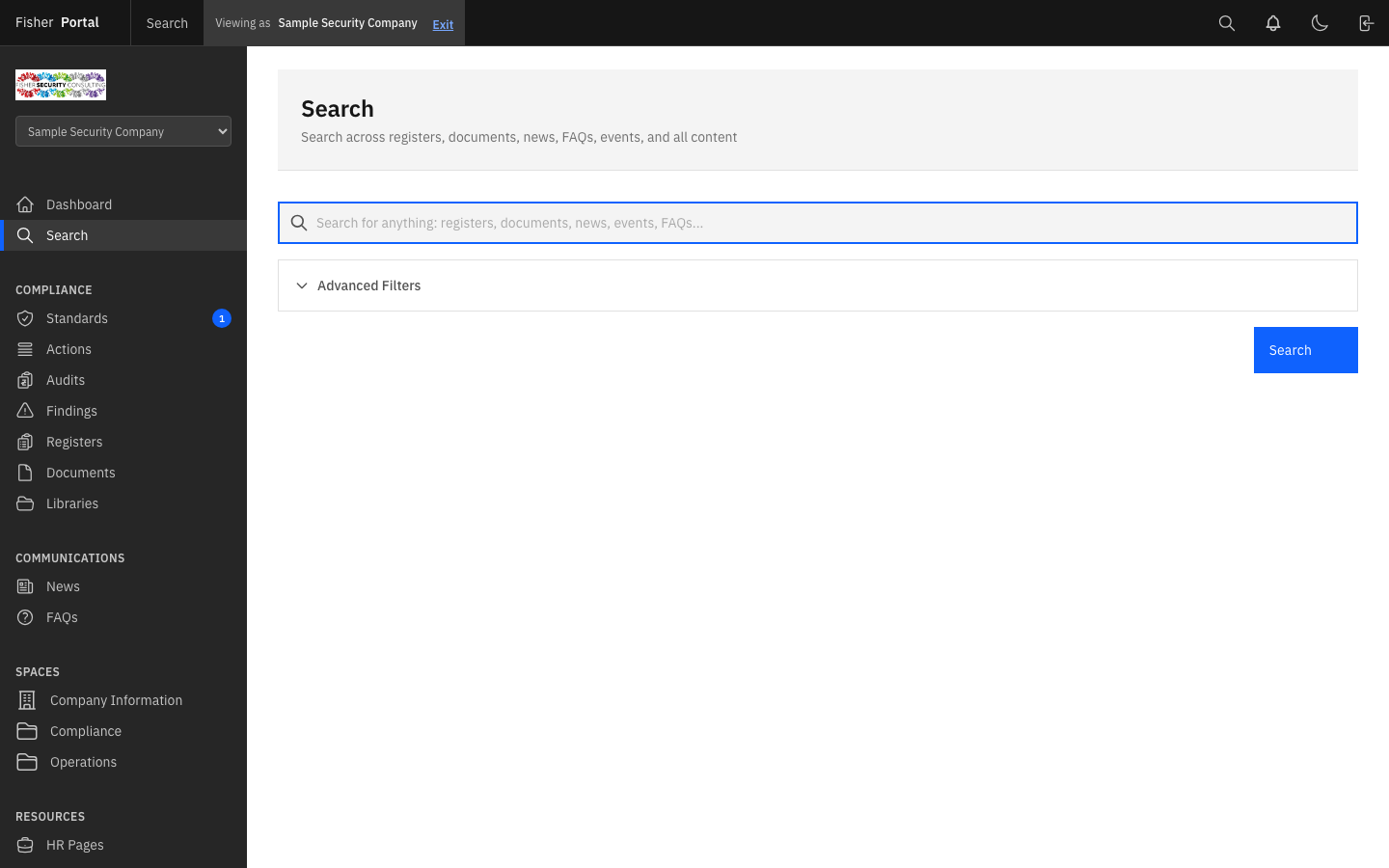
Start with one or two filters. Too many filters can hide a useful result.
Save a Search
Saved searches are useful for repeated work such as pending approvals, recent incidents or documents with a common reference.
- Run the search and apply the required filters.
- Select Save Search.
- Give it a short, clear name.
- Select Save.
- The saved search appears above the main search form.
Examples of useful names include:
Pending accident entriesPolicies due for reviewRecent training recordsSIA licence documents
Open, Mark or Remove a Saved Search
- Open the Search page.
- Select a saved-search name to run it.
- Hover over or open its actions to reveal management controls.
- Select Default if you want to mark it as your main saved search.
- Select Delete when the saved search is no longer useful.
The default marker makes your preferred saved search easy to recognise. Always check the visible query and filters before using the results for a decision.
Search from the Keyboard
The command palette offers a quick route to common pages and search.
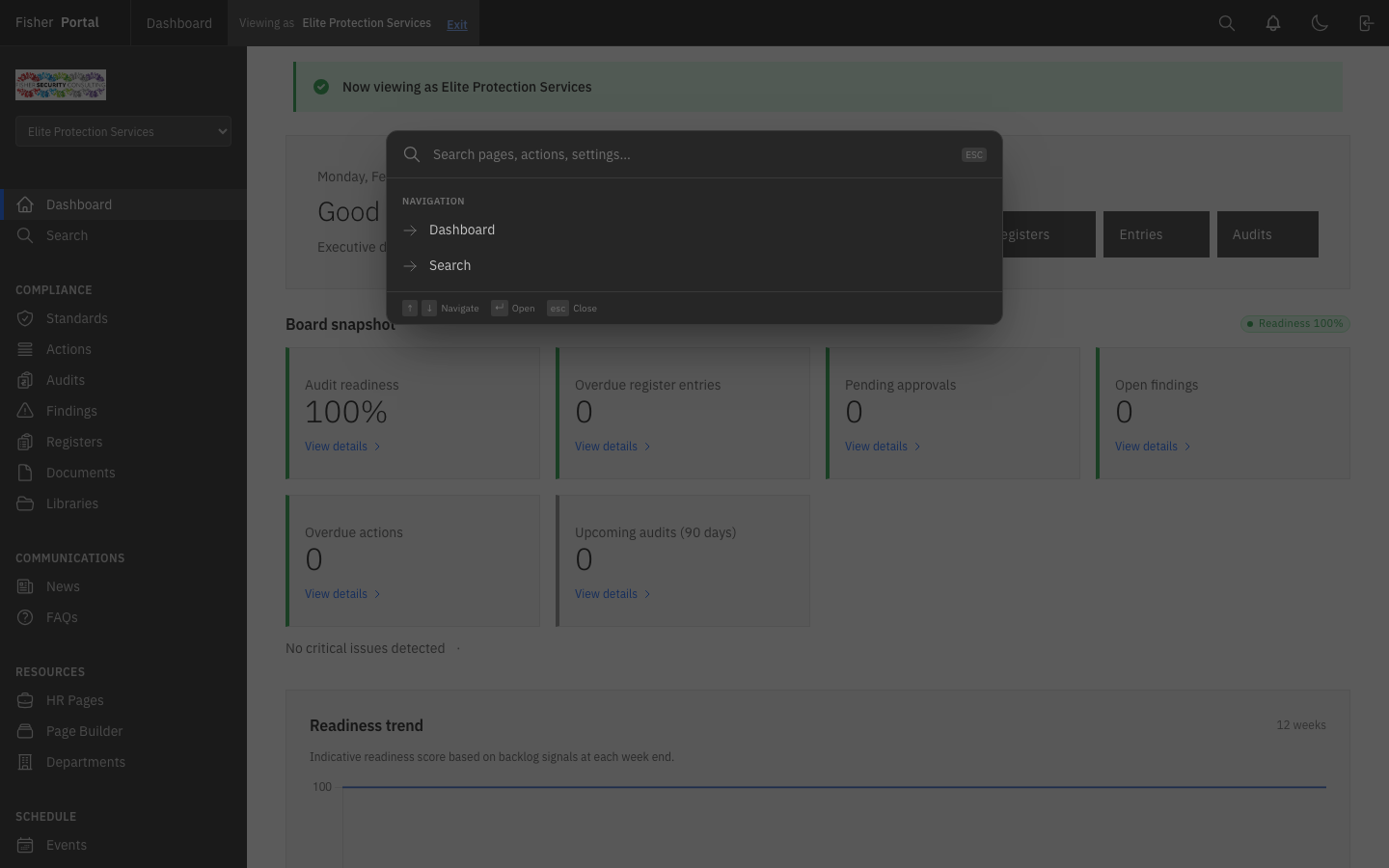
Use the keyboard shortcut shown in the portal header, type the page or term you need, and choose the relevant result.
Search Tips
- Search by a register or document code when one is available.
- Try a person’s surname, incident reference or exact policy phrase.
- Remove filters one at a time if a search is empty.
- Open the source record before relying on a result summary.
- Save searches for repeat work, not one-off questions.
- Delete old saved searches so the useful list stays short.
Troubleshooting
| Problem | What to do |
|---|---|
| No results appear | Check spelling, remove filters and try a shorter term. |
| A colleague can see a result that you cannot | Access is role- and client-based. Ask your administrator to confirm your membership. |
| A published item is missing | Check the correct client context and confirm that the item is active or published. |
| A saved search is no longer useful | Delete it and create a replacement with the current filters. |
| The same title appears more than once | Use the content-type heading, code, status and date to choose the correct record. |