
Data Access and Record History
Fisher Portal controls access at both the account and organisation level. This guide explains the safeguards users will notice while working in the system.
Access Follows Your Role
Every signed-in user has a role and one or more client memberships. Together, they decide which organisations, modules and management controls are available.
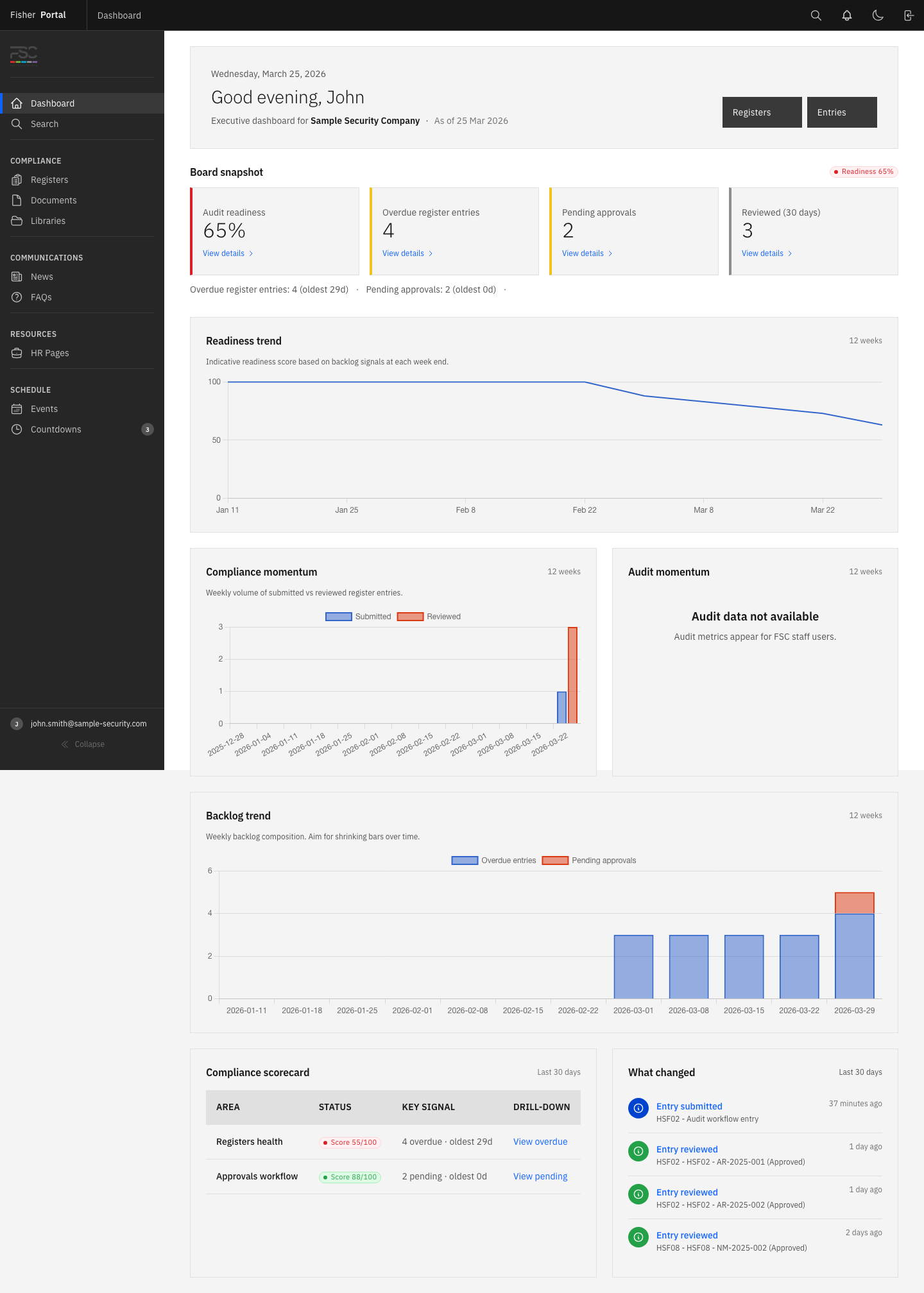
- Client Staff can view organisation content and manage the register entries allowed by the workflow.
- Client Admins can manage the organisation’s operational setup and review submitted work.
- FSC Staff can work with assigned client compliance records.
- Super Admins can manage the platform and enter a controlled client context.
See the full role comparison →
Client Data Stays Separated
When you are working inside an organisation, lists, searches and links are limited to that client context. A user should not be able to open another organisation’s record by changing a web address.
Before adding or changing information:
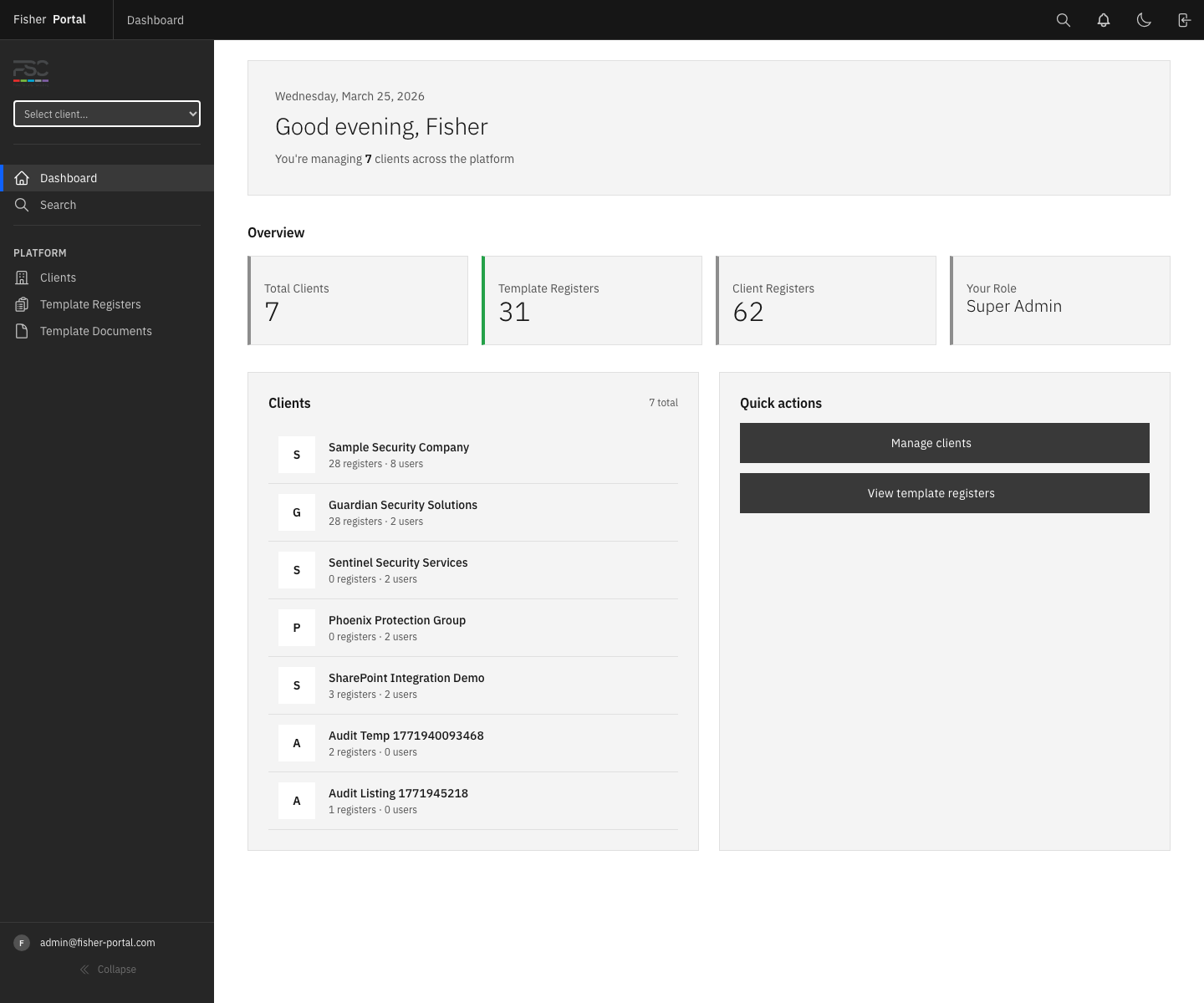
- Confirm the organisation name on the page.
- Check the account shown in the navigation.
- For platform roles, check the current client selector.
- Stop and sign out if the organisation is wrong.
Archived Records
Many records use an archive-style deletion process. This removes the item from normal lists without immediately erasing its underlying history.
This is useful for:
- preserving an audit trail;
- preventing old items appearing in day-to-day work;
- supporting controlled recovery by an authorised administrator;
- retaining links between related compliance records.
Do not use Delete as a way to correct an approval or audit decision. Update the record or add a clear comment so the history remains understandable.
Document and Page Versions
Documents and published pages may keep versions or change history.
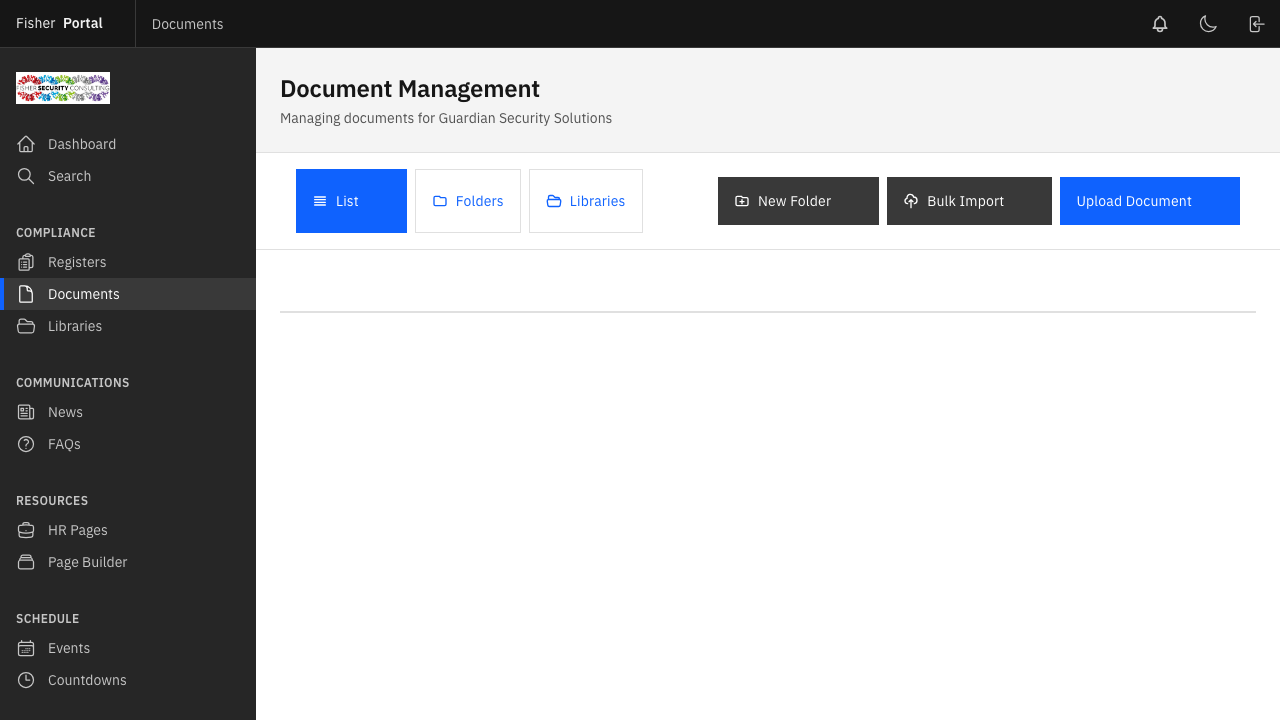
- Open the document or page.
- Review the current version and last updated date.
- Open version history when it is available.
- Compare the earlier version before restoring it.
- Record why a previous version is being restored.
For staff, the main rule is simple: open the record in the portal before use so that you are working from the current copy.
Approval History and Comments
Register entries show their workflow state. Submitted work can be reviewed, commented on, approved or rejected by an authorised reviewer.
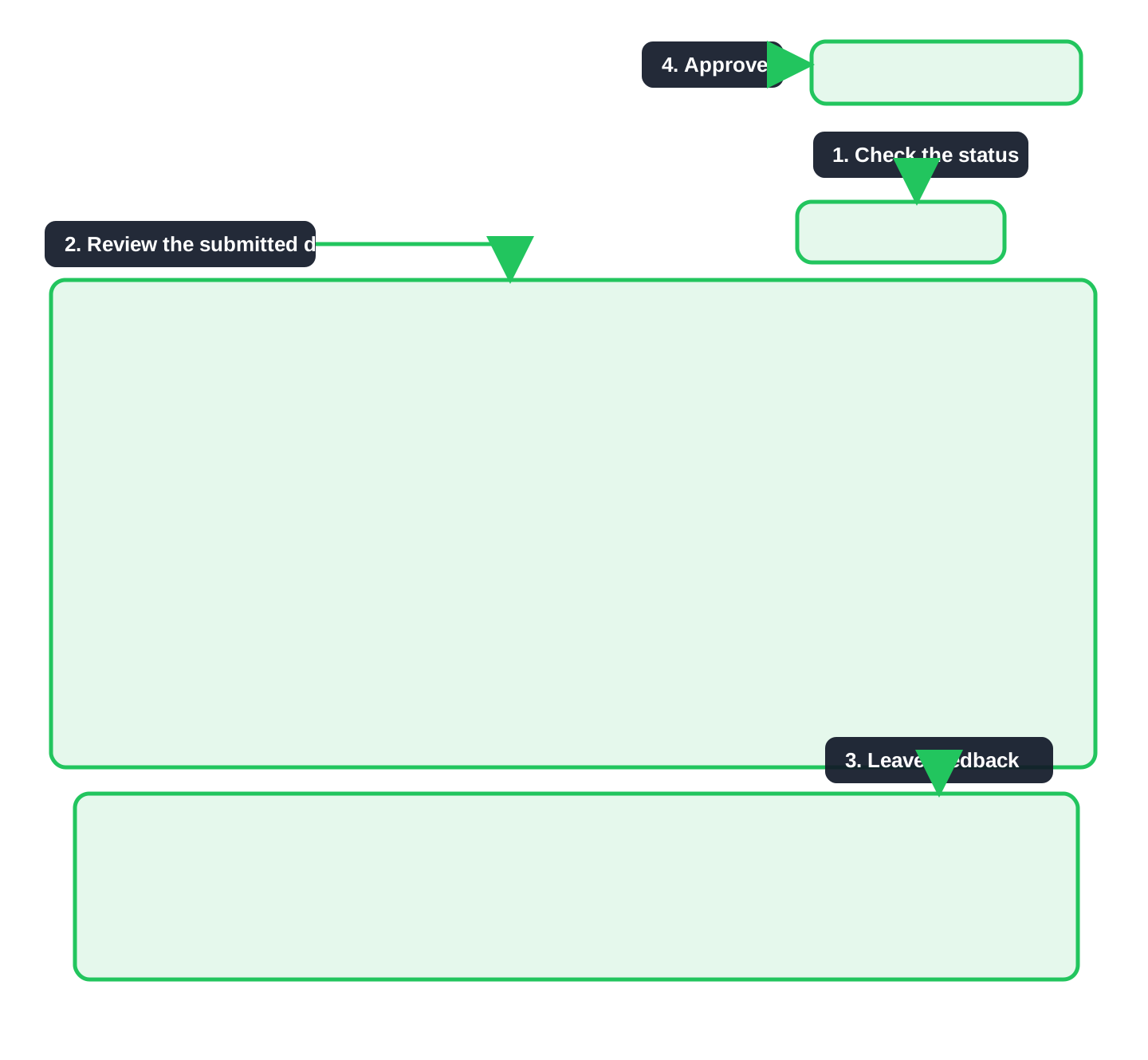
Use comments to explain:
- what needs to change;
- why an entry was rejected;
- which evidence was checked;
- what follow-up is expected.
Avoid including passwords, private keys or other secrets in comments or free-text fields.
Safe Support Access
Super Admins have two support tools:
- Client context opens an organisation while keeping the Super Admin identity.
- Impersonation temporarily shows the portal as a specific user.
Impersonation is clearly marked by a warning banner and should only be used for a defined support task. Exit as soon as the check is complete.
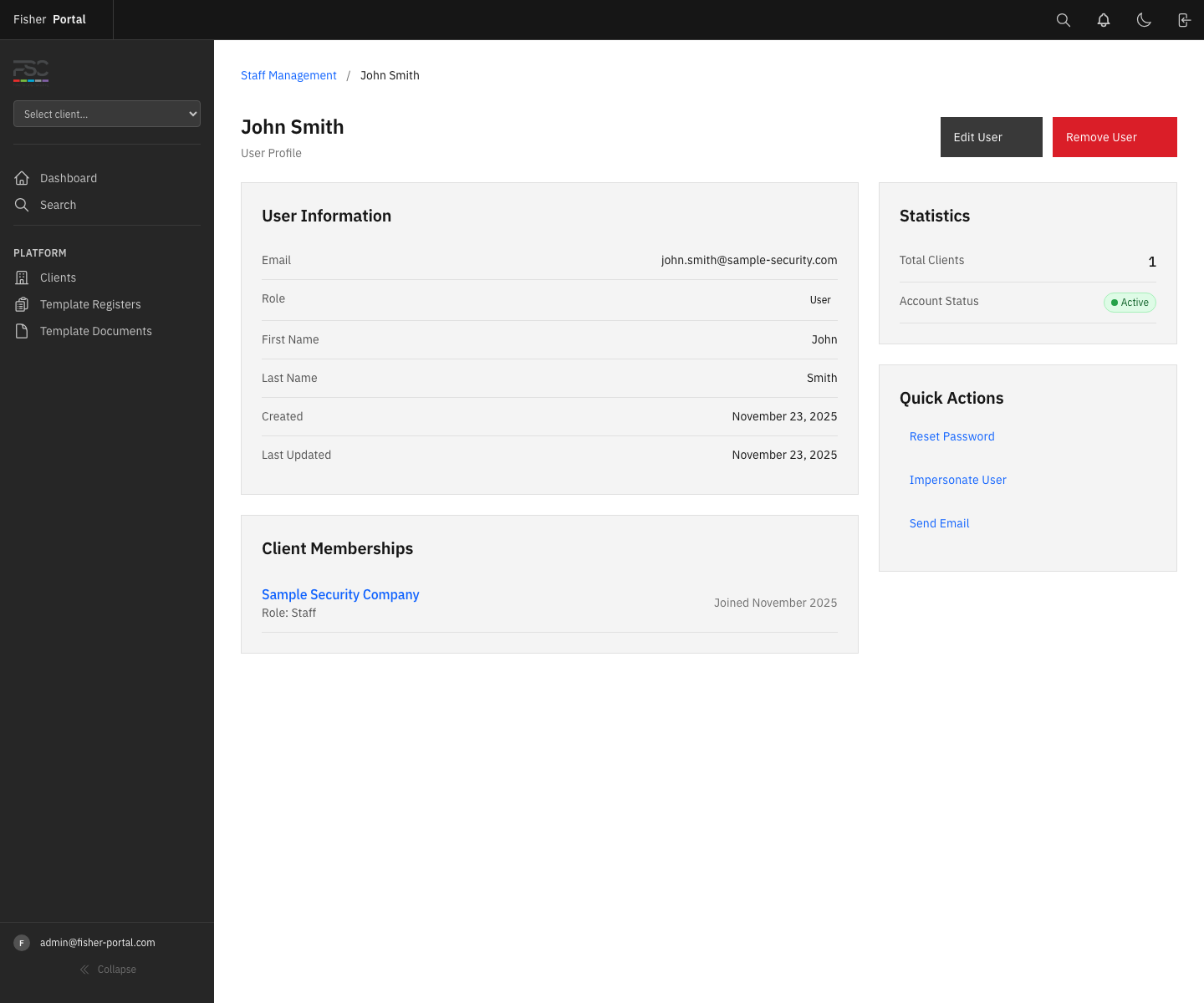
See the controlled impersonation process →
What to Do When Access Is Denied
An access-denied message normally means the account or current client context does not include that action.
- Do not repeatedly retry the action.
- Confirm the organisation and account.
- Return to the dashboard.
- Contact your Client Admin or Fisher Security Consulting.
- Explain which page and action you were trying to use, without sending your password.
Good Practice Checklist
- Check the client name before changing data.
- Use your own account; do not share logins.
- Sign out on shared devices.
- Add clear comments when a record changes state.
- Open documents from the portal to get the current copy.
- Ask an administrator to change access rather than creating a second account.
- Never place passwords or connection secrets in portal content.